Don't miss your chance to take the Fabric Data Engineer (DP-600) exam for FREE! Find out how by attending the DP-600 session on April 23rd (pacific time), live or on-demand.
Learn moreNext up in the FabCon + SQLCon recap series: The roadmap for Microsoft SQL and Maximizing Developer experiences in Fabric. All sessions are available on-demand after the live show. Register now
Hello all!
I have a doubt regarding Power Query.
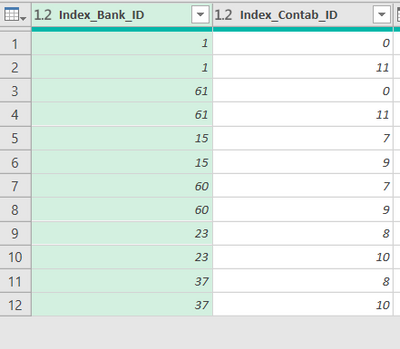
I have 2 columns, with duplicates. I want to keep only those that are unique in both. For instance:
If I remove duplicates from column1, I only want to remove if they stay unique in column2.
I.e, if I remove row 1 I can't remove row 3 otherwise I would have two "11".
I hope my explanation made sense.
Thanks in advance.
Solved! Go to Solution.
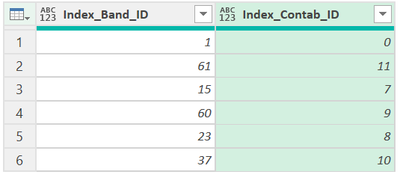
Use below Query to achieve this output
let
Source = Excel.CurrentWorkbook(){[Name="Table1"]}[Content],
#"Added Index" = Table.AddIndexColumn(Source, "Index", 0, 1, Int64.Type),
#"Inserted Modulo" = Table.AddColumn(#"Added Index", "Modulo", each Number.Mod([Index], 4), type number),
#"Filtered Rows" = Table.SelectRows(#"Inserted Modulo", each ([Modulo] = 0 or [Modulo] = 3)),
#"Removed Columns" = Table.RemoveColumns(#"Filtered Rows",{"Index", "Modulo"})
in
#"Removed Columns"
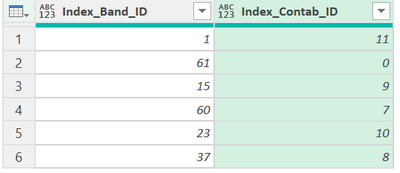
To achieve the below output, replace [Modulo] = 0 or [Modulo] = 3 in 5th row of the code above
with [Modulo] = 1 or [Modulo] = 2
Updated code is below
let
Source = Excel.CurrentWorkbook(){[Name="Table1"]}[Content],
#"Added Index" = Table.AddIndexColumn(Source, "Index", 0, 1, Int64.Type),
#"Inserted Modulo" = Table.AddColumn(#"Added Index", "Modulo", each Number.Mod([Index], 4), type number),
#"Filtered Rows" = Table.SelectRows(#"Inserted Modulo", each [Modulo] = 1 or [Modulo] = 2),
#"Removed Columns" = Table.RemoveColumns(#"Filtered Rows",{"Index", "Modulo"})
in
#"Removed Columns"
Use below Query to achieve this output
let
Source = Excel.CurrentWorkbook(){[Name="Table1"]}[Content],
#"Added Index" = Table.AddIndexColumn(Source, "Index", 0, 1, Int64.Type),
#"Inserted Modulo" = Table.AddColumn(#"Added Index", "Modulo", each Number.Mod([Index], 4), type number),
#"Filtered Rows" = Table.SelectRows(#"Inserted Modulo", each ([Modulo] = 0 or [Modulo] = 3)),
#"Removed Columns" = Table.RemoveColumns(#"Filtered Rows",{"Index", "Modulo"})
in
#"Removed Columns"
To achieve the below output, replace [Modulo] = 0 or [Modulo] = 3 in 5th row of the code above
with [Modulo] = 1 or [Modulo] = 2
Updated code is below
let
Source = Excel.CurrentWorkbook(){[Name="Table1"]}[Content],
#"Added Index" = Table.AddIndexColumn(Source, "Index", 0, 1, Int64.Type),
#"Inserted Modulo" = Table.AddColumn(#"Added Index", "Modulo", each Number.Mod([Index], 4), type number),
#"Filtered Rows" = Table.SelectRows(#"Inserted Modulo", each [Modulo] = 1 or [Modulo] = 2),
#"Removed Columns" = Table.RemoveColumns(#"Filtered Rows",{"Index", "Modulo"})
in
#"Removed Columns"
That worked, thank you.
If you have recently started exploring Fabric, we'd love to hear how it's going. Your feedback can help with product improvements.
A new Power BI DataViz World Championship is coming this June! Don't miss out on submitting your entry.
Experience the highlights from FabCon & SQLCon, available live and on-demand starting April 14th.
| User | Count |
|---|---|
| 5 | |
| 3 | |
| 3 | |
| 3 | |
| 2 |
| User | Count |
|---|---|
| 7 | |
| 5 | |
| 5 | |
| 5 | |
| 4 |