cancel
Showing results for 
Search instead for 
Did you mean: 

The Power BI Data Visualization World Championships is back! Get ahead of the game and start preparing now! Learn more

Reply
Anonymous
Not applicable

Power Query: Unique values in both columns

Hello all!


I have a doubt regarding Power Query.


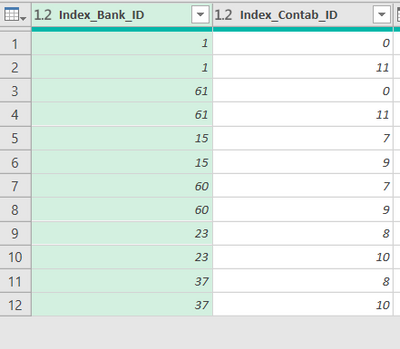
I have 2 columns, with duplicates. I want to keep only those that are unique in both. For instance:


eduardomedeiros_0-1647015638133.png


If I remove duplicates from column1, I only want to remove if they stay unique in column2.

I.e, if I remove row 1 I can't remove row 3 otherwise I would have two "11".


I hope my explanation made sense.


Thanks in advance.


1 ACCEPTED SOLUTION
Vijay_A_Verma
Super User
Super User

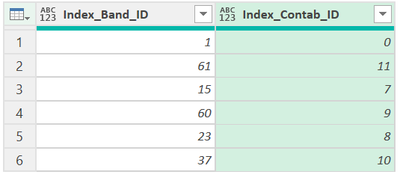
Use below Query to achieve this output


1.png


let
    Source = Excel.CurrentWorkbook(){[Name="Table1"]}[Content],
    #"Added Index" = Table.AddIndexColumn(Source, "Index", 0, 1, Int64.Type),
    #"Inserted Modulo" = Table.AddColumn(#"Added Index", "Modulo", each Number.Mod([Index], 4), type number),
    #"Filtered Rows" = Table.SelectRows(#"Inserted Modulo", each ([Modulo] = 0 or [Modulo] = 3)),
    #"Removed Columns" = Table.RemoveColumns(#"Filtered Rows",{"Index", "Modulo"})
in
    #"Removed Columns"


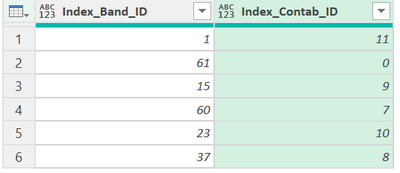
To achieve the below output, replace [Modulo] = 0 or [Modulo] = 3 in 5th row of the code above

with [Modulo] = 1 or [Modulo] = 2

Updated code is below

1.png

let
    Source = Excel.CurrentWorkbook(){[Name="Table1"]}[Content],
    #"Added Index" = Table.AddIndexColumn(Source, "Index", 0, 1, Int64.Type),
    #"Inserted Modulo" = Table.AddColumn(#"Added Index", "Modulo", each Number.Mod([Index], 4), type number),
    #"Filtered Rows" = Table.SelectRows(#"Inserted Modulo", each [Modulo] = 1 or [Modulo] = 2),
    #"Removed Columns" = Table.RemoveColumns(#"Filtered Rows",{"Index", "Modulo"})
in
    #"Removed Columns"


View solution in original post

2 REPLIES 2
Vijay_A_Verma
Super User
Super User

Use below Query to achieve this output


1.png


let
    Source = Excel.CurrentWorkbook(){[Name="Table1"]}[Content],
    #"Added Index" = Table.AddIndexColumn(Source, "Index", 0, 1, Int64.Type),
    #"Inserted Modulo" = Table.AddColumn(#"Added Index", "Modulo", each Number.Mod([Index], 4), type number),
    #"Filtered Rows" = Table.SelectRows(#"Inserted Modulo", each ([Modulo] = 0 or [Modulo] = 3)),
    #"Removed Columns" = Table.RemoveColumns(#"Filtered Rows",{"Index", "Modulo"})
in
    #"Removed Columns"


To achieve the below output, replace [Modulo] = 0 or [Modulo] = 3 in 5th row of the code above

with [Modulo] = 1 or [Modulo] = 2

Updated code is below

1.png

let
    Source = Excel.CurrentWorkbook(){[Name="Table1"]}[Content],
    #"Added Index" = Table.AddIndexColumn(Source, "Index", 0, 1, Int64.Type),
    #"Inserted Modulo" = Table.AddColumn(#"Added Index", "Modulo", each Number.Mod([Index], 4), type number),
    #"Filtered Rows" = Table.SelectRows(#"Inserted Modulo", each [Modulo] = 1 or [Modulo] = 2),
    #"Removed Columns" = Table.RemoveColumns(#"Filtered Rows",{"Index", "Modulo"})
in
    #"Removed Columns"


Anonymous
Not applicable

That worked, thank you.

Helpful resources

Announcements
Power BI DataViz World Championships

Power BI Dataviz World Championships

The Power BI Data Visualization World Championships is back! Get ahead of the game and start preparing now!

December 2025 Power BI Update Carousel

Power BI Monthly Update - December 2025

Check out the December 2025 Power BI Holiday Recap!

FabCon Atlanta 2026 carousel

FabCon Atlanta 2026

Join us at FabCon Atlanta, March 16-20, for the ultimate Fabric, Power BI, AI and SQL community-led event. Save $200 with code FABCOMM.