

This is best Fabric, Power BI, SQL and AI community event. How do we know? The last event sold out! Save €200 with code FABCMTY200.
Register nowJuly 28 - August 9 | Final Round of the Power BI Dataviz World Championships. This is your chance. Learn more
Hi guys,
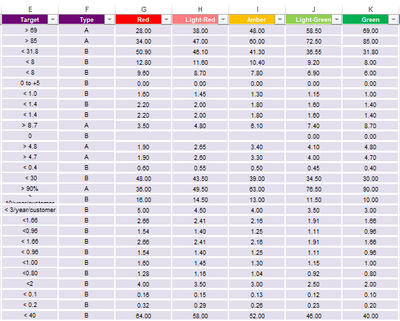
Can anyone help me how to make new column using measure to lookup the Grade below.
Type A, the bigger the Green is, and Type B is opposite.
So how can I run IF or Switch function?
The function I tried seems wrong,,
Thanks in advance.
Kim
Solved! Go to Solution.
Hi @Anonymous ,
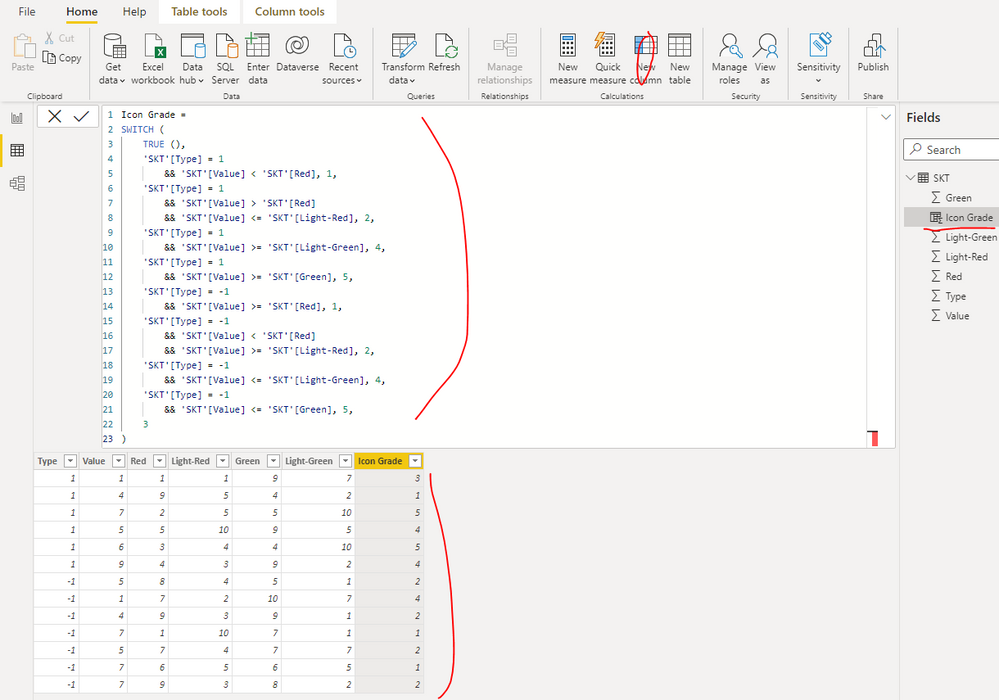
You can create a calculated column as below in the table 'SKT' to get it:
Icon Grade =
SWITCH (
TRUE (),
'SKT'[Type] = 1
&& 'SKT'[Value] < 'SKT'[Red], 1,
'SKT'[Type] = 1
&& 'SKT'[Value] > 'SKT'[Red]
&& 'SKT'[Value] <= 'SKT'[Light-Red], 2,
'SKT'[Type] = 1
&& 'SKT'[Value] >= 'SKT'[Light-Green], 4,
'SKT'[Type] = 1
&& 'SKT'[Value] >= 'SKT'[Green], 5,
'SKT'[Type] = -1
&& 'SKT'[Value] >= 'SKT'[Red], 1,
'SKT'[Type] = -1
&& 'SKT'[Value] < 'SKT'[Red]
&& 'SKT'[Value] >= 'SKT'[Light-Red], 2,
'SKT'[Type] = -1
&& 'SKT'[Value] <= 'SKT'[Light-Green], 4,
'SKT'[Type] = -1
&& 'SKT'[Value] <= 'SKT'[Green], 5,
3
)
Best Regards
Hi @Anonymous ,
You can create a calculated column as below in the table 'SKT' to get it:
Icon Grade =
SWITCH (
TRUE (),
'SKT'[Type] = 1
&& 'SKT'[Value] < 'SKT'[Red], 1,
'SKT'[Type] = 1
&& 'SKT'[Value] > 'SKT'[Red]
&& 'SKT'[Value] <= 'SKT'[Light-Red], 2,
'SKT'[Type] = 1
&& 'SKT'[Value] >= 'SKT'[Light-Green], 4,
'SKT'[Type] = 1
&& 'SKT'[Value] >= 'SKT'[Green], 5,
'SKT'[Type] = -1
&& 'SKT'[Value] >= 'SKT'[Red], 1,
'SKT'[Type] = -1
&& 'SKT'[Value] < 'SKT'[Red]
&& 'SKT'[Value] >= 'SKT'[Light-Red], 2,
'SKT'[Type] = -1
&& 'SKT'[Value] <= 'SKT'[Light-Green], 4,
'SKT'[Type] = -1
&& 'SKT'[Value] <= 'SKT'[Green], 5,
3
)
Best Regards
also how can I add another condition? if the Value is (blank) then just leave it blank without grading?
Hi @Anonymous ,
You can update the formula of calculated column as below to get it:
| Icon Grade = SWITCH ( TRUE (), ISBLANK ( 'SKT'[Value] ), BLANK (), 'SKT'[Type] = 1 && 'SKT'[Value] < 'SKT'[Red], 1, 'SKT'[Type] = 1 && 'SKT'[Value] > 'SKT'[Red] && 'SKT'[Value] <= 'SKT'[Light-Red], 2, 'SKT'[Type] = 1 && 'SKT'[Value] >= 'SKT'[Light-Green], 4, 'SKT'[Type] = 1 && 'SKT'[Value] >= 'SKT'[Green], 5, 'SKT'[Type] = -1 && 'SKT'[Value] >= 'SKT'[Red], 1, 'SKT'[Type] = -1 && 'SKT'[Value] < 'SKT'[Red] && 'SKT'[Value] >= 'SKT'[Light-Red], 2, 'SKT'[Type] = -1 && 'SKT'[Value] <= 'SKT'[Light-Green], 4, 'SKT'[Type] = -1 && 'SKT'[Value] <= 'SKT'[Green], 5, 3 ) |
Best Regards
Thank you so much! It is simpler and now working 🙂
Join us in Barcelona for FabCon and SQLCon, the Fabric, Power BI, SQL, and AI community event. Save €200 with code FABCMTY200.
Check out the July 2026 Power BI update to learn about new features.
| User | Count |
|---|---|
| 25 | |
| 23 | |
| 20 | |
| 18 | |
| 14 |
| User | Count |
|---|---|
| 22 | |
| 20 | |
| 20 | |
| 20 | |
| 20 |