

This time we’re going bigger than ever. Fabric, Power BI, SQL, AI and more. We're covering it all. You won't want to miss it.
Learn moreGet Fabric Certified for FREE during AI Skills Fest. This week only. Secure your voucher now.
Hi guys,
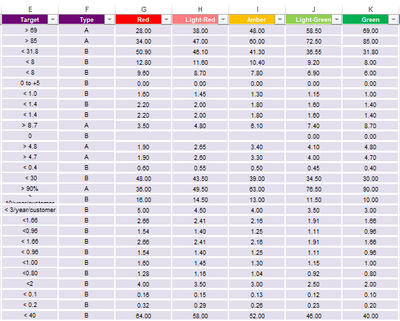
Can anyone help me how to make new column using measure to lookup the Grade below.
Type A, the bigger the Green is, and Type B is opposite.
So how can I run IF or Switch function?
The function I tried seems wrong,,
Thanks in advance.
Kim
Solved! Go to Solution.
Hi @Anonymous ,
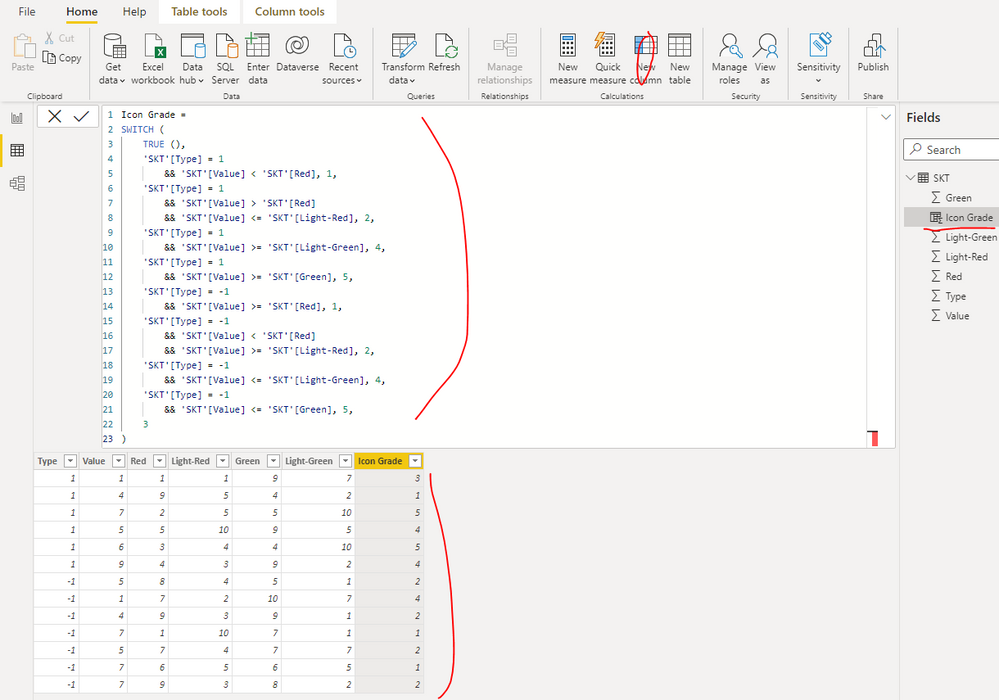
You can create a calculated column as below in the table 'SKT' to get it:
Icon Grade =
SWITCH (
TRUE (),
'SKT'[Type] = 1
&& 'SKT'[Value] < 'SKT'[Red], 1,
'SKT'[Type] = 1
&& 'SKT'[Value] > 'SKT'[Red]
&& 'SKT'[Value] <= 'SKT'[Light-Red], 2,
'SKT'[Type] = 1
&& 'SKT'[Value] >= 'SKT'[Light-Green], 4,
'SKT'[Type] = 1
&& 'SKT'[Value] >= 'SKT'[Green], 5,
'SKT'[Type] = -1
&& 'SKT'[Value] >= 'SKT'[Red], 1,
'SKT'[Type] = -1
&& 'SKT'[Value] < 'SKT'[Red]
&& 'SKT'[Value] >= 'SKT'[Light-Red], 2,
'SKT'[Type] = -1
&& 'SKT'[Value] <= 'SKT'[Light-Green], 4,
'SKT'[Type] = -1
&& 'SKT'[Value] <= 'SKT'[Green], 5,
3
)
Best Regards
Hi @Anonymous ,
You can create a calculated column as below in the table 'SKT' to get it:
Icon Grade =
SWITCH (
TRUE (),
'SKT'[Type] = 1
&& 'SKT'[Value] < 'SKT'[Red], 1,
'SKT'[Type] = 1
&& 'SKT'[Value] > 'SKT'[Red]
&& 'SKT'[Value] <= 'SKT'[Light-Red], 2,
'SKT'[Type] = 1
&& 'SKT'[Value] >= 'SKT'[Light-Green], 4,
'SKT'[Type] = 1
&& 'SKT'[Value] >= 'SKT'[Green], 5,
'SKT'[Type] = -1
&& 'SKT'[Value] >= 'SKT'[Red], 1,
'SKT'[Type] = -1
&& 'SKT'[Value] < 'SKT'[Red]
&& 'SKT'[Value] >= 'SKT'[Light-Red], 2,
'SKT'[Type] = -1
&& 'SKT'[Value] <= 'SKT'[Light-Green], 4,
'SKT'[Type] = -1
&& 'SKT'[Value] <= 'SKT'[Green], 5,
3
)
Best Regards
also how can I add another condition? if the Value is (blank) then just leave it blank without grading?
Hi @Anonymous ,
You can update the formula of calculated column as below to get it:
| Icon Grade = SWITCH ( TRUE (), ISBLANK ( 'SKT'[Value] ), BLANK (), 'SKT'[Type] = 1 && 'SKT'[Value] < 'SKT'[Red], 1, 'SKT'[Type] = 1 && 'SKT'[Value] > 'SKT'[Red] && 'SKT'[Value] <= 'SKT'[Light-Red], 2, 'SKT'[Type] = 1 && 'SKT'[Value] >= 'SKT'[Light-Green], 4, 'SKT'[Type] = 1 && 'SKT'[Value] >= 'SKT'[Green], 5, 'SKT'[Type] = -1 && 'SKT'[Value] >= 'SKT'[Red], 1, 'SKT'[Type] = -1 && 'SKT'[Value] < 'SKT'[Red] && 'SKT'[Value] >= 'SKT'[Light-Red], 2, 'SKT'[Type] = -1 && 'SKT'[Value] <= 'SKT'[Light-Green], 4, 'SKT'[Type] = -1 && 'SKT'[Value] <= 'SKT'[Green], 5, 3 ) |
Best Regards
Thank you so much! It is simpler and now working 🙂
Check out the May 2026 Power BI update to learn about new features.
Sign up to receive a private message when registration opens and key events begin.
If you have recently started exploring Fabric, we'd love to hear how it's going. Your feedback can help with product improvements.
| User | Count |
|---|---|
| 23 | |
| 21 | |
| 21 | |
| 21 | |
| 16 |
| User | Count |
|---|---|
| 55 | |
| 53 | |
| 45 | |
| 26 | |
| 24 |