

cancel
Showing results for 
Search instead for 
Did you mean: 

Next up in the FabCon + SQLCon recap series: The roadmap for Microsoft SQL and Maximizing Developer experiences in Fabric. All sessions are available on-demand after the live show. Register now

Reply
Anonymous
Not applicable

Multiple condition function in Dax

Hi guys,


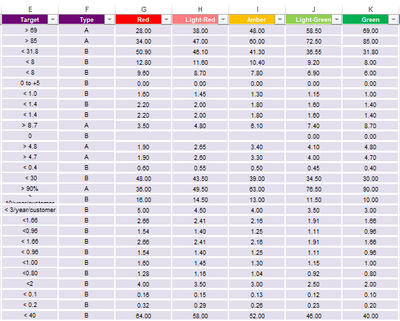
Can anyone help me how to make new column using measure to lookup the Grade below. 

Type A, the bigger the Green is, and Type B is opposite. 


So how can I run IF or Switch function?

The function I tried seems wrong,,


jeongkim_2-1669622226871.png


jeongkim_0-1669622014519.png


jeongkim_1-1669622085471.png


Thanks in advance. 

Kim


1 ACCEPTED SOLUTION
Anonymous
Not applicable

Hi @Anonymous ,

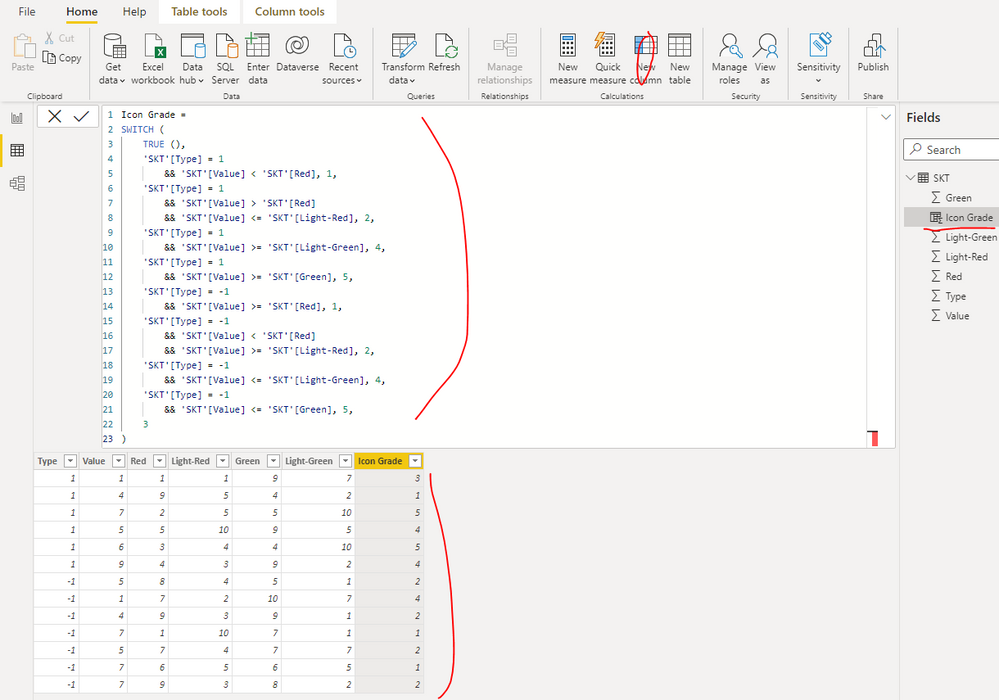
You can create a calculated column as below in the table 'SKT' to get it:

Icon Grade = 
SWITCH (
    TRUE (),
    'SKT'[Type] = 1
        && 'SKT'[Value] < 'SKT'[Red], 1,
    'SKT'[Type] = 1
        && 'SKT'[Value] > 'SKT'[Red]
        && 'SKT'[Value] <= 'SKT'[Light-Red], 2,
    'SKT'[Type] = 1
        && 'SKT'[Value] >= 'SKT'[Light-Green], 4,
    'SKT'[Type] = 1
        && 'SKT'[Value] >= 'SKT'[Green], 5,
    'SKT'[Type] = -1
        && 'SKT'[Value] >= 'SKT'[Red], 1,
    'SKT'[Type] = -1
        && 'SKT'[Value] < 'SKT'[Red]
        && 'SKT'[Value] >= 'SKT'[Light-Red], 2,
    'SKT'[Type] = -1
        && 'SKT'[Value] <= 'SKT'[Light-Green], 4,
    'SKT'[Type] = -1
        && 'SKT'[Value] <= 'SKT'[Green], 5,
    3
)

yingyinr_0-1669688178573.png

Best Regards

View solution in original post

4 REPLIES 4
Anonymous
Not applicable

Hi @Anonymous ,

You can create a calculated column as below in the table 'SKT' to get it:

Icon Grade = 
SWITCH (
    TRUE (),
    'SKT'[Type] = 1
        && 'SKT'[Value] < 'SKT'[Red], 1,
    'SKT'[Type] = 1
        && 'SKT'[Value] > 'SKT'[Red]
        && 'SKT'[Value] <= 'SKT'[Light-Red], 2,
    'SKT'[Type] = 1
        && 'SKT'[Value] >= 'SKT'[Light-Green], 4,
    'SKT'[Type] = 1
        && 'SKT'[Value] >= 'SKT'[Green], 5,
    'SKT'[Type] = -1
        && 'SKT'[Value] >= 'SKT'[Red], 1,
    'SKT'[Type] = -1
        && 'SKT'[Value] < 'SKT'[Red]
        && 'SKT'[Value] >= 'SKT'[Light-Red], 2,
    'SKT'[Type] = -1
        && 'SKT'[Value] <= 'SKT'[Light-Green], 4,
    'SKT'[Type] = -1
        && 'SKT'[Value] <= 'SKT'[Green], 5,
    3
)

yingyinr_0-1669688178573.png

Best Regards

Anonymous
Not applicable

also how can I add another condition? if the Value is (blank) then just leave it blank without grading? 


Anonymous
Not applicable

Hi  @Anonymous ,

You can update the formula of calculated column as below to get it:

Icon Grade =
SWITCH (
    TRUE (),
    ISBLANK ( 'SKT'[Value] ), BLANK (),
    'SKT'[Type] = 1
        && 'SKT'[Value] < 'SKT'[Red], 1,
    'SKT'[Type] = 1
        && 'SKT'[Value] > 'SKT'[Red]
        && 'SKT'[Value] <= 'SKT'[Light-Red], 2,
    'SKT'[Type] = 1
        && 'SKT'[Value] >= 'SKT'[Light-Green], 4,
    'SKT'[Type] = 1
        && 'SKT'[Value] >= 'SKT'[Green], 5,
    'SKT'[Type] = -1
        && 'SKT'[Value] >= 'SKT'[Red], 1,
    'SKT'[Type] = -1
        && 'SKT'[Value] < 'SKT'[Red]
        && 'SKT'[Value] >= 'SKT'[Light-Red], 2,
    'SKT'[Type] = -1
        && 'SKT'[Value] <= 'SKT'[Light-Green], 4,
    'SKT'[Type] = -1
        && 'SKT'[Value] <= 'SKT'[Green], 5,
    3
)

Best Regards

Anonymous
Not applicable

Thank you so much! It is simpler and now working 🙂

Helpful resources

Announcements
New to Fabric survey Carousel

New to Fabric Survey

If you have recently started exploring Fabric, we'd love to hear how it's going. Your feedback can help with product improvements.

Power BI DataViz World Championships carousel

Power BI DataViz World Championships - June 2026

A new Power BI DataViz World Championship is coming this June! Don't miss out on submitting your entry.

Join our Fabric User Panel

Join our Fabric User Panel

Share feedback directly with Fabric product managers, participate in targeted research studies and influence the Fabric roadmap.

March Power BI Update Carousel

Power BI Community Update - March 2026

Check out the March 2026 Power BI update to learn about new features.