cancel
Showing results for 
Search instead for 
Did you mean: 

July 28 - August 9 | Final Round of the Power BI Dataviz World Championships. This is your chance. Learn more

Reply
vedansh
Frequent Visitor

Dynamic data source based on date

Hi Team,


I have requirement like, from a folder of Excel files i have to pick the data file of MAX datekey files will be maintained in particular fashion i.e, Data Datekeyfiles will be maintained in particular fashion i.e, Data Datekey

As mentioned in the image file with max date key to be picked.

I believe it is possible by passing parameter to MQuery. 

Thanks in advance..


1 ACCEPTED SOLUTION
v-qiuyu-msft
Community Support
Community Support

Hi @vedansh,


You can use query below to find the Excel file with the maximum date in Power BI desktop: 


let
    Source = Folder.Files("<folder path>"),
    #"Split Column by Delimiter" = Table.SplitColumn(Source, "Name", Splitter.SplitTextByDelimiter(" ", QuoteStyle.Csv), {"Name.1", "Name.2"}),
    #"Changed Type" = Table.TransformColumnTypes(#"Split Column by Delimiter",{{"Name.1", type text}, {"Name.2", type text}}),   
    #"Changed Type1" = Table.TransformColumnTypes(Table.SplitColumn(#"Changed Type", "Name.2", Splitter.SplitTextByEachDelimiter({"."}, QuoteStyle.Csv, false), {"Name.2.1", "Name.2.2"}),{{"Name.2.1", Int64.Type}, {"Name.2.2", type text}}),
    MaxDte=List.Max(#"Changed Type1"[Name.2.1]),
    FilterRowWithMaxDate=Table.SelectRows(#"Changed Type1",each [Name.2.1]=MaxDte)
in
    FilterRowWithMaxDate
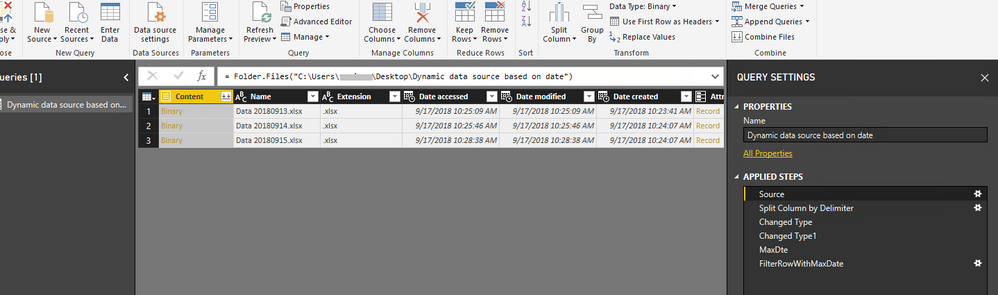
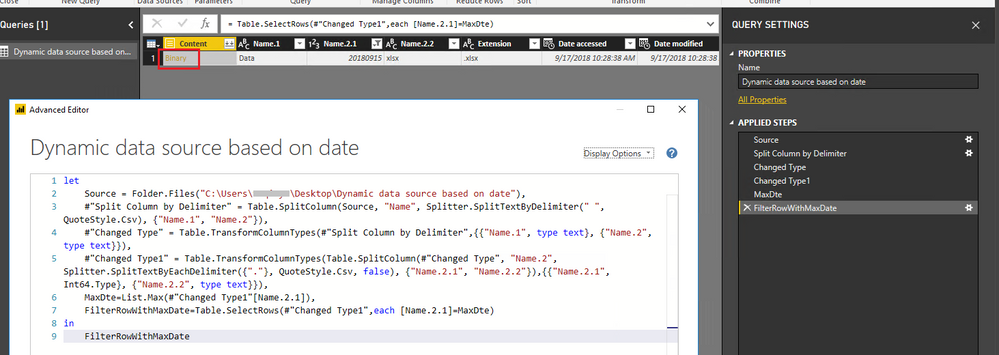
q3.PNGq4.PNG


Then you can click Binary to extract data from the Excel file. 


Best Regards,
Qiuyun Yu 

Community Support Team _ Qiuyun Yu
If this post helps, then please consider Accept it as the solution to help the other members find it more quickly.


View solution in original post

2 REPLIES 2
v-qiuyu-msft
Community Support
Community Support

Hi @vedansh,


You can use query below to find the Excel file with the maximum date in Power BI desktop: 


let
    Source = Folder.Files("<folder path>"),
    #"Split Column by Delimiter" = Table.SplitColumn(Source, "Name", Splitter.SplitTextByDelimiter(" ", QuoteStyle.Csv), {"Name.1", "Name.2"}),
    #"Changed Type" = Table.TransformColumnTypes(#"Split Column by Delimiter",{{"Name.1", type text}, {"Name.2", type text}}),   
    #"Changed Type1" = Table.TransformColumnTypes(Table.SplitColumn(#"Changed Type", "Name.2", Splitter.SplitTextByEachDelimiter({"."}, QuoteStyle.Csv, false), {"Name.2.1", "Name.2.2"}),{{"Name.2.1", Int64.Type}, {"Name.2.2", type text}}),
    MaxDte=List.Max(#"Changed Type1"[Name.2.1]),
    FilterRowWithMaxDate=Table.SelectRows(#"Changed Type1",each [Name.2.1]=MaxDte)
in
    FilterRowWithMaxDate

q3.PNGq4.PNG


Then you can click Binary to extract data from the Excel file. 


Best Regards,
Qiuyun Yu 

Community Support Team _ Qiuyun Yu
If this post helps, then please consider Accept it as the solution to help the other members find it more quickly.

Hi @v-qiuyu-msft,


Great it worked, Thanks dear !!!!

Helpful resources

Announcements
Fabric Community Sticker Design Challenge Barcelona Carousel

Fabric Community Sticker Challenge - Barcelona 2026

If you love stickers, then you will definitely want to check out our community sticker challenge, Barcelona edition!

July Power BI Update Carousel

Power BI Monthly Update - July 2026

Check out the July 2026 Power BI update to learn about new features.

Power BI DataViz World Championships carousel

Power BI DataViz World Championships - June 2026

A new Power BI DataViz World Championship is coming this June! Don't miss out on submitting your entry.

Top Solution Authors