cancel
Showing results for 
Search instead for 
Did you mean: 

Learn from the best! Meet the four finalists headed to the FINALS of the Power BI Dataviz World Championships! Register now

Reply
vedansh
Frequent Visitor

Dynamic data source based on date

Hi Team,


I have requirement like, from a folder of Excel files i have to pick the data file of MAX datekey files will be maintained in particular fashion i.e, Data Datekeyfiles will be maintained in particular fashion i.e, Data Datekey

As mentioned in the image file with max date key to be picked.

I believe it is possible by passing parameter to MQuery. 

Thanks in advance..


1 ACCEPTED SOLUTION
v-qiuyu-msft
Community Support
Community Support

Hi @vedansh,


You can use query below to find the Excel file with the maximum date in Power BI desktop: 


let
    Source = Folder.Files("<folder path>"),
    #"Split Column by Delimiter" = Table.SplitColumn(Source, "Name", Splitter.SplitTextByDelimiter(" ", QuoteStyle.Csv), {"Name.1", "Name.2"}),
    #"Changed Type" = Table.TransformColumnTypes(#"Split Column by Delimiter",{{"Name.1", type text}, {"Name.2", type text}}),   
    #"Changed Type1" = Table.TransformColumnTypes(Table.SplitColumn(#"Changed Type", "Name.2", Splitter.SplitTextByEachDelimiter({"."}, QuoteStyle.Csv, false), {"Name.2.1", "Name.2.2"}),{{"Name.2.1", Int64.Type}, {"Name.2.2", type text}}),
    MaxDte=List.Max(#"Changed Type1"[Name.2.1]),
    FilterRowWithMaxDate=Table.SelectRows(#"Changed Type1",each [Name.2.1]=MaxDte)
in
    FilterRowWithMaxDate
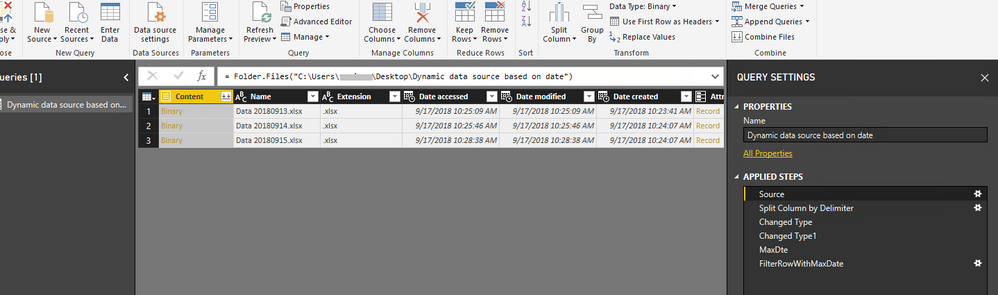
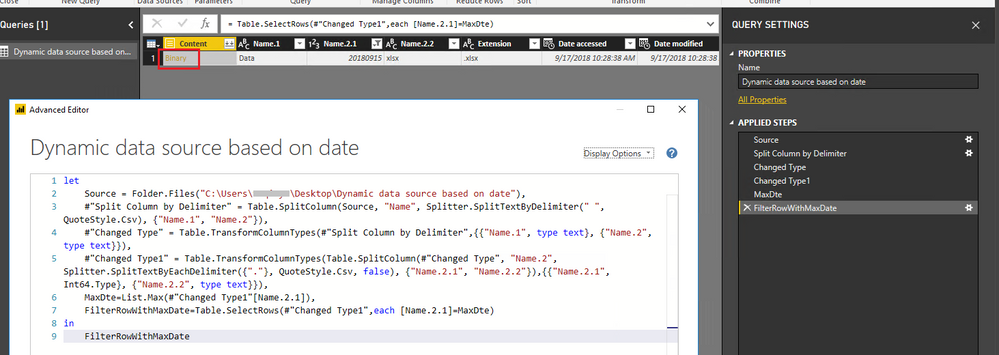
q3.PNGq4.PNG


Then you can click Binary to extract data from the Excel file. 


Best Regards,
Qiuyun Yu 

Community Support Team _ Qiuyun Yu
If this post helps, then please consider Accept it as the solution to help the other members find it more quickly.


View solution in original post

2 REPLIES 2
v-qiuyu-msft
Community Support
Community Support

Hi @vedansh,


You can use query below to find the Excel file with the maximum date in Power BI desktop: 


let
    Source = Folder.Files("<folder path>"),
    #"Split Column by Delimiter" = Table.SplitColumn(Source, "Name", Splitter.SplitTextByDelimiter(" ", QuoteStyle.Csv), {"Name.1", "Name.2"}),
    #"Changed Type" = Table.TransformColumnTypes(#"Split Column by Delimiter",{{"Name.1", type text}, {"Name.2", type text}}),   
    #"Changed Type1" = Table.TransformColumnTypes(Table.SplitColumn(#"Changed Type", "Name.2", Splitter.SplitTextByEachDelimiter({"."}, QuoteStyle.Csv, false), {"Name.2.1", "Name.2.2"}),{{"Name.2.1", Int64.Type}, {"Name.2.2", type text}}),
    MaxDte=List.Max(#"Changed Type1"[Name.2.1]),
    FilterRowWithMaxDate=Table.SelectRows(#"Changed Type1",each [Name.2.1]=MaxDte)
in
    FilterRowWithMaxDate

q3.PNGq4.PNG


Then you can click Binary to extract data from the Excel file. 


Best Regards,
Qiuyun Yu 

Community Support Team _ Qiuyun Yu
If this post helps, then please consider Accept it as the solution to help the other members find it more quickly.

Hi @v-qiuyu-msft,


Great it worked, Thanks dear !!!!

Helpful resources

Announcements
Power BI DataViz World Championships carousel

Power BI DataViz World Championships - June 2026

A new Power BI DataViz World Championship is coming this June! Don't miss out on submitting your entry.

Join our Fabric User Panel

Join our Fabric User Panel

Share feedback directly with Fabric product managers, participate in targeted research studies and influence the Fabric roadmap.

March Power BI Update Carousel

Power BI Community Update - March 2026

Check out the March 2026 Power BI update to learn about new features.