Get certified for free when you join Fabric Data Days 2026 and dive into Fabric, Power BI, SQL, AI, and other essential data skills.
Join nowJuly 7 - July 17 | Round 2 of the Power BI Dataviz World Championships. Don't miss your chance! Learn more
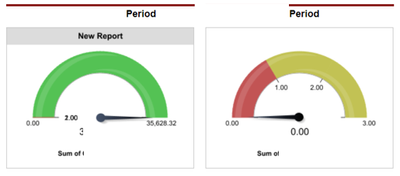
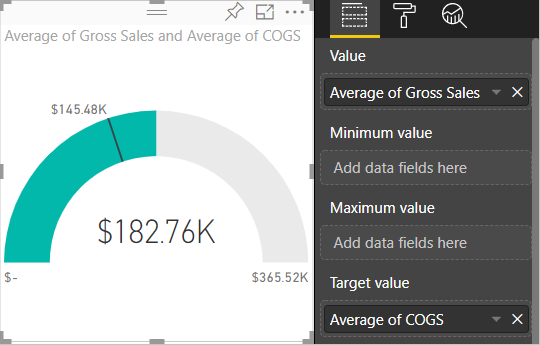
Hii, all. I want to design a report like below screenshot. So I have stored the data in SharePoint list and connected the data to PowerBI desktop. I have created below report using the radial gauge but the thing is I don't know how to add pointer in PowerBI radial gauge. And in the second screenshot how to add two items in the PowerBI radial gauge. In the PowerBI radial gauge value field, only one value can be added, multiple values not taking. How I can do Please help me?
Solved! Go to Solution.
As tested, Power BI default Gauge doesn't have that pointer.
A custom visual DialGauge has a pointer.
https://blog.pragmaticworks.com/power-bi-custom-visuals-dial-gauge
Best Regards
Maggie
Community Support Team _ Maggie Li
If this post helps, then please consider Accept it as the solution to help the other members find it more quickly.
Create the radial gauge following the document.
Best Regards
Maggie
Community Support Team _ Maggie Li
If this post helps, then please consider Accept it as the solution to help the other members find it more quickly.
Thank you for your reply. But my question is how I can add pointer in radial gauge in PowerBi. Please help me.
As tested, Power BI default Gauge doesn't have that pointer.
A custom visual DialGauge has a pointer.
https://blog.pragmaticworks.com/power-bi-custom-visuals-dial-gauge
Best Regards
Maggie
Community Support Team _ Maggie Li
If this post helps, then please consider Accept it as the solution to help the other members find it more quickly.
thnq u soo much
Join us in Barcelona for FabCon and SQLCon, the Fabric, Power BI, SQL, and AI community event. Save €200 with code FABCMTY200.
Join Data Days 2026: 60 days of free live/on-demand sessions, challenges, study groups, and certification opportunities.