This is best Fabric, Power BI, SQL and AI community event. How do we know? The last event sold out! Save €200 with code FABCMTY200.
Register nowA new Data Days event is coming soon! This time we’re going bigger than ever. Fabric, Power BI, SQL, AI and more. Don't miss out.
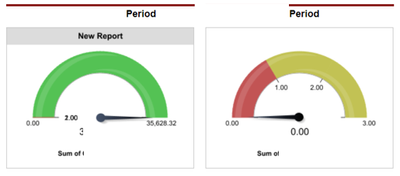
Hii, all. I want to design a report like below screenshot. So I have stored the data in SharePoint list and connected the data to PowerBI desktop. I have created below report using the radial gauge but the thing is I don't know how to add pointer in PowerBI radial gauge. And in the second screenshot how to add two items in the PowerBI radial gauge. In the PowerBI radial gauge value field, only one value can be added, multiple values not taking. How I can do Please help me?
Solved! Go to Solution.
As tested, Power BI default Gauge doesn't have that pointer.
A custom visual DialGauge has a pointer.
https://blog.pragmaticworks.com/power-bi-custom-visuals-dial-gauge
Best Regards
Maggie
Community Support Team _ Maggie Li
If this post helps, then please consider Accept it as the solution to help the other members find it more quickly.
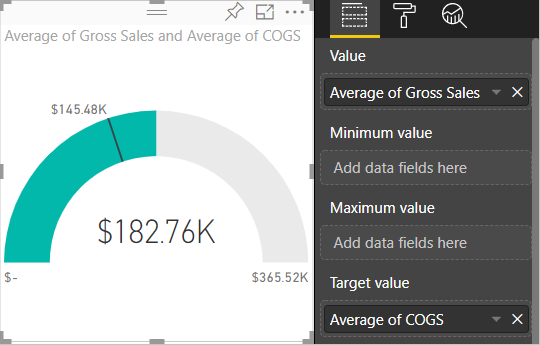
Create the radial gauge following the document.
Best Regards
Maggie
Community Support Team _ Maggie Li
If this post helps, then please consider Accept it as the solution to help the other members find it more quickly.
Thank you for your reply. But my question is how I can add pointer in radial gauge in PowerBi. Please help me.
As tested, Power BI default Gauge doesn't have that pointer.
A custom visual DialGauge has a pointer.
https://blog.pragmaticworks.com/power-bi-custom-visuals-dial-gauge
Best Regards
Maggie
Community Support Team _ Maggie Li
If this post helps, then please consider Accept it as the solution to help the other members find it more quickly.
thnq u soo much
Sign up to receive a private message when registration opens and key events begin.
If you have recently started exploring Fabric, we'd love to hear how it's going. Your feedback can help with product improvements.