Join us at FabCon Atlanta from March 16 - 20, 2026, for the ultimate Fabric, Power BI, AI and SQL community-led event. Save $200 with code FABCOMM.
Register now!The Power BI Data Visualization World Championships is back! Get ahead of the game and start preparing now! Learn more
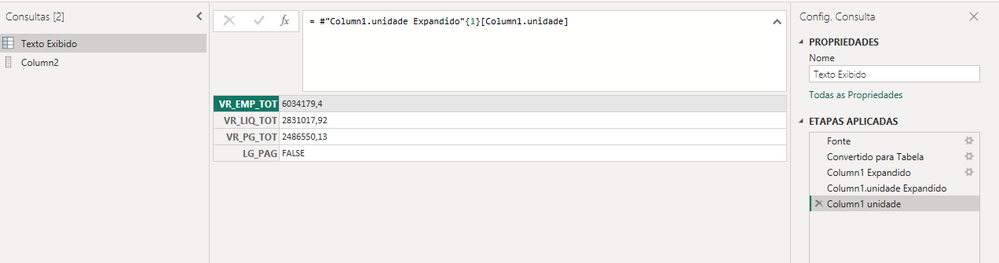
I have a Rest API that its structure is:
Solved! Go to Solution.
let
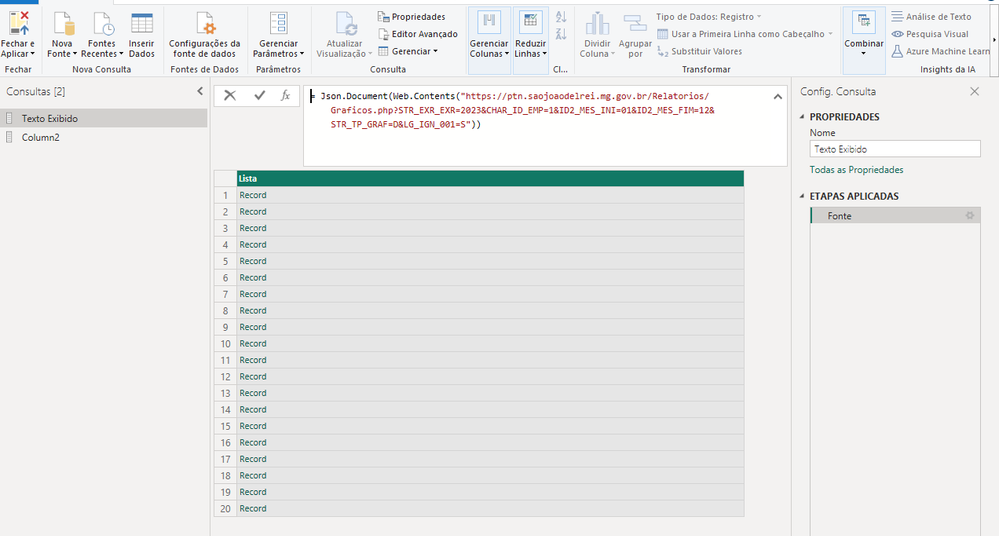
Source = Json.Document(Web.Contents("https://ptn.saojoaodelrei.mg.gov.br/Relatorios/Graficos.php?STR_EXR_EXR=2023&CHAR_ID_EMP=1&ID2_MES_INI=01&ID2_MES_FIM=12&STR_TP_GRAF=D&LG_IGN_001=S")),
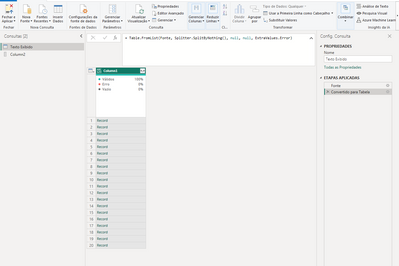
#"Converted to Table" = Table.FromList(Source, Splitter.SplitByNothing(), null, null, ExtraValues.Error),
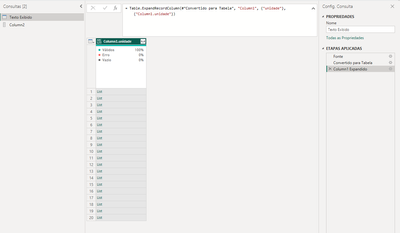
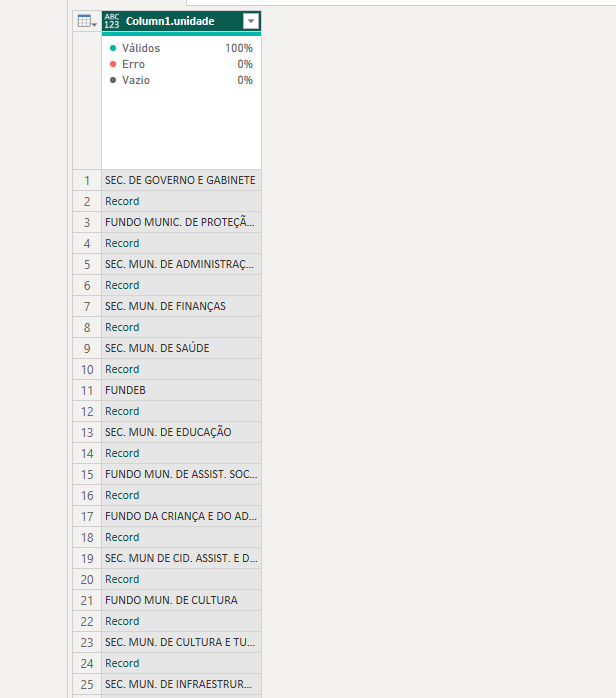
#"Expanded Column1" = Table.ExpandRecordColumn(#"Converted to Table", "Column1", {"unidade"}, {"unidade"}),
#"Added Custom" = Table.AddColumn(#"Expanded Column1", "Name", each [unidade]{0}),
#"Added Custom1" = Table.AddColumn(#"Added Custom", "Records", each [unidade]{1}),
#"Expanded Records" = Table.ExpandRecordColumn(#"Added Custom1", "Records", {"VR_EMP_TOT", "VR_LIQ_TOT", "VR_PG_TOT", "LG_PAG"}),
#"Removed Other Columns" = Table.SelectColumns(#"Expanded Records",{"Name", "VR_EMP_TOT", "VR_LIQ_TOT", "VR_PG_TOT", "LG_PAG"})
in
#"Removed Other Columns"
let
Source = Table.FromRows(Json.Document(Binary.Decompress(Binary.FromText("rZC9asMwFEZf5aLZCKlSLbmbGyvGEEuuf7LIwgSSQiFkKZ1Cpgx5sLxYrYQam4aUQO/0Xb5z73CsRRa5wCLoZz8kgBZ97T7Wq/WmRS9gR4WvKjXDkChIzVKV2kCf4tdMq1q1KJiw+8nmb5dlp/Kiq03tP4chZ5QxLEVwi1xkbz8kE4I8CYGJIJfhNw+KdOApo0Q+Y06j6/zmF2lXxKmH31fbz82kP4w2N+RD8LiseaMTA3mjs6u0ojS1Op/OR+8tUXNVxdADM6OrJs+SRw1ySqIQE/qXv7vcSBuXMsKh/Bdbl+QAkHPf", BinaryEncoding.Base64), Compression.Deflate)), let _t = ((type nullable text) meta [Serialized.Text = true]) in type table [Column1 = _t]),
res = Json.Document(Text.Combine(Source[Column1])),
#"Converted to Table" = Table.FromList(res, Splitter.SplitByNothing(), null, null, ExtraValues.Error),
#"Expanded Column1" = Table.ExpandRecordColumn(#"Converted to Table", "Column1", {"unidade"}, {"unidade"}),
#"Added Custom" = Table.AddColumn(#"Expanded Column1", "Name", each [unidade]{0}),
#"Added Custom1" = Table.AddColumn(#"Added Custom", "Records", each [unidade]{1}),
#"Expanded Records" = Table.ExpandRecordColumn(#"Added Custom1", "Records", {"VR_EMP_TOT", "VR_LIQ_TOT", "VR_PG_TOT", "LG_PAG"}),
#"Removed Other Columns" = Table.SelectColumns(#"Expanded Records",{"Name", "VR_EMP_TOT", "VR_LIQ_TOT", "VR_PG_TOT", "LG_PAG"})
in
#"Removed Other Columns"
How to use this code: Create a new Blank Query. Click on "Advanced Editor". Replace the code in the window with the code provided here. Click "Done".
Hey Ibendlin,
Thank you for your help. It worked but I have two questions
Your resolution isn't using the API right? Because it returned only a 2 lines table.
How could I transfer your resolution to work using this API (https://ptn.saojoaodelrei.mg.gov.br/Relatorios/Graficos.php?STR_EXR_EXR=2023&CHAR_ID_EMP=1&ID2_MES_I...)
I have tried a few things that I have seen online, but nothing worked. Sorry.
I'm studying M language Sintaxe but it would be fantastic if you could enlighten me. It's essential for the work I'm doing.
Thank you.
let
Source = Json.Document(Web.Contents("https://ptn.saojoaodelrei.mg.gov.br/Relatorios/Graficos.php?STR_EXR_EXR=2023&CHAR_ID_EMP=1&ID2_MES_INI=01&ID2_MES_FIM=12&STR_TP_GRAF=D&LG_IGN_001=S")),
#"Converted to Table" = Table.FromList(Source, Splitter.SplitByNothing(), null, null, ExtraValues.Error),
#"Expanded Column1" = Table.ExpandRecordColumn(#"Converted to Table", "Column1", {"unidade"}, {"unidade"}),
#"Added Custom" = Table.AddColumn(#"Expanded Column1", "Name", each [unidade]{0}),
#"Added Custom1" = Table.AddColumn(#"Added Custom", "Records", each [unidade]{1}),
#"Expanded Records" = Table.ExpandRecordColumn(#"Added Custom1", "Records", {"VR_EMP_TOT", "VR_LIQ_TOT", "VR_PG_TOT", "LG_PAG"}),
#"Removed Other Columns" = Table.SelectColumns(#"Expanded Records",{"Name", "VR_EMP_TOT", "VR_LIQ_TOT", "VR_PG_TOT", "LG_PAG"})
in
#"Removed Other Columns"
Thank you so much!! You're a lifesaver.
The Power BI Data Visualization World Championships is back! Get ahead of the game and start preparing now!
Check out the November 2025 Power BI update to learn about new features.