Join us at FabCon Atlanta from March 16 - 20, 2026, for the ultimate Fabric, Power BI, AI and SQL community-led event. Save $200 with code FABCOMM.
Register now!The Power BI Data Visualization World Championships is back! It's time to submit your entry. Live now!
Hi everyone,
I create reports on my laptop and saves those reports on a network share from our company. The data sources for those reports are also on the shared folder, but when I connect to those files Power BI uses x:\foldername\filename.
Our on premise data gateway is installed on a dedicated server which also has access to these files, but trhough \\servername\foldername\filename. When I publish a report it will use x:\ path and I can't add that same path to the gateway. But when I use the path \\servername\.. I can't connect to the files in Power BI Desktop...
How can I make this work?
The connection with \\servername\ in de gateway is fine. But when I publish the Power BI desktop with the \\servername\ path, Power BI Service still sees it as x:\.
Solved! Go to Solution.
So it seemed to be that IT denied my access to those folders. They gave me access to the folder and I was able to use the UNC Path.
Hi @Anonymous,
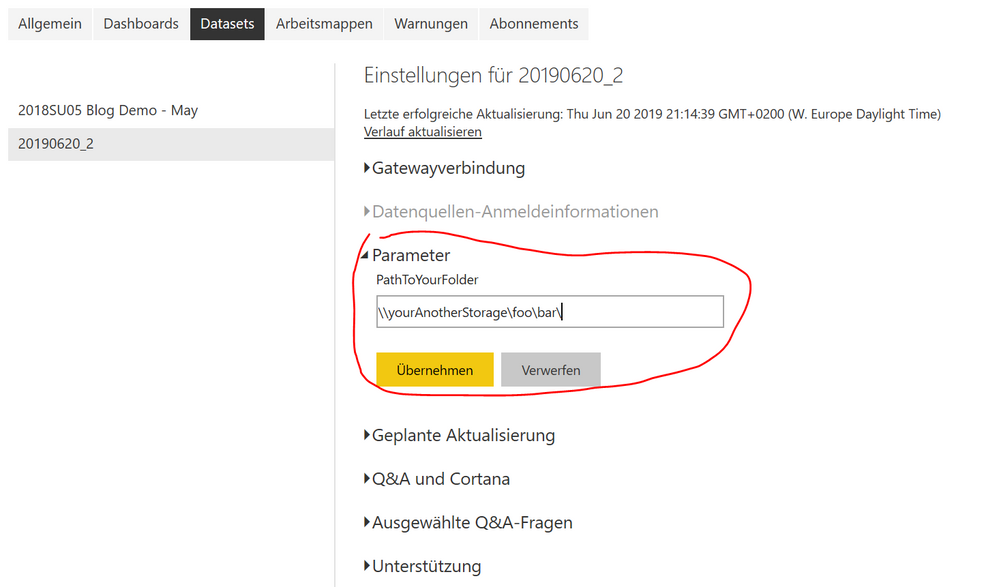
I'd like to recommend using parameters. You can create a parameter PathToYouStorage which you set in Power Query Editor to your x:\foo\bar\ and then you append the file name, see the screenshot.
Next, you load your file using the parameter like this:
let
Source = Csv.Document(File.Contents(PathToYourFolder & "fileName.csv"),[Delimiter=",", Encoding=1252])
in
Source
Then you publish you pbix to Power BI Service and change the parameter in the setting of your dataset.
More to this topic: Deep Dive into Query Parameters and Power BI Templates
The Power BI Data Visualization World Championships is back! It's time to submit your entry.
Check out the January 2026 Power BI update to learn about new features.
| User | Count |
|---|---|
| 16 | |
| 14 | |
| 9 | |
| 8 | |
| 7 |