
This time we’re going bigger than ever. Fabric, Power BI, SQL, AI and more. We're covering it all. You won't want to miss it.
Learn moreLevel up your Power BI skills this month - build one visual each week and tell better stories with data! Get started
Can somebody help me with the Power Query code by which I can update the value for Column Spend for against ProductTitle Diff whose formula is Base = 1 – SUM(Spend). Data may increase and pattern is shown below. The source is SharePoint list. I will have to show this data on Donut chart in Power BI.
Spend ReportDate ProductTitle Spend ReportDate ProductTitle
0.3 5/4/2016 A 0.3 5/4/2016 A
0.53 5/4/2016 B 0.53 5/4/2016 B
5/4/2016 Base 0.17 5/4/2016 Base
Spend ReportDate ProductTitle Spend ReportDate ProductTitle
0.3 5/4/2016 A 0.3 5/4/2016 A
0.53 5/4/2016 B 0.53 5/4/2016 B
5/4/2016 Base 0.17 5/4/2016 Base
0.5 6/5/2016 A 0.5 6/5/2016 A
0.38 6/5/2016 B 0.38 6/5/2016 B
6/5/2016 Base 0.12 6/5/2016 Base
Solved! Go to Solution.
Here are the detailed steps for achieving this. I am asuming that your Product title has same pattren.
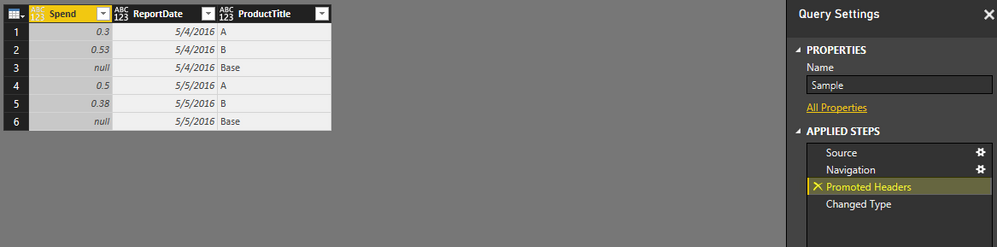
I have used below sample data in excel
Connected with Excel and edit the query
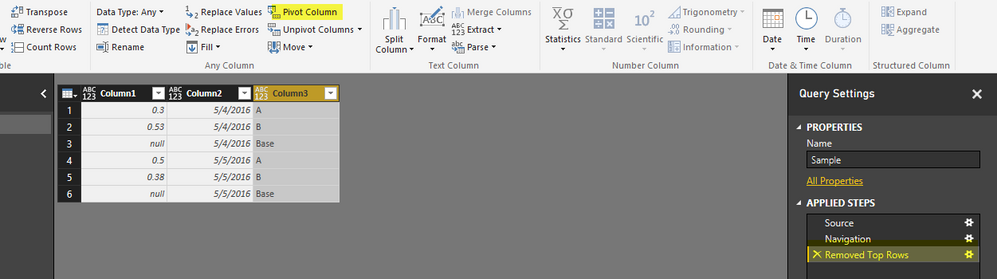
After this remove the two steps from right area "Chagne Type" and Promoted Headers". It will bring your column hearders as data row. Now remove first row by going to Home Table and clicking Remove Rows button. You need to mention 1 as number of rows to be deleted.
Now your data set will look like this.
Now select Column3 and click on Pivot Column button under Transformations Tab
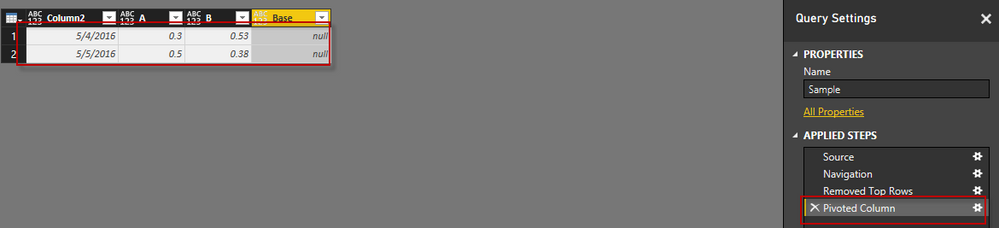
select Column1 as Value column in popup and click Ok. It will pivot your data to a new format as below
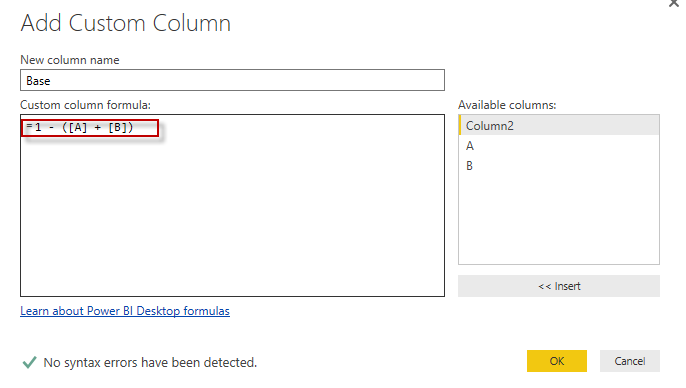
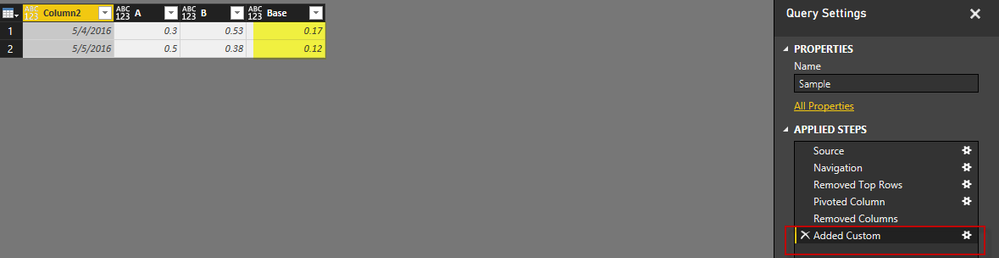
Now remove the Base Column and Add new Column Base with Below Formula
You base value has been calculated. See below for reference
Here are the detailed steps for achieving this. I am asuming that your Product title has same pattren.
I have used below sample data in excel
Connected with Excel and edit the query
After this remove the two steps from right area "Chagne Type" and Promoted Headers". It will bring your column hearders as data row. Now remove first row by going to Home Table and clicking Remove Rows button. You need to mention 1 as number of rows to be deleted.
Now your data set will look like this.
Now select Column3 and click on Pivot Column button under Transformations Tab
select Column1 as Value column in popup and click Ok. It will pivot your data to a new format as below
Now remove the Base Column and Add new Column Base with Below Formula
You base value has been calculated. See below for reference
Thank You so much Habib for your time and support. This solution has helped me to complete my task. Thanks again...![]()
Check out the April 2026 Power BI update to learn about new features.
Sign up to receive a private message when registration opens and key events begin.
If you have recently started exploring Fabric, we'd love to hear how it's going. Your feedback can help with product improvements.
| User | Count |
|---|---|
| 12 | |
| 9 | |
| 8 | |
| 8 | |
| 7 |
| User | Count |
|---|---|
| 50 | |
| 27 | |
| 24 | |
| 24 | |
| 22 |