Don't miss your chance to take the Fabric Data Engineer (DP-600) exam for FREE! Find out how by watching the DP-600 session on-demand now through April 28th.
Learn moreJoin the FabCon + SQLCon recap series. Up next: Power BI, Real-Time Intelligence, IQ and AI, and Data Factory take center stage. All sessions are available on-demand after the live show. Register now
Hello!
I have created a Streaming Dataset and if I create a Line Chart from the Report Page the graph is showed with no problem. But I have to do a manual refresh.
But if I go to the Dashboard and add a streaming data tile, with line chart type, I get a blank chart. What can I do? If I put on a card instead the number shows.
Its driving me insane can you please help me?
Hi @Anonymous ,
How did you set the line chart tile? Whether you applied the fields on both Axis and Values field? Could you please provide some screen shots about it?
In addition, hope the following documentations can help you.
Real-time streaming in Power BI
Pushing Data From Excel To Power BI Using Streaming Datasets
Best Regards
Rena
Hello @Anonymous ! I set up like this:
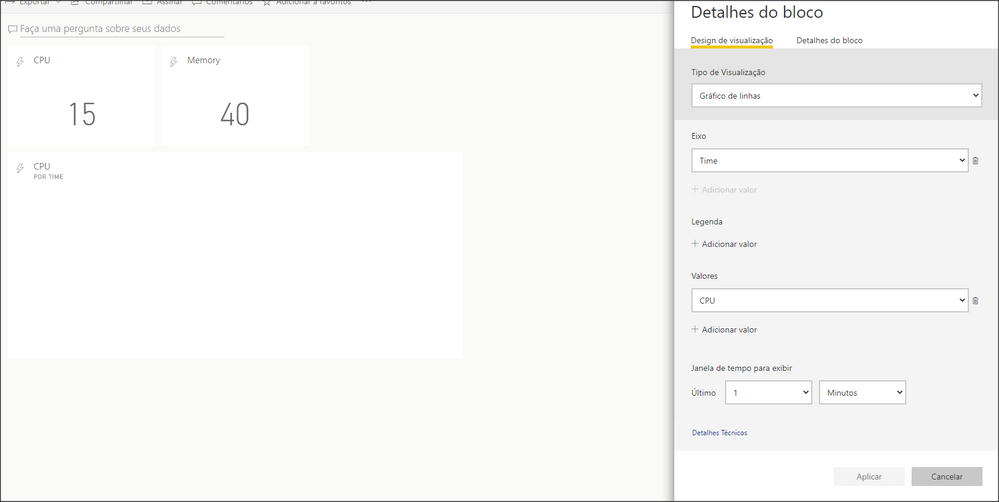
@v-alq-msft If it helps, here is the Powershell Code, used from Guyinacube, did I do something wrong?
$endpoint = "Removed for security reasons"
while($true)
{
$ComputerCPU = (Get-WmiObject -Class win32_processor -ErrorAction Stop | Measure-Object -Property LoadPercentage -Average | Select-Object Average).Average
$ComputerMemory = Get-WmiObject -Class win32_operatingsystem -ErrorAction Stop
$UsedMemory = $ComputerMemory.TotalVisibleMemorySize - $ComputerMemory.FreePhysicalMemory
$Memory = (($UsedMemory/ $ComputerMemory.TotalVisibleMemorySize)*100)
$RoundMemory = [math]::Round($Memory, 2)
$Date = Get-Date -DisplayHint Date -Format MM/dd/yyyy
$Time = Get-Date -DisplayHint Time -Format HH:mm:ss
#$RoundMemory
#$ComputerCPU
#$Date
#$Time
$payload = @{
"Date" =$Date
"Time" =$Time
"CPU" = $ComputerCPU
"Memory" = $RoundMemory
}
Invoke-RestMethod -Method Post -Uri "$endpoint" -Body (ConvertTo-Json @($payload))
Write-Host "Date: " $Date " Time: " $Time " CPU: " $ComputerCPU " Memory: " $RoundMemory
sleep 2
}
Hi @Anonymous ,
According to your provided screen shot, it seems OK. Could you please create a line chart visual with field Time and CPU and check if the data can display normally? I need to check if there is any problem in field Time...
In addition, please try to update Powershell codes as below and check if it works:
while($true) $ComputerCPU = (Get-WmiObject -Class win32_processor -ErrorAction Stop | Measure-Object -Property LoadPercentage -Average | Select-Object Average).Average $ComputerMemory = Get-WmiObject -Class win32_operatingsystem -ErrorAction Stop $Date = Get-Date -DisplayHint Date -Format MM/dd/yyyy $Time = Get-Date -DisplayHint Time -Format HH:MM:ss #$RoundMemory $endpoint = "Removed for security reasons" Write-Host "Date: " $Date " Time: " $Time " CPU: " $ComputerCPU " Memory: " $RoundMemory sleep 2 |
Best Regards
Rena
Thank you for the response @Anonymous!
With your adjusted code the Line chart visual that you asked updates every few seconds and works. However, if I add a "Real time Tile" on the Dashboard it does not work. An onbservation: The historical analysis is "on" in the dataset.
Idk, can you check if in your computer the code works maybe?
Did you get this working? I have exactly the same issue with the line chart trying to update in real time. I tried also changing the time to HH:MM:ss rather than HH:mm:ss but the resulting time was picking up the month as minutes so I have reverted back to mm for minutes.
Check out the April 2026 Power BI update to learn about new features.
If you have recently started exploring Fabric, we'd love to hear how it's going. Your feedback can help with product improvements.
A new Power BI DataViz World Championship is coming this June! Don't miss out on submitting your entry.
| User | Count |
|---|---|
| 9 | |
| 8 | |
| 8 | |
| 8 | |
| 7 |
| User | Count |
|---|---|
| 38 | |
| 30 | |
| 26 | |
| 22 | |
| 19 |