Don't miss your chance to take the Fabric Data Engineer (DP-700) exam on us!
Learn moreWe've captured the moments from FabCon & SQLCon that everyone is talking about, and we are bringing them to the community, live and on-demand. Starts on April 14th. Register now
Hi
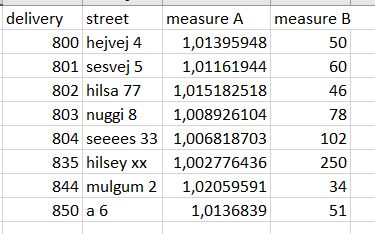
This is my table. The formatting I require, all is good.
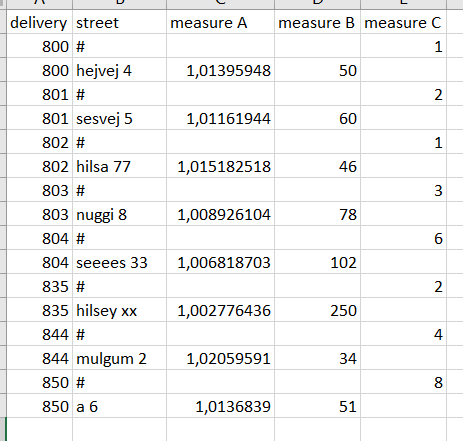
Now I run, from my cube, [..]AddMeasureColumn([...]"measure C" and my fields sort of "explodes". I have some guesses to why measure C is written in such a way, but how can I maintain the table format in the top image?
Question A: Can I disable the "explosion" somehow? Such that adding measure C only adds 1 column and nothing else
Question B: Given the answer to A is no, what is the best practise workaround?
Edit: Before adding measure C, my table contains ~2.5m rows.
Solved! Go to Solution.
Hi @Anonymous
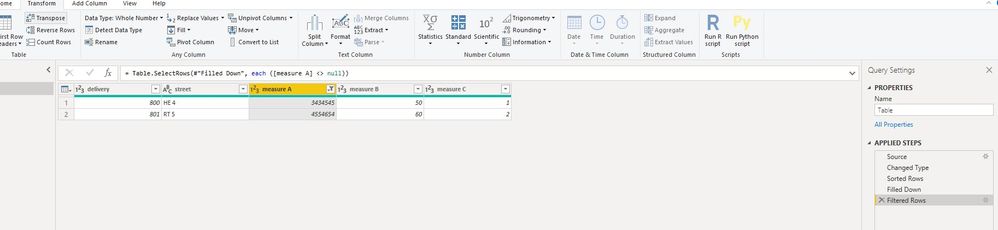
After importing,
sort "delivery" on ascending firstly, sort "street" ascending secondly,
select [Meaure C], "Transform->fill down",
then filter [measure A] <> null.
let
Source = Table.FromRows(Json.Document(Binary.Decompress(Binary.FromText("i45WsjAwUNJRUgZiCDJUitWBiXq4KpgAKWMTYxNTE1MgyxQkClVgiKLNCEk0KEQBpNjE1NTEzBRkgBlEWywA", BinaryEncoding.Base64), Compression.Deflate)), let _t = ((type text) meta [Serialized.Text = true]) in type table [delivery = _t, street = _t, #"measure A" = _t, #"measure B" = _t, #"measure C" = _t]),
#"Changed Type" = Table.TransformColumnTypes(Source,{{"delivery", Int64.Type}, {"street", type text}, {"measure A", Int64.Type}, {"measure B", Int64.Type}, {"measure C", Int64.Type}}),
#"Sorted Rows" = Table.Sort(#"Changed Type",{{"delivery", Order.Ascending}, {"street", Order.Ascending}}),
#"Filled Down" = Table.FillDown(#"Sorted Rows",{"measure C"}),
#"Filtered Rows" = Table.SelectRows(#"Filled Down", each ([measure A] <> null))
in
#"Filtered Rows"
Regarding performance issue, please check the ways to improve performance.
Performance Tip for Power BI; Enable Load Sucks Memory Up
Performance tip for List.Generate (1): Buffer your tables in Power BI and Power Query
Hi @Anonymous
After importing,
sort "delivery" on ascending firstly, sort "street" ascending secondly,
select [Meaure C], "Transform->fill down",
then filter [measure A] <> null.
let
Source = Table.FromRows(Json.Document(Binary.Decompress(Binary.FromText("i45WsjAwUNJRUgZiCDJUitWBiXq4KpgAKWMTYxNTE1MgyxQkClVgiKLNCEk0KEQBpNjE1NTEzBRkgBlEWywA", BinaryEncoding.Base64), Compression.Deflate)), let _t = ((type text) meta [Serialized.Text = true]) in type table [delivery = _t, street = _t, #"measure A" = _t, #"measure B" = _t, #"measure C" = _t]),
#"Changed Type" = Table.TransformColumnTypes(Source,{{"delivery", Int64.Type}, {"street", type text}, {"measure A", Int64.Type}, {"measure B", Int64.Type}, {"measure C", Int64.Type}}),
#"Sorted Rows" = Table.Sort(#"Changed Type",{{"delivery", Order.Ascending}, {"street", Order.Ascending}}),
#"Filled Down" = Table.FillDown(#"Sorted Rows",{"measure C"}),
#"Filtered Rows" = Table.SelectRows(#"Filled Down", each ([measure A] <> null))
in
#"Filtered Rows"
Regarding performance issue, please check the ways to improve performance.
Performance Tip for Power BI; Enable Load Sucks Memory Up
Performance tip for List.Generate (1): Buffer your tables in Power BI and Power Query
Hi @Anonymous
Do you import data or use live connection/direct query?
if you could use Edit queries, you can select the [Measure C] column, then select option "fill down",
then select [Measure A], select "remove blank(empty)".
If you have recently started exploring Fabric, we'd love to hear how it's going. Your feedback can help with product improvements.
A new Power BI DataViz World Championship is coming this June! Don't miss out on submitting your entry.
Share feedback directly with Fabric product managers, participate in targeted research studies and influence the Fabric roadmap.
| User | Count |
|---|---|
| 5 | |
| 4 | |
| 3 | |
| 3 | |
| 2 |
| User | Count |
|---|---|
| 8 | |
| 7 | |
| 6 | |
| 6 | |
| 5 |