Join us at FabCon Atlanta from March 16 - 20, 2026, for the ultimate Fabric, Power BI, AI and SQL community-led event. Save $200 with code FABCOMM.
Register now!The Power BI Data Visualization World Championships is back! It's time to submit your entry. Live now!
Hi
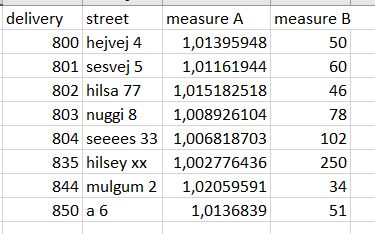
This is my table. The formatting I require, all is good.
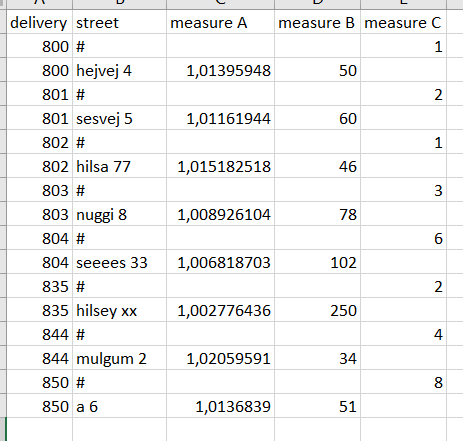
Now I run, from my cube, [..]AddMeasureColumn([...]"measure C" and my fields sort of "explodes". I have some guesses to why measure C is written in such a way, but how can I maintain the table format in the top image?
Question A: Can I disable the "explosion" somehow? Such that adding measure C only adds 1 column and nothing else
Question B: Given the answer to A is no, what is the best practise workaround?
Edit: Before adding measure C, my table contains ~2.5m rows.
Solved! Go to Solution.
Hi @Anonymous
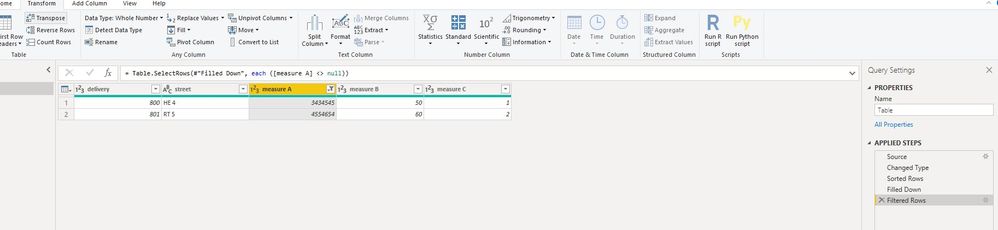
After importing,
sort "delivery" on ascending firstly, sort "street" ascending secondly,
select [Meaure C], "Transform->fill down",
then filter [measure A] <> null.
let
Source = Table.FromRows(Json.Document(Binary.Decompress(Binary.FromText("i45WsjAwUNJRUgZiCDJUitWBiXq4KpgAKWMTYxNTE1MgyxQkClVgiKLNCEk0KEQBpNjE1NTEzBRkgBlEWywA", BinaryEncoding.Base64), Compression.Deflate)), let _t = ((type text) meta [Serialized.Text = true]) in type table [delivery = _t, street = _t, #"measure A" = _t, #"measure B" = _t, #"measure C" = _t]),
#"Changed Type" = Table.TransformColumnTypes(Source,{{"delivery", Int64.Type}, {"street", type text}, {"measure A", Int64.Type}, {"measure B", Int64.Type}, {"measure C", Int64.Type}}),
#"Sorted Rows" = Table.Sort(#"Changed Type",{{"delivery", Order.Ascending}, {"street", Order.Ascending}}),
#"Filled Down" = Table.FillDown(#"Sorted Rows",{"measure C"}),
#"Filtered Rows" = Table.SelectRows(#"Filled Down", each ([measure A] <> null))
in
#"Filtered Rows"
Regarding performance issue, please check the ways to improve performance.
Performance Tip for Power BI; Enable Load Sucks Memory Up
Performance tip for List.Generate (1): Buffer your tables in Power BI and Power Query
Hi @Anonymous
After importing,
sort "delivery" on ascending firstly, sort "street" ascending secondly,
select [Meaure C], "Transform->fill down",
then filter [measure A] <> null.
let
Source = Table.FromRows(Json.Document(Binary.Decompress(Binary.FromText("i45WsjAwUNJRUgZiCDJUitWBiXq4KpgAKWMTYxNTE1MgyxQkClVgiKLNCEk0KEQBpNjE1NTEzBRkgBlEWywA", BinaryEncoding.Base64), Compression.Deflate)), let _t = ((type text) meta [Serialized.Text = true]) in type table [delivery = _t, street = _t, #"measure A" = _t, #"measure B" = _t, #"measure C" = _t]),
#"Changed Type" = Table.TransformColumnTypes(Source,{{"delivery", Int64.Type}, {"street", type text}, {"measure A", Int64.Type}, {"measure B", Int64.Type}, {"measure C", Int64.Type}}),
#"Sorted Rows" = Table.Sort(#"Changed Type",{{"delivery", Order.Ascending}, {"street", Order.Ascending}}),
#"Filled Down" = Table.FillDown(#"Sorted Rows",{"measure C"}),
#"Filtered Rows" = Table.SelectRows(#"Filled Down", each ([measure A] <> null))
in
#"Filtered Rows"
Regarding performance issue, please check the ways to improve performance.
Performance Tip for Power BI; Enable Load Sucks Memory Up
Performance tip for List.Generate (1): Buffer your tables in Power BI and Power Query
Hi @Anonymous
Do you import data or use live connection/direct query?
if you could use Edit queries, you can select the [Measure C] column, then select option "fill down",
then select [Measure A], select "remove blank(empty)".
| User | Count |
|---|---|
| 16 | |
| 9 | |
| 8 | |
| 7 | |
| 7 |