cancel
Showing results for 
Search instead for 
Did you mean: 

The Power BI Data Visualization World Championships is back! Get ahead of the game and start preparing now! Learn more

Reply
Anonymous
Not applicable

measure exploding dimensins

Hi


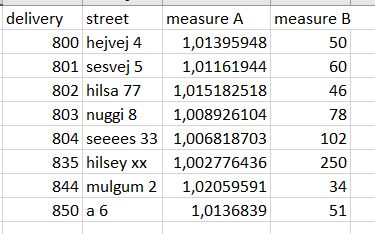
This is my table. The formatting I require, all is good.

tableasIwantit.png


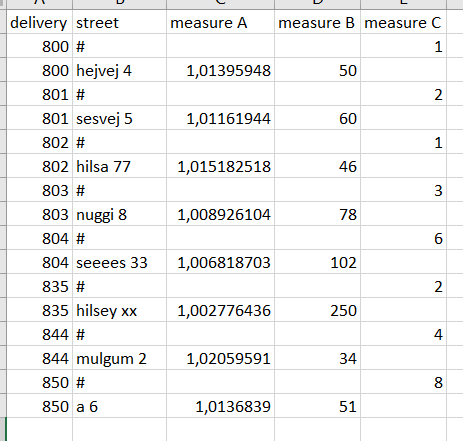
Now I run, from my cube, [..]AddMeasureColumn([...]"measure C" and my fields sort of "explodes". I have some guesses to why measure C is written in such a way, but how can I maintain the table format in the top image? 

tableafter AddMeasureColumn measure C.png

Question A: Can I disable the "explosion" somehow? Such that adding measure C only adds 1 column and nothing else

Question B: Given the answer to A is no, what is the best practise workaround?

Edit: Before adding measure C, my table contains ~2.5m rows.

1 ACCEPTED SOLUTION
v-juanli-msft
Community Support
Community Support

Hi @Anonymous 

After importing, 

sort "delivery" on ascending firstly, sort "street" ascending secondly,

select [Meaure C], "Transform->fill down",

then filter [measure A] <> null.
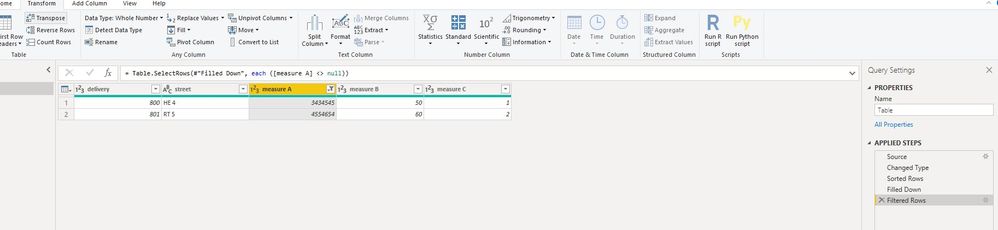
Capture12.JPG

let
    Source = Table.FromRows(Json.Document(Binary.Decompress(Binary.FromText("i45WsjAwUNJRUgZiCDJUitWBiXq4KpgAKWMTYxNTE1MgyxQkClVgiKLNCEk0KEQBpNjE1NTEzBRkgBlEWywA", BinaryEncoding.Base64), Compression.Deflate)), let _t = ((type text) meta [Serialized.Text = true]) in type table [delivery = _t, street = _t, #"measure A" = _t, #"measure B" = _t, #"measure C" = _t]),
    #"Changed Type" = Table.TransformColumnTypes(Source,{{"delivery", Int64.Type}, {"street", type text}, {"measure A", Int64.Type}, {"measure B", Int64.Type}, {"measure C", Int64.Type}}),
    #"Sorted Rows" = Table.Sort(#"Changed Type",{{"delivery", Order.Ascending}, {"street", Order.Ascending}}),
    #"Filled Down" = Table.FillDown(#"Sorted Rows",{"measure C"}),
    #"Filtered Rows" = Table.SelectRows(#"Filled Down", each ([measure A] <> null))
in
    #"Filtered Rows"

Regarding performance issue, please check the ways to improve performance.

Performance Tip for Power BI; Enable Load Sucks Memory Up

Performance tip for List.Generate (1): Buffer your tables in Power BI and Power Query


Best Regards
Maggie
Community Support Team _ Maggie Li
If this post helps, then please consider Accept it as the solution to help the other members find it more quickly.

View solution in original post

3 REPLIES 3
v-juanli-msft
Community Support
Community Support

Hi @Anonymous 

After importing, 

sort "delivery" on ascending firstly, sort "street" ascending secondly,

select [Meaure C], "Transform->fill down",

then filter [measure A] <> null.

Capture12.JPG

let
    Source = Table.FromRows(Json.Document(Binary.Decompress(Binary.FromText("i45WsjAwUNJRUgZiCDJUitWBiXq4KpgAKWMTYxNTE1MgyxQkClVgiKLNCEk0KEQBpNjE1NTEzBRkgBlEWywA", BinaryEncoding.Base64), Compression.Deflate)), let _t = ((type text) meta [Serialized.Text = true]) in type table [delivery = _t, street = _t, #"measure A" = _t, #"measure B" = _t, #"measure C" = _t]),
    #"Changed Type" = Table.TransformColumnTypes(Source,{{"delivery", Int64.Type}, {"street", type text}, {"measure A", Int64.Type}, {"measure B", Int64.Type}, {"measure C", Int64.Type}}),
    #"Sorted Rows" = Table.Sort(#"Changed Type",{{"delivery", Order.Ascending}, {"street", Order.Ascending}}),
    #"Filled Down" = Table.FillDown(#"Sorted Rows",{"measure C"}),
    #"Filtered Rows" = Table.SelectRows(#"Filled Down", each ([measure A] <> null))
in
    #"Filtered Rows"

Regarding performance issue, please check the ways to improve performance.

Performance Tip for Power BI; Enable Load Sucks Memory Up

Performance tip for List.Generate (1): Buffer your tables in Power BI and Power Query


Best Regards
Maggie
Community Support Team _ Maggie Li
If this post helps, then please consider Accept it as the solution to help the other members find it more quickly.
v-juanli-msft
Community Support
Community Support

Hi @Anonymous 

Do you import data or use live connection/direct query?

if you could use Edit queries, you can select the [Measure C] column, then select option "fill down",

then select [Measure A], select "remove blank(empty)".


Best Regards
Maggie
Community Support Team _ Maggie Li
If this post helps, then please consider Accept it as the solution to help the other members find it more quickly.


Anonymous
Not applicable

Thank you for your answer. If my table is not sorted like shown, I will then need to sort it to use this operation correctly. Is it then the best approach in terms of performance?

Not using direct query.

Helpful resources

Announcements
Power BI DataViz World Championships

Power BI Dataviz World Championships

The Power BI Data Visualization World Championships is back! Get ahead of the game and start preparing now!

December 2025 Power BI Update Carousel

Power BI Monthly Update - December 2025

Check out the December 2025 Power BI Holiday Recap!

FabCon Atlanta 2026 carousel

FabCon Atlanta 2026

Join us at FabCon Atlanta, March 16-20, for the ultimate Fabric, Power BI, AI and SQL community-led event. Save $200 with code FABCOMM.