Join us in Barcelona for FabCon and SQLCon, September 28 - October 1, 2026.
This is best Fabric, Power BI, SQL and AI community event. How do we know? The last event sold out! Save €200 with code FABCMTY200.
Register now- Power BI forums
- Get Help with Power BI
- Desktop
- Service
- Report Server
- Power Query
- Mobile Apps
- Developer
- DAX Commands and Tips
- Custom Visuals Development Discussion
- Health and Life Sciences
- Power BI Spanish forums
- Translated Spanish Desktop
- Training and Consulting
- Instructor Led Training
- Dashboard in a Day for Women, by Women
- Galleries
- Data Stories Gallery
- Themes Gallery
- Contests Gallery
- QuickViz Gallery
- Quick Measures Gallery
- Visual Calculations Gallery
- Fabric Apps Gallery
- Notebook Gallery
- Translytical Task Flow Gallery
- TMDL Gallery
- R Script Showcase
- Webinars and Video Gallery
- Ideas
- Custom Visuals Ideas (read-only)
- Issues
- Issues
- Events
- Upcoming Events
The Fabric community is upgrading! Read all of the details including the timeline and what you can expect. Learn more
- Power BI forums
- Forums
- Get Help with Power BI
- Power Query
- Re: Unpivot Columns which are Dynamic
- Subscribe to RSS Feed
- Mark Topic as New
- Mark Topic as Read
- Float this Topic for Current User
- Bookmark
- Subscribe
- Printer Friendly Page

- Mark as New
- Bookmark
- Subscribe
- Mute
- Subscribe to RSS Feed
- Permalink
- Report Inappropriate Content
Unpivot Columns which are Dynamic
Hello freinds,
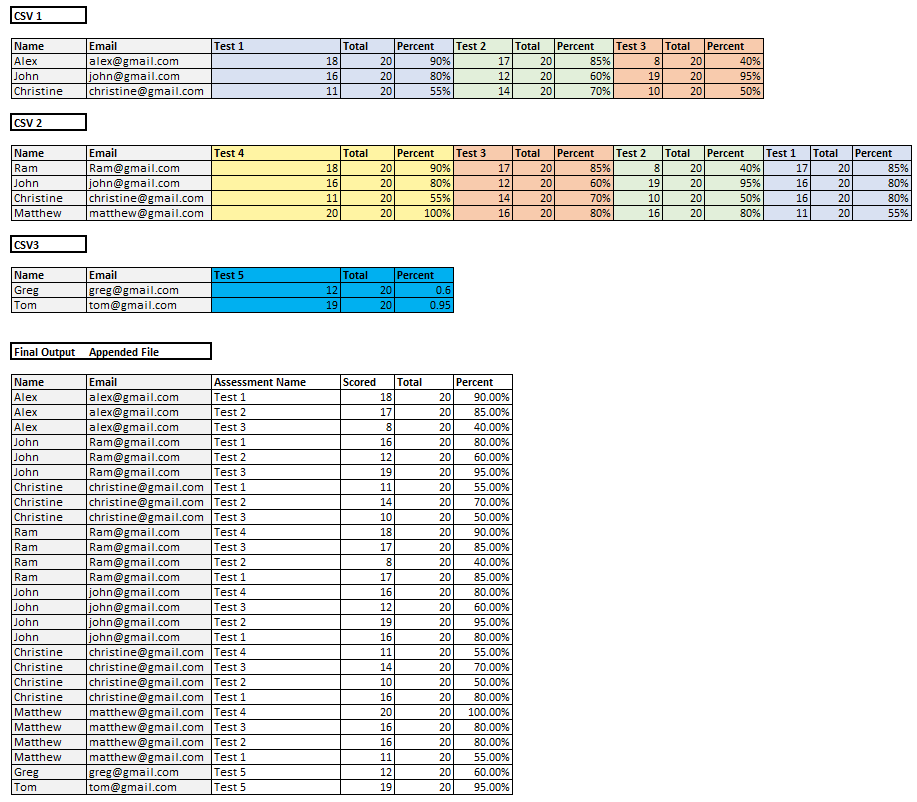
I have around 55-60 multiple csv files saved in a folder on my PC. I just need to unpivot all the data.
The challenge is that the number of columns in every file is not the same and keeps changing. So I am unable to select the "from folder" option while importing the data and have to resort to open the files individually to transform the data. Fortunately the pattern within the file is consistent so I am able to unpivot by opening each file individually and then appending them. I have attached a sample file of how the data is structured and my expected output. I believe this would require some sort of parameter or custom function, I am really not sure. If you could help me with the code that would be awesome.
@nickyvv @Anonymous @mahoneypat @amitchandak @parry2k @AlexisOlson @lbendlin @ValtteriN @Greg_Deckler @bcdobbs
Solved! Go to Solution.
- Mark as New
- Bookmark
- Subscribe
- Mute
- Subscribe to RSS Feed
- Permalink
- Report Inappropriate Content
All you need to do is add a Column Count to the list of nested csv files (Add Custom column, = Table.ColumnCount(The name of the folder query--but don't expand the tables yet!). Name the column ColumnCounts. Now sort this table by ColumnCount Descending (critical to get all of your column names when you expand the csv tables)--
Make a new query named MaxColumns=
= List.Max(FolderQuery[ColumnCounts])
Now you can either make a reference or duplicate of your folder query, and then in your Transform File, add the optional Columns parameter, like
= Csv.Document("FileName.csv", MaxColumns)
This will make all of your csv files have the max number of columns. Now you can expand them. You can now also re-sort your combined tables however you need them.
So basically, add the max number of columns to your Csv.Document columns parameter, and sort by most columns to least before expanding the tables.
--Nate


- Mark as New
- Bookmark
- Subscribe
- Mute
- Subscribe to RSS Feed
- Permalink
- Report Inappropriate Content
Hi @Anonymous,
I've shared a sample with you that does leverage the "From Folder" connection.
First save the CSV test folder to your hard drive and
Second update the FolderLocation parameter in the PBIX
Hope this works well for you.
UPDATE: Transform Sample File
let
    Source = Csv.Document(Parameter1,[Delimiter=";", Encoding=65001, QuoteStyle=QuoteStyle.None]),
    PromoteHeaders = Table.PromoteHeaders(Source, [PromoteAllScalars=true]),
    FindTestCols = List.Alternate( Table.ColumnNames( PromoteHeaders ), 2, 1, 0 ),
    Unpivot = Table.UnpivotOtherColumns(PromoteHeaders, {"Name", "Email"}, "Attribute", "Value"),
    AddColName = Table.AddColumn(Unpivot, "ColName", each if List.Contains( FindTestCols, [Attribute] ) then "Scored" else Text.BeforeDelimiter([Attribute], "_")),
    AddAssessment = Table.AddColumn(AddColName, "Assessment Name", each if List.Contains( FindTestCols, [Attribute] ) then [Attribute] else null),
    FillDown = Table.FillDown(AddAssessment,{"Assessment Name"}),
    DelAttribute = Table.RemoveColumns(FillDown,{"Attribute"}),
    Pivot = Table.Pivot(DelAttribute, List.Distinct(DelAttribute[ColName]), "ColName", "Value")
in
    Pivot


- Mark as New
- Bookmark
- Subscribe
- Mute
- Subscribe to RSS Feed
- Permalink
- Report Inappropriate Content
Please see this video. It shows a good way to unpivot that repeating column pattern. With it, you could create a custom function that you could apply to each file to get your desired result. It includes a link to the demo pbix where you can grab the needed M code.
Pat
Did I answer your question? Mark my post as a solution! Kudos are also appreciated!
To learn more about Power BI, follow me on Twitter or subscribe on YouTube.
@mahoneypa HoosierBI on YouTube
- Mark as New
- Bookmark
- Subscribe
- Mute
- Subscribe to RSS Feed
- Permalink
- Report Inappropriate Content
All you need to do is add a Column Count to the list of nested csv files (Add Custom column, = Table.ColumnCount(The name of the folder query--but don't expand the tables yet!). Name the column ColumnCounts. Now sort this table by ColumnCount Descending (critical to get all of your column names when you expand the csv tables)--
Make a new query named MaxColumns=
= List.Max(FolderQuery[ColumnCounts])
Now you can either make a reference or duplicate of your folder query, and then in your Transform File, add the optional Columns parameter, like
= Csv.Document("FileName.csv", MaxColumns)
This will make all of your csv files have the max number of columns. Now you can expand them. You can now also re-sort your combined tables however you need them.
So basically, add the max number of columns to your Csv.Document columns parameter, and sort by most columns to least before expanding the tables.
--Nate


- Mark as New
- Bookmark
- Subscribe
- Mute
- Subscribe to RSS Feed
- Permalink
- Report Inappropriate Content
Hi,
can you post the sample data instead of the image?
- Mark as New
- Bookmark
- Subscribe
- Mute
- Subscribe to RSS Feed
- Permalink
- Report Inappropriate Content
It does not allow me to paste it... sorry
Helpful resources

FabCon & SQLCon – Barcelona 2026
Join us in Barcelona for FabCon and SQLCon, the Fabric, Power BI, SQL, and AI community event. Save €200 with code FABCMTY200.

Power BI DataViz World Championships - June 2026
A new Power BI DataViz World Championship is coming this June! Don't miss out on submitting your entry.


