cancel
Showing results for 
Search instead for 
Did you mean: 

The Power BI Data Visualization World Championships is back! Get ahead of the game and start preparing now! Learn more

Reply
Anonymous
Not applicable

Unpivot Columns which are Dynamic

Hello freinds,


I have around 55-60 multiple csv files saved in a folder on my PC. I just need to unpivot all the data.


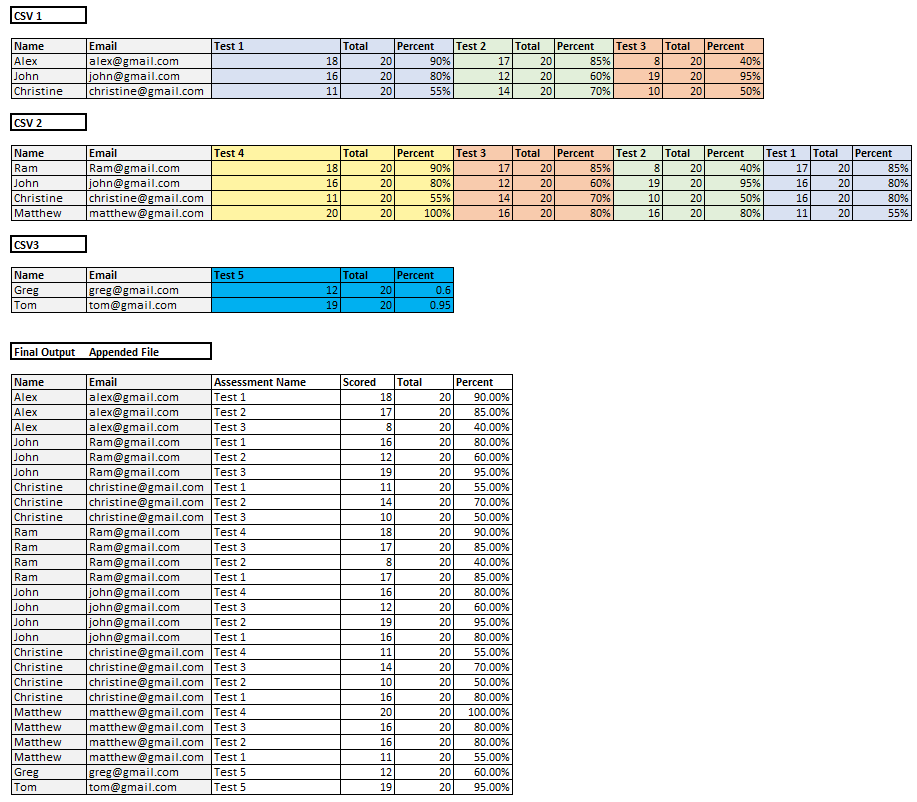
The challenge is that the number of columns in every file is not the same and keeps changing. So I am unable to select the "from folder" option while importing the data and have to resort to open the files individually to transform the data. Fortunately the pattern within the file is consistent so I am able to unpivot by opening each file individually and then appending them. I have attached a sample file of how the data is structured and my expected output. I believe this would require some sort of parameter or custom function, I am really not sure. If you could help me with the code that would be awesome.


Data.PNG


@nickyvv @Anonymous  @mahoneypat @amitchandak @parry2k @AlexisOlson @lbendlin @ValtteriN @Greg_Deckler @bcdobbs 

1 ACCEPTED SOLUTION
Anonymous
Not applicable

All you need to do is add a Column Count to the list of nested csv files (Add Custom column, = Table.ColumnCount(The name of the folder query--but don't expand the tables yet!). Name the column ColumnCounts. Now sort this table by ColumnCount Descending (critical to get all of your column names when you expand the csv tables)--


Make a new query named MaxColumns=

= List.Max(FolderQuery[ColumnCounts])


Now you can either make a reference or duplicate of your folder query, and then in your Transform File, add the optional Columns parameter, like


= Csv.Document("FileName.csv", MaxColumns)


This will make all of your csv files have the max number of columns. Now you can expand them. You can now also re-sort your combined tables however you need them.


So basically, add the max number of columns to your Csv.Document columns parameter, and sort by most columns to least before expanding the tables.


--Nate


View solution in original post

5 REPLIES 5
m_dekorte
Super User
Super User

Hi @Anonymous,


I've shared a sample with you that does leverage the "From Folder" connection. 

First save the CSV test folder to your hard drive and

Second update the FolderLocation parameter in the PBIX


Hope this works well for you.

Files 


UPDATE: Transform Sample File

let
    Source = Csv.Document(Parameter1,[Delimiter=";", Encoding=65001, QuoteStyle=QuoteStyle.None]),
    PromoteHeaders = Table.PromoteHeaders(Source, [PromoteAllScalars=true]),
    FindTestCols = List.Alternate( Table.ColumnNames( PromoteHeaders ), 2, 1, 0 ),
    Unpivot = Table.UnpivotOtherColumns(PromoteHeaders, {"Name", "Email"}, "Attribute", "Value"),
    AddColName = Table.AddColumn(Unpivot, "ColName", each if List.Contains( FindTestCols, [Attribute] ) then "Scored" else Text.BeforeDelimiter([Attribute], "_")),
    AddAssessment = Table.AddColumn(AddColName, "Assessment Name", each if List.Contains( FindTestCols, [Attribute] ) then [Attribute] else null),
    FillDown = Table.FillDown(AddAssessment,{"Assessment Name"}),
    DelAttribute = Table.RemoveColumns(FillDown,{"Attribute"}),
    Pivot = Table.Pivot(DelAttribute, List.Distinct(DelAttribute[ColName]), "ColName", "Value")
in
    Pivot

  

mahoneypat
Microsoft Employee
Microsoft Employee

Please see this video. It shows a good way to unpivot that repeating column pattern. With it, you could create a custom function that you could apply to each file to get your desired result. It includes a link to the demo pbix where you can grab the needed M code.

https://youtu.be/huT1fDJh0zU


Pat


Did I answer your question? Mark my post as a solution! Kudos are also appreciated!

To learn more about Power BI, follow me on Twitter or subscribe on YouTube.


@mahoneypa HoosierBI on YouTube


Anonymous
Not applicable

All you need to do is add a Column Count to the list of nested csv files (Add Custom column, = Table.ColumnCount(The name of the folder query--but don't expand the tables yet!). Name the column ColumnCounts. Now sort this table by ColumnCount Descending (critical to get all of your column names when you expand the csv tables)--


Make a new query named MaxColumns=

= List.Max(FolderQuery[ColumnCounts])


Now you can either make a reference or duplicate of your folder query, and then in your Transform File, add the optional Columns parameter, like


= Csv.Document("FileName.csv", MaxColumns)


This will make all of your csv files have the max number of columns. Now you can expand them. You can now also re-sort your combined tables however you need them.


So basically, add the max number of columns to your Csv.Document columns parameter, and sort by most columns to least before expanding the tables.


--Nate


serpiva64
Solution Sage
Solution Sage

Hi,

can you post the sample data instead of the image?

Anonymous
Not applicable

It does not allow me to paste it... sorry


Helpful resources

Announcements
Power BI DataViz World Championships

Power BI Dataviz World Championships

The Power BI Data Visualization World Championships is back! Get ahead of the game and start preparing now!

December 2025 Power BI Update Carousel

Power BI Monthly Update - December 2025

Check out the December 2025 Power BI Holiday Recap!

FabCon Atlanta 2026 carousel

FabCon Atlanta 2026

Join us at FabCon Atlanta, March 16-20, for the ultimate Fabric, Power BI, AI and SQL community-led event. Save $200 with code FABCOMM.

Top Solution Authors