cancel
Showing results for 
Search instead for 
Did you mean: 

Data Days is here! Join us now for 60+ days of learning, challenges, and connection. Learn more

Reply
Cream_17
Frequent Visitor

Pivot the table

Hi guys,


I really need your help


I want to change the table (table one) from this one


Column1
1
A
B
2
C
3
D
E
4
F
G
5
H


to this one (table two)


NoManchesterArsenal
1AB
2C 
3DE
4FG
5H 


For table one, all the text below Number will go for Manchester, and All Text below text will go for Arsenal. That`s why if you see cell (2, Arsenal) or (5, Arsenal), you will see blank or null cell.

1 ACCEPTED SOLUTION
AlienSx
Super User
Super User

let
    Source = Excel.CurrentWorkbook(){[Name="Table1"]}[Content],
    group = Table.Group(
        Source,
        "Column1", 
        {"x", (x) => x[Column1]},
        GroupKind.Local, 
        (s, c) => Number.From(c is number)
    ),
    z = Table.FromList(group[x], (x) => x, {"No", "Manchester", "Arsenal"})
in
    z

View solution in original post

4 REPLIES 4
AlienSx
Super User
Super User

let
    Source = Excel.CurrentWorkbook(){[Name="Table1"]}[Content],
    group = Table.Group(
        Source,
        "Column1", 
        {"x", (x) => x[Column1]},
        GroupKind.Local, 
        (s, c) => Number.From(c is number)
    ),
    z = Table.FromList(group[x], (x) => x, {"No", "Manchester", "Arsenal"})
in
    z

Oh my God, you are awesome!

Thanks!, it works!

Anonymous
Not applicable

You can extract the text into a new column using if each List.Contains({0..9}, [Column1])then [Column1] else null) and  then fill down that column. Then remove  any rows where Column1 = number column. Then group by filldown column, and extract to new columns. I can't write out the code right now, but logically, thats how I would do it.


--Nate

Dear Watkinnc, thanks for your reply

I have been here
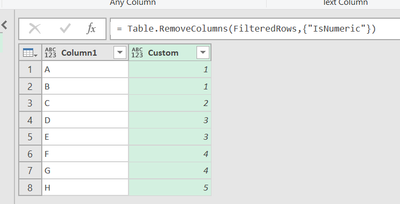
 

Cream_17_0-1713585975449.png


and my current M code as below:

let
Source = Excel.CurrentWorkbook(){[Name="Table1"]}[Content],
#"Changed Type" = Table.TransformColumnTypes(Source,{{"Column1", type any}}),
#"Added Custom" = Table.AddColumn(#"Changed Type", "Custom", each if Value.Is(Number.From([Column1]), type number) then [Column1] else null),
#"Replaced Errors" = Table.ReplaceErrorValues(#"Added Custom", {{"Custom", null}}),
#"Filled Down" = Table.FillDown(#"Replaced Errors",{"Custom"}),
#"AddedCustom" = Table.AddColumn(#"Filled Down", "IsNumeric", each if Value.Is(Value.FromText([Column1]), type number) then "Numeric" else "Non-numeric"),
#"FilteredRows" = Table.SelectRows(#"AddedCustom", each ([IsNumeric] = "Non-numeric")),
#"RemovedCustom" = Table.RemoveColumns(FilteredRows,{"IsNumeric"})
in
RemovedCustom

I still don`t understand with : "Then group by filldown column, and extract to new columns", to return the final table I desired.

Helpful resources

Announcements
Fabric Data Days is here Carousel

Fabric Data Days 2026

Don't miss out on Data Days, June 15 through August 7. Learn Fabric, Power BI, SQL, AI and more.

May Power BI Update Carousel

Power BI Monthly Update - May 2026

Check out the May 2026 Power BI update to learn about new features.

Power BI DataViz World Championships carousel

Power BI DataViz World Championships - June 2026

A new Power BI DataViz World Championship is coming this June! Don't miss out on submitting your entry.