




Don't miss your chance to take the Fabric Data Engineer (DP-600) exam for FREE! Find out how by watching the DP-600 session on-demand now through April 28th.
Learn moreJoin the FabCon + SQLCon recap series. Up next: Power BI, Real-Time Intelligence, IQ and AI, and Data Factory take center stage. All sessions are available on-demand after the live show. Register now
I need some help figuring out what to do for this data. I currently have
| Project ID | Project Name | First Year | Discount | Long Term Plan | Production | Example | Example | Example | Example |
| 1 | Project 1 | 2023 | null | null | null | null | null | null | null |
| 1 | Project 1 | null | 10% | null | null | null | null | null | null |
| 1 | Project 1 | null | null | .02 | null | null | null | null | null |
This data is multiple Projects and has about 75 Columns where data follows this pattern
And I would Like to have
| Project ID | Project Name | First Year | Discount | Long Term Plan | Production | Example | Example | Example | Example |
| 1 | Project 1 | 2023 | 10% | .02 | 100 | 5 | .25 | 1 | 1 |
| 2 | Project 2 | 2018 | 5% | .02 | 15000 | 2 | 2 | .01 | 1 |
What can I do in Power Query to flatten this data?
Solved! Go to Solution.
Hi @oliviaholmes,
You can do an unpivot operation (this will remove any null values) and then re-pivot the data.
Have a look at the following code:
let
Source = Table.FromRows(Json.Document(Binary.Decompress(Binary.FromText("i45WMlTSUQooys9KTS5RALFBGIRidTDlQNKGeCTB8oZgWSMkWRDbCMlYdDmYNA45kLSRkVJsLAA=", BinaryEncoding.Base64), Compression.Deflate)), let _t = ((type nullable text) meta [Serialized.Text = true]) in type table [#"Project ID" = _t, #"Project Name" = _t, Number1 = _t, Number2 = _t, Number3 = _t]),
#"Changed Type" = Table.TransformColumnTypes(Source,{{"Project ID", type text}, {"Project Name", type text}, {"Number1", Int64.Type}, {"Number2", Int64.Type}, {"Number3", Int64.Type}}),
#"Unpivoted Other Columns" = Table.UnpivotOtherColumns(#"Changed Type", {"Project ID", "Project Name"}, "Attribute", "Value"),
#"Pivoted Column" = Table.Pivot(#"Unpivoted Other Columns", List.Distinct(#"Unpivoted Other Columns"[Attribute]), "Attribute", "Value")
in
#"Pivoted Column"
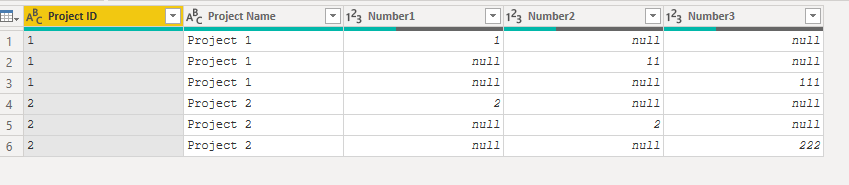
Before:
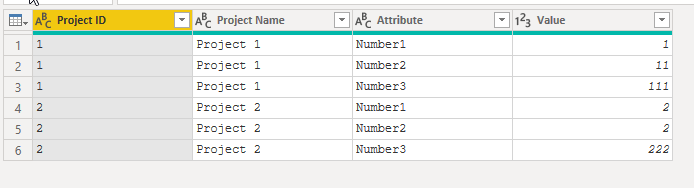
After:
Hi @oliviaholmes,
1. Start from your initial table.
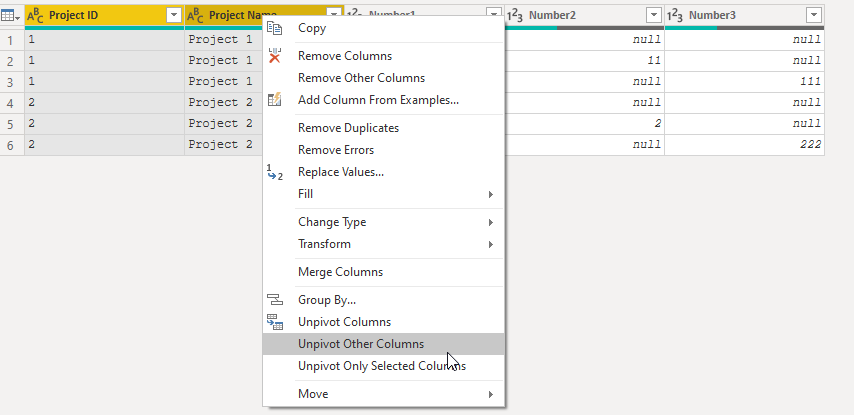
2. Select the Project ID & Project Name columns and then right-click and choose "unpivot other columns".
You should get:
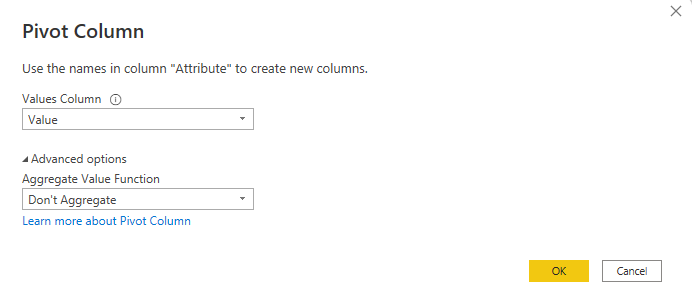
3. Select the "Attribute" column and then choose "Pivot Column".
4. Fill the following:
You should get:
Hi @oliviaholmes,
You can do an unpivot operation (this will remove any null values) and then re-pivot the data.
Have a look at the following code:
let
Source = Table.FromRows(Json.Document(Binary.Decompress(Binary.FromText("i45WMlTSUQooys9KTS5RALFBGIRidTDlQNKGeCTB8oZgWSMkWRDbCMlYdDmYNA45kLSRkVJsLAA=", BinaryEncoding.Base64), Compression.Deflate)), let _t = ((type nullable text) meta [Serialized.Text = true]) in type table [#"Project ID" = _t, #"Project Name" = _t, Number1 = _t, Number2 = _t, Number3 = _t]),
#"Changed Type" = Table.TransformColumnTypes(Source,{{"Project ID", type text}, {"Project Name", type text}, {"Number1", Int64.Type}, {"Number2", Int64.Type}, {"Number3", Int64.Type}}),
#"Unpivoted Other Columns" = Table.UnpivotOtherColumns(#"Changed Type", {"Project ID", "Project Name"}, "Attribute", "Value"),
#"Pivoted Column" = Table.Pivot(#"Unpivoted Other Columns", List.Distinct(#"Unpivoted Other Columns"[Attribute]), "Attribute", "Value")
in
#"Pivoted Column"
Before:
After:
This is not working for me. When i use the code, it shows an error for all columns. Can you do a step walkthrough so I can mirror your actions @SpartaBI
Check out the April 2026 Power BI update to learn about new features.
If you have recently started exploring Fabric, we'd love to hear how it's going. Your feedback can help with product improvements.
A new Power BI DataViz World Championship is coming this June! Don't miss out on submitting your entry.
| User | Count |
|---|---|
| 3 | |
| 2 | |
| 2 | |
| 2 | |
| 2 |
| User | Count |
|---|---|
| 5 | |
| 5 | |
| 4 | |
| 4 | |
| 4 |