cancel
Showing results for 
Search instead for 
Did you mean: 

The Power BI Data Visualization World Championships is back! Get ahead of the game and start preparing now! Learn more

Reply
Anonymous
Not applicable

Is this possible???

Hello community:
Can you help me with the following?
I have a table with 2 columns (Order ID and Product), but as you can see 2 or more different products they can share the same Order ID:

Order ID

Product

176560

Google Phone

176560

Wired Headphones

176574

Google Phone

176574

USB-C Charging Cable

176553

Lightning Charging Cable

176553

Bose SoundSport Headphones

176553

Apple Airpods Headphones


I need to concatenate the products in the same OrderID as the following table:

Order ID

Product

176560

Google Phone - Wired Headphones

176574

Google Phone - USB-C Charging Cable

176553

Lightning Charging Cable - Bose SoundSport Headphones -Apple Airpods Headphones


How can I do that?


Thank you so much

1 ACCEPTED SOLUTION
edhans
Community Champion
Community Champion

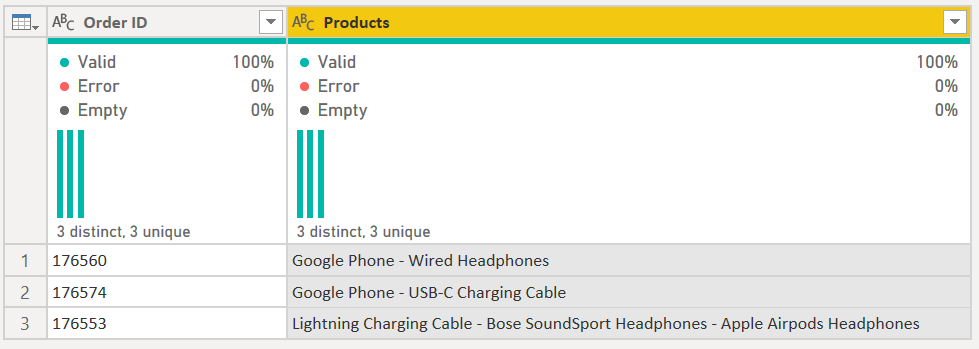
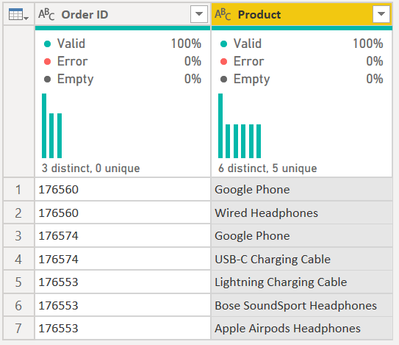
Hi @Anonymous - see the following M code. It turns this:
edhans_0-1596392959109.png

into this:


edhans_0-1596393139916.png


let
    Source = Table.FromRows(Json.Document(Binary.Decompress(Binary.FromText("i45WMjQ3MzUzUNJRcs/PT89JVQjIyM9LVYrVQZIJzyxKTVHwSE1MKQBJFsNlzU1w6QPLhAY76TorOGckFqVn5qUrOCcm5SBUmBoDVfhkpmeU5IEl8ahyyi9OVQjOL81LCS7ILyrB5hKwOseCAqBDHDOLCvJTilFUxQIA", BinaryEncoding.Base64), Compression.Deflate)), let _t = ((type nullable text) meta [Serialized.Text = true]) in type table [#"Order ID" = _t, Product = _t]),
    #"Grouped Rows" = 
        Table.Group(
            Source, 
            {"Order ID"}, 
            {
                {"Products", each _[Product] }
            }
        ),
    #"Extracted Values" = Table.TransformColumns(#"Grouped Rows", {"Products", each Text.Combine(List.Transform(_, Text.From), " - "), type text})
in
    #"Extracted Values"


The key is in the Group By statement, I am grouping by ID, then I create a list with the each _[Product] statement.

Then I simply expand that to values through the UI and type in the " - " delimiter.
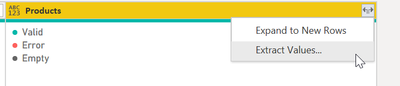
edhans_2-1596393103218.png


1) In Power Query, select New Source, then Blank Query
2) On the Home ribbon, select "Advanced Editor" button
3) Remove everything you see, then paste the M code I've given you in that box.
4) Press Done
5) See this article if you need help using this M code in your model.


Did I answer your question? Mark my post as a solution!
Did my answers help arrive at a solution? Give it a kudos by clicking the Thumbs Up!

DAX is for Analysis. Power Query is for Data Modeling


Proud to be a Super User!

MCSA: BI Reporting

View solution in original post

3 REPLIES 3
edhans
Community Champion
Community Champion

Hi @Anonymous - see the following M code. It turns this:

edhans_0-1596392959109.png

into this:


edhans_0-1596393139916.png


let
    Source = Table.FromRows(Json.Document(Binary.Decompress(Binary.FromText("i45WMjQ3MzUzUNJRcs/PT89JVQjIyM9LVYrVQZIJzyxKTVHwSE1MKQBJFsNlzU1w6QPLhAY76TorOGckFqVn5qUrOCcm5SBUmBoDVfhkpmeU5IEl8ahyyi9OVQjOL81LCS7ILyrB5hKwOseCAqBDHDOLCvJTilFUxQIA", BinaryEncoding.Base64), Compression.Deflate)), let _t = ((type nullable text) meta [Serialized.Text = true]) in type table [#"Order ID" = _t, Product = _t]),
    #"Grouped Rows" = 
        Table.Group(
            Source, 
            {"Order ID"}, 
            {
                {"Products", each _[Product] }
            }
        ),
    #"Extracted Values" = Table.TransformColumns(#"Grouped Rows", {"Products", each Text.Combine(List.Transform(_, Text.From), " - "), type text})
in
    #"Extracted Values"


The key is in the Group By statement, I am grouping by ID, then I create a list with the each _[Product] statement.

Then I simply expand that to values through the UI and type in the " - " delimiter.

edhans_2-1596393103218.png


1) In Power Query, select New Source, then Blank Query
2) On the Home ribbon, select "Advanced Editor" button
3) Remove everything you see, then paste the M code I've given you in that box.
4) Press Done
5) See this article if you need help using this M code in your model.


Did I answer your question? Mark my post as a solution!
Did my answers help arrive at a solution? Give it a kudos by clicking the Thumbs Up!

DAX is for Analysis. Power Query is for Data Modeling


Proud to be a Super User!

MCSA: BI Reporting
Anonymous
Not applicable

You rock!!!! thank you so much.

edhans
Community Champion
Community Champion

Glad I was able to assist @Anonymous 


Did I answer your question? Mark my post as a solution!
Did my answers help arrive at a solution? Give it a kudos by clicking the Thumbs Up!

DAX is for Analysis. Power Query is for Data Modeling


Proud to be a Super User!

MCSA: BI Reporting

Helpful resources

Announcements
Power BI DataViz World Championships

Power BI Dataviz World Championships

The Power BI Data Visualization World Championships is back! Get ahead of the game and start preparing now!

December 2025 Power BI Update Carousel

Power BI Monthly Update - December 2025

Check out the December 2025 Power BI Holiday Recap!

FabCon Atlanta 2026 carousel

FabCon Atlanta 2026

Join us at FabCon Atlanta, March 16-20, for the ultimate Fabric, Power BI, AI and SQL community-led event. Save $200 with code FABCOMM.

Top Solution Authors