Join us at FabCon Atlanta from March 16 - 20, 2026, for the ultimate Fabric, Power BI, AI and SQL community-led event. Save $200 with code FABCOMM.
Register now!The Power BI Data Visualization World Championships is back! Get ahead of the game and start preparing now! Learn more
Hi, I am trying to convert this excel table calculation into PowerBI but I cant seem to be able to modify the tables extensively and create the desired output of my table. Somehow powerBI can only have 1 column and 1 row variable. Is it possible for me to have multiple variables?
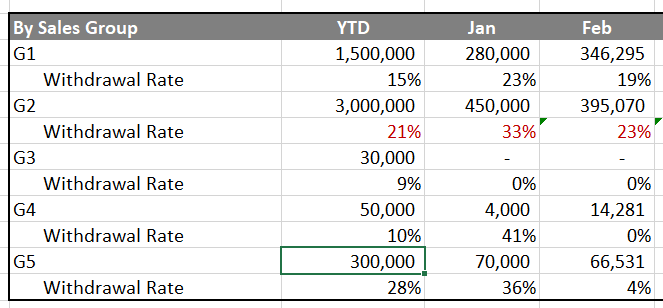
For example here is a mock table :
Withdrawal rate = withdrawal numbers(notshown) / total number(Right above it)
Solved! Go to Solution.
Hi @jit
Assume you have data as below
| group | name | value | date | withdrawal numbers |
| G1 | withdrawal rate | 100 | 1/1/2019 | 40 |
| G2 | withdrawal rate | 200 | 1/1/2019 | 50 |
| G3 | withdrawal rate | 1/1/2019 | 10 | |
| G4 | withdrawal rate | 300 | 1/1/2019 | 50 |
| G5 | withdrawal rate | 400 | 1/1/2019 | 80 |
| G1 | withdrawal rate | 200 | 2/1/2019 | 60 |
| G2 | withdrawal rate | 300 | 2/1/2019 | 50 |
| G3 | withdrawal rate | 400 | 2/1/2019 | 40 |
| G4 | withdrawal rate | 500 | 2/1/2019 | 60 |
| G5 | withdrawal rate | 100 | 2/1/2019 | 30 |
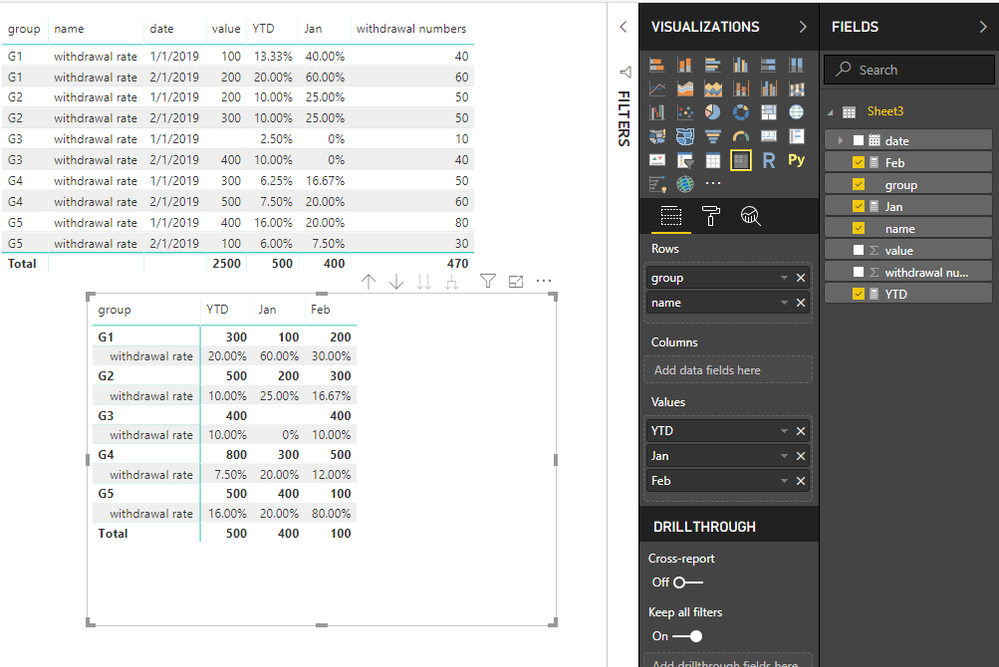
Please create measures
YTD =
VAR ytd_value =
CALCULATE (
SUM ( Sheet3[value] ),
FILTER ( ALLSELECTED ( Sheet3 ), Sheet3[group] = MAX ( Sheet3[group] ) )
)
VAR next_level =
FORMAT ( MAX ( Sheet3[withdrawal numbers] ) / ytd_value, "0.00%" )
RETURN
IF (
ISINSCOPE ( Sheet3[name] ),
IF ( ytd_value = BLANK (), "0%", next_level ),
ytd_value
)
Jan =
VAR jan_value =
CALCULATE (
SUM ( Sheet3[value] ),
FILTER (
ALLSELECTED ( Sheet3 ),
Sheet3[group] = MAX ( Sheet3[group] )
&& MONTH ( Sheet3[date] ) = 1
)
)
VAR next_level_jan =
FORMAT ( MAX ( Sheet3[withdrawal numbers] ) / jan_value, "0.00%" )
RETURN
IF (
ISINSCOPE ( Sheet3[name] ),
IF ( jan_value = BLANK (), "0%", next_level_jan ),
jan_value
)
Feb =
VAR feb_value =
CALCULATE (
SUM ( Sheet3[value] ),
FILTER (
ALLSELECTED ( Sheet3 ),
Sheet3[group] = MAX ( Sheet3[group] )
&& MONTH ( Sheet3[date] ) = 2
)
)
VAR next_level_feb =
FORMAT ( MAX ( Sheet3[withdrawal numbers] ) / feb_value, "0.00%" )
RETURN
IF (
ISINSCOPE ( Sheet3[name] ),
IF ( feb_value = BLANK (), "0%", next_level_feb ),
feb_value
)
Add them in a matrix visual
Best Regards
Maggie
Community Support Team _ Maggie Li
If this post helps, then please consider Accept it as the solution to help the other members find it more quickly.
Hi @jit
Assume you have data as below
| group | name | value | date | withdrawal numbers |
| G1 | withdrawal rate | 100 | 1/1/2019 | 40 |
| G2 | withdrawal rate | 200 | 1/1/2019 | 50 |
| G3 | withdrawal rate | 1/1/2019 | 10 | |
| G4 | withdrawal rate | 300 | 1/1/2019 | 50 |
| G5 | withdrawal rate | 400 | 1/1/2019 | 80 |
| G1 | withdrawal rate | 200 | 2/1/2019 | 60 |
| G2 | withdrawal rate | 300 | 2/1/2019 | 50 |
| G3 | withdrawal rate | 400 | 2/1/2019 | 40 |
| G4 | withdrawal rate | 500 | 2/1/2019 | 60 |
| G5 | withdrawal rate | 100 | 2/1/2019 | 30 |
Please create measures
YTD =
VAR ytd_value =
CALCULATE (
SUM ( Sheet3[value] ),
FILTER ( ALLSELECTED ( Sheet3 ), Sheet3[group] = MAX ( Sheet3[group] ) )
)
VAR next_level =
FORMAT ( MAX ( Sheet3[withdrawal numbers] ) / ytd_value, "0.00%" )
RETURN
IF (
ISINSCOPE ( Sheet3[name] ),
IF ( ytd_value = BLANK (), "0%", next_level ),
ytd_value
)
Jan =
VAR jan_value =
CALCULATE (
SUM ( Sheet3[value] ),
FILTER (
ALLSELECTED ( Sheet3 ),
Sheet3[group] = MAX ( Sheet3[group] )
&& MONTH ( Sheet3[date] ) = 1
)
)
VAR next_level_jan =
FORMAT ( MAX ( Sheet3[withdrawal numbers] ) / jan_value, "0.00%" )
RETURN
IF (
ISINSCOPE ( Sheet3[name] ),
IF ( jan_value = BLANK (), "0%", next_level_jan ),
jan_value
)
Feb =
VAR feb_value =
CALCULATE (
SUM ( Sheet3[value] ),
FILTER (
ALLSELECTED ( Sheet3 ),
Sheet3[group] = MAX ( Sheet3[group] )
&& MONTH ( Sheet3[date] ) = 2
)
)
VAR next_level_feb =
FORMAT ( MAX ( Sheet3[withdrawal numbers] ) / feb_value, "0.00%" )
RETURN
IF (
ISINSCOPE ( Sheet3[name] ),
IF ( feb_value = BLANK (), "0%", next_level_feb ),
feb_value
)
Add them in a matrix visual
Best Regards
Maggie
Community Support Team _ Maggie Li
If this post helps, then please consider Accept it as the solution to help the other members find it more quickly.
You can reference a query (Right click and choose reference, or under Manage button). After creating a couple of references, you can use remove alternating rows in one, and replace "Withdrawl Rate" with null -> fill down -> remove the other alternating rows in the other query, and finally merge them together
Hey @artemus thanks for the quick response. I can't quite follow what you are saying... Is it possible for you to show some screenshots/examples? Thanks so much!
The Power BI Data Visualization World Championships is back! Get ahead of the game and start preparing now!
Check out the November 2025 Power BI update to learn about new features.