cancel
Showing results for 
Search instead for 
Did you mean: 

Level up your Power BI skills this month - build one visual each week and tell better stories with data! Get started

Reply
Honne2021
Helper II
Helper II

Rank based on same date

Hi, I saw this old question online and wanted to ask because unlike the question posted here - https://community.powerbi.com/t5/Desktop/Group-By-ID-and-rank-it-in-sequence-of-date/m-p/687683

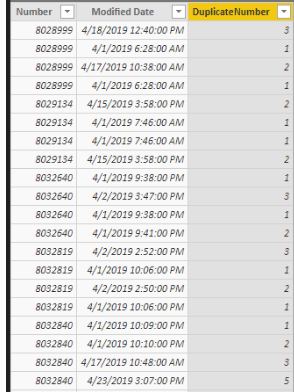
I want to rank it without duplicates. So if a Number like 8028999 had 3 same modified date and time, it should be 1,2,3 and not all 1. 

Honne2021_0-1659769784917.png


I followed the formula found in the link too but for my data, I need to avoid duplicated sequence.

DuplicateNumber = RANKX(FILTER('Table', 'Table'[Number] = EARLIER('Table'[Number])), 'Table'[Modified Date], , ASC, Dense

Thank you
1 ACCEPTED SOLUTION
liuqi_pbi
Resolver III
Resolver III

Hi @Honne2021 


Here is my solution with Power Query.


Step #1

First sort Number column ascendingly. Then sort Modified Date ascendingly.  

liuqi_pbi_1-1660032762199.png


liuqi_pbi_0-1660032530204.png


Step #2

From Transform > Group By, group by Number column and select All Rows for the new "AllData" column. 

liuqi_pbi_2-1660032862592.png


Step #3

Add a custom column with below code

Table.AddIndexColumn([AllData],"Index",1,1)

liuqi_pbi_3-1660033142456.png


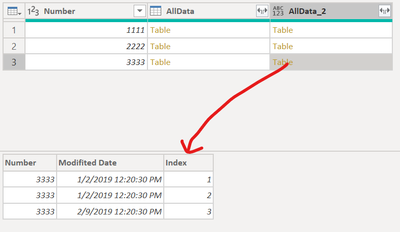
Every Table value in AllData_2 column will have an Index column like below. 

liuqi_pbi_4-1660033250760.png


Step #4

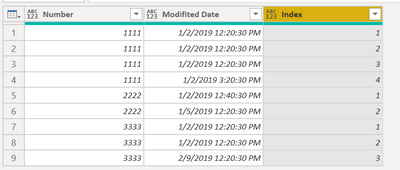
Remove Number and AllData columns. Preserve only AllData_2 in the query. Expand AllData_2 column. 


You will have the result you want. 

liuqi_pbi_5-1660033517847.png


Full M code

let
    Source = Table.FromRows(Json.Document(Binary.Decompress(Binary.FromText("i45WMgQCJR0lIwNDS31DfSMFQyMrIwMrYwOFAF+lWB0ayJuiyhsBAULeFEM/qjzYfBNkeWMgwGc/sryRviVeeQz9sQA=", BinaryEncoding.Base64), Compression.Deflate)), let _t = ((type nullable text) meta [Serialized.Text = true]) in type table [Number = _t, #"Modifited Date" = _t]),
    #"Changed Type" = Table.TransformColumnTypes(Source,{{"Number", Int64.Type}, {"Modifited Date", type datetime}}),
    #"Sorted Rows" = Table.Sort(#"Changed Type",{{"Number", Order.Ascending}, {"Modifited Date", Order.Ascending}}),
    #"Grouped Rows" = Table.Group(#"Sorted Rows", {"Number"}, {{"AllData", each _, type table [Number=nullable number, Modifited Date=nullable datetime]}}),
    #"Added Custom" = Table.AddColumn(#"Grouped Rows", "AllData_2", each Table.AddIndexColumn([AllData],"Index",1,1)),
    #"Removed Other Columns" = Table.SelectColumns(#"Added Custom",{"AllData_2"}),
    #"Expanded AllData_2" = Table.ExpandTableColumn(#"Removed Other Columns", "AllData_2", {"Number", "Modifited Date", "Index"}, {"Number", "Modifited Date", "Index"})
in
    #"Expanded AllData_2"


Cheers

If this reply helps solve the problem, please mark it as Solution! Kudos are appreciated too!


-

View solution in original post

2 REPLIES 2
liuqi_pbi
Resolver III
Resolver III

Hi @Honne2021 


Here is my solution with Power Query.


Step #1

First sort Number column ascendingly. Then sort Modified Date ascendingly.  
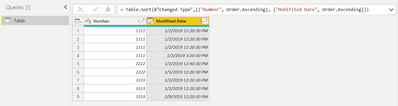
liuqi_pbi_1-1660032762199.png


liuqi_pbi_0-1660032530204.png


Step #2

From Transform > Group By, group by Number column and select All Rows for the new "AllData" column. 

liuqi_pbi_2-1660032862592.png


Step #3

Add a custom column with below code

Table.AddIndexColumn([AllData],"Index",1,1)
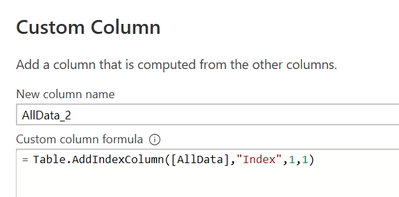
liuqi_pbi_3-1660033142456.png


Every Table value in AllData_2 column will have an Index column like below. 
liuqi_pbi_4-1660033250760.png


Step #4

Remove Number and AllData columns. Preserve only AllData_2 in the query. Expand AllData_2 column. 


You will have the result you want. 
liuqi_pbi_5-1660033517847.png


Full M code

let
    Source = Table.FromRows(Json.Document(Binary.Decompress(Binary.FromText("i45WMgQCJR0lIwNDS31DfSMFQyMrIwMrYwOFAF+lWB0ayJuiyhsBAULeFEM/qjzYfBNkeWMgwGc/sryRviVeeQz9sQA=", BinaryEncoding.Base64), Compression.Deflate)), let _t = ((type nullable text) meta [Serialized.Text = true]) in type table [Number = _t, #"Modifited Date" = _t]),
    #"Changed Type" = Table.TransformColumnTypes(Source,{{"Number", Int64.Type}, {"Modifited Date", type datetime}}),
    #"Sorted Rows" = Table.Sort(#"Changed Type",{{"Number", Order.Ascending}, {"Modifited Date", Order.Ascending}}),
    #"Grouped Rows" = Table.Group(#"Sorted Rows", {"Number"}, {{"AllData", each _, type table [Number=nullable number, Modifited Date=nullable datetime]}}),
    #"Added Custom" = Table.AddColumn(#"Grouped Rows", "AllData_2", each Table.AddIndexColumn([AllData],"Index",1,1)),
    #"Removed Other Columns" = Table.SelectColumns(#"Added Custom",{"AllData_2"}),
    #"Expanded AllData_2" = Table.ExpandTableColumn(#"Removed Other Columns", "AllData_2", {"Number", "Modifited Date", "Index"}, {"Number", "Modifited Date", "Index"})
in
    #"Expanded AllData_2"


Cheers

If this reply helps solve the problem, please mark it as Solution! Kudos are appreciated too!


-

ddpl
Solution Sage
Solution Sage

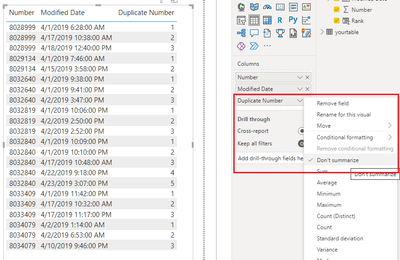
@Honne2021 Create table in Report view as per below.


ddpl_0-1659778375470.png


Helpful resources

Announcements
April Power BI Update Carousel

Power BI Monthly Update - April 2026

Check out the April 2026 Power BI update to learn about new features.

Fabric SQL PBI Data Days

Data Days 2026 coming soon!

Sign up to receive a private message when registration opens and key events begin.

New to Fabric survey Carousel

New to Fabric Survey

If you have recently started exploring Fabric, we'd love to hear how it's going. Your feedback can help with product improvements.

Power BI DataViz World Championships carousel

Power BI DataViz World Championships - June 2026

A new Power BI DataViz World Championship is coming this June! Don't miss out on submitting your entry.