Join us at FabCon Atlanta from March 16 - 20, 2026, for the ultimate Fabric, Power BI, AI and SQL community-led event. Save $200 with code FABCOMM.
Register now!The Power BI Data Visualization World Championships is back! It's time to submit your entry. Live now!
Hi All,
I am trying to create a matrix in excel using multiple different tables with percentages, but when I put them into the table they are all showing the same value for each row. For example the rows I am using are:
And the data I am trying to put into the table is:
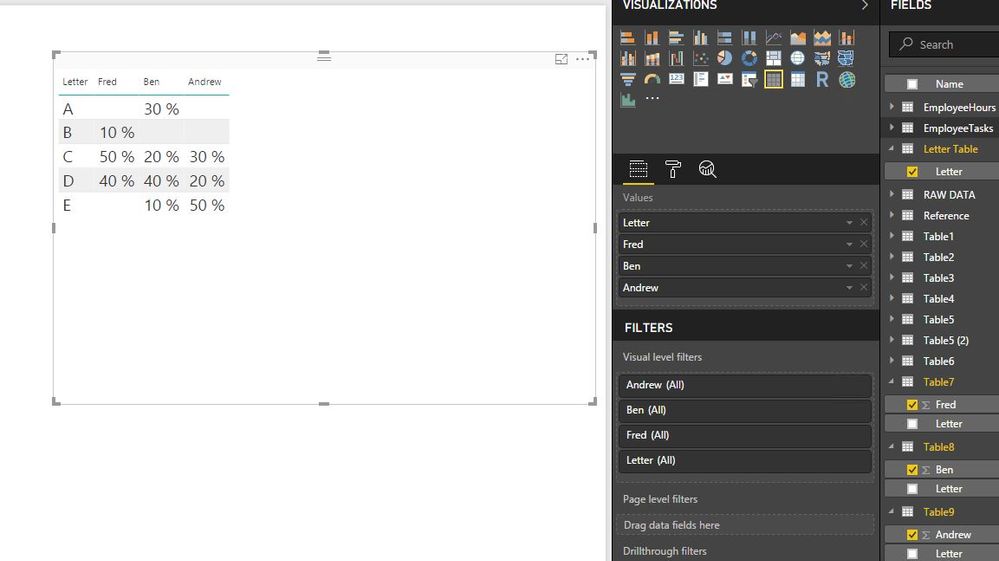
I want the matrix in PowerBi to look like this
Or even like this:
But the matrix keeps summing the columns (it is set to no calculation) like this:
How can I get all the columns into the matrix showing as their values even when the rows don't match perfectly?
Thanks:)
Solved! Go to Solution.
@KristenMackey wrote:
I am trying to create a matrix in excel using multiple different tables with percentages, but when I put them into the table they are all showing the same value for each row. For example the rows I am using are:
And the data I am trying to put into the table is:
@KristenMackey,
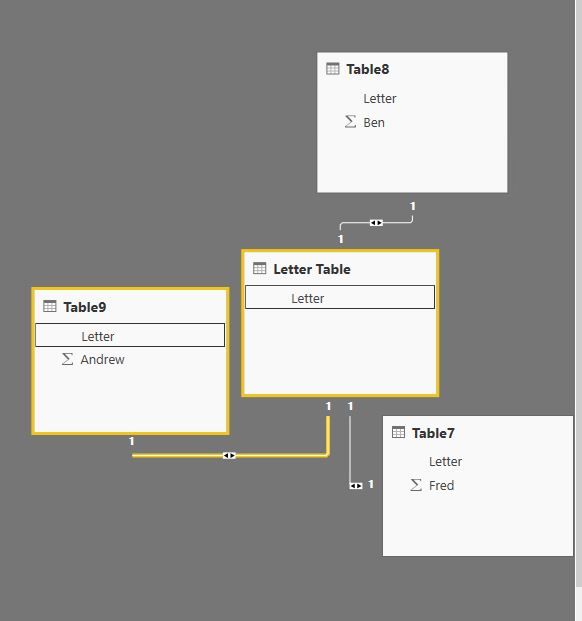
Based on the above sample data, you can directly use Letter field to create relationship among the four tables, then create a table visual to get expected result in Power BI Desktop.
Regards,
Lydia
@KristenMackey wrote:
I am trying to create a matrix in excel using multiple different tables with percentages, but when I put them into the table they are all showing the same value for each row. For example the rows I am using are:
And the data I am trying to put into the table is:
@KristenMackey,
Based on the above sample data, you can directly use Letter field to create relationship among the four tables, then create a table visual to get expected result in Power BI Desktop.
Regards,
Lydia
Hi,
You can simply merge all tables into 1 using query editor (Home > Edit Queries > Home > Combine > Merge Queries). That will get you your desired dataset
The Power BI Data Visualization World Championships is back! It's time to submit your entry.
Check out the January 2026 Power BI update to learn about new features.
| User | Count |
|---|---|
| 56 | |
| 40 | |
| 38 | |
| 21 | |
| 20 |
| User | Count |
|---|---|
| 141 | |
| 105 | |
| 63 | |
| 36 | |
| 35 |