Get certified for free when you join Fabric Data Days 2026 and dive into Fabric, Power BI, SQL, AI, and other essential data skills.
Join nowJuly 7 - July 17 | Round 2 of the Power BI Dataviz World Championships. Don't miss your chance! Learn more
Hi,
This is a measure"Row_number() Over (partition By product category Order by [OrderDate])" which I used in Tableau, how can I translate it in powerBI? Thanks
Solved! Go to Solution.
Hi @Anonymous ,
Suppose the dataset loaded into Power BI is like below.
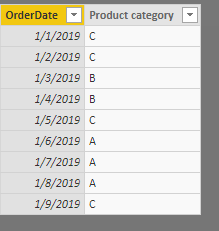
Here are two options to add such a row numer, via DAX or Power Query.
Option1: Adding a calculated column via DAX.
row_number =
RANKX (
FILTER (
Query1,
Query1[Product category] = EARLIER ( Query1[Product category] )
),
[OrderDate],
,
ASC
)
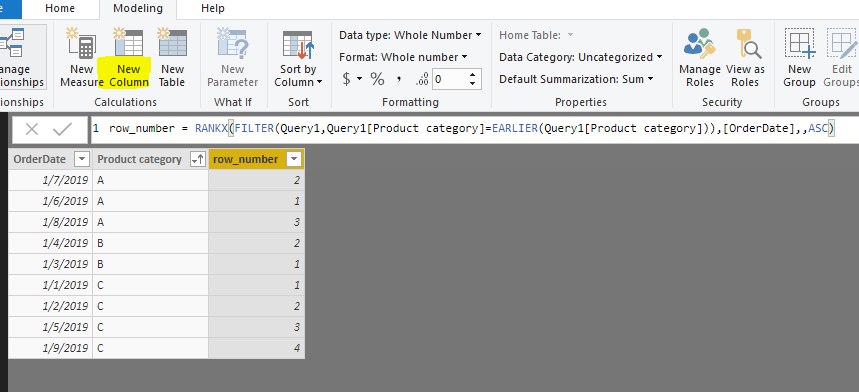
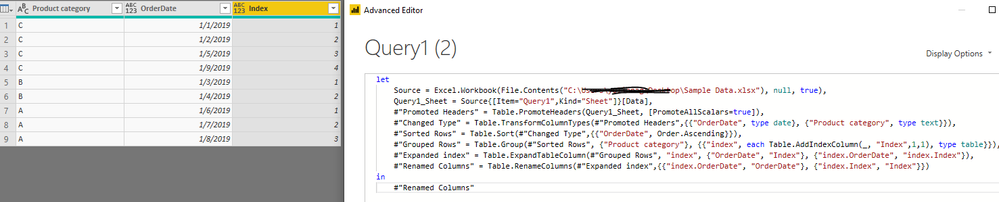
Option2: Adding a nested index in Query Editor mode.
In Query Editor mode, sort the [OrderDate] Ascending.
Please refer to bleow code.
let
Source = Excel.Workbook(File.Contents("C:\Users\xxxx\Desktop\Sample Data.xlsx"), null, true),
Query1_Sheet = Source{[Item="Query1",Kind="Sheet"]}[Data],
#"Promoted Headers" = Table.PromoteHeaders(Query1_Sheet, [PromoteAllScalars=true]),
#"Changed Type" = Table.TransformColumnTypes(#"Promoted Headers",{{"OrderDate", type date}, {"Product category", type text}}),
#"Sorted Rows" = Table.Sort(#"Changed Type",{{"OrderDate", Order.Ascending}}),
#"Grouped Rows" = Table.Group(#"Sorted Rows", {"Product category"}, {{"index", each Table.AddIndexColumn(_, "Index",1,1), type table}}),
#"Expanded index" = Table.ExpandTableColumn(#"Grouped Rows", "index", {"OrderDate", "Index"}, {"index.OrderDate", "index.Index"}),
#"Renamed Columns" = Table.RenameColumns(#"Expanded index",{{"index.OrderDate", "OrderDate"}, {"index.Index", "Index"}})
in
#"Renamed Columns"
Best regards,
Yuliana Gu
Hi @Anonymous ,
Suppose the dataset loaded into Power BI is like below.
Here are two options to add such a row numer, via DAX or Power Query.
Option1: Adding a calculated column via DAX.
row_number =
RANKX (
FILTER (
Query1,
Query1[Product category] = EARLIER ( Query1[Product category] )
),
[OrderDate],
,
ASC
)
Option2: Adding a nested index in Query Editor mode.
In Query Editor mode, sort the [OrderDate] Ascending.
Please refer to bleow code.
let
Source = Excel.Workbook(File.Contents("C:\Users\xxxx\Desktop\Sample Data.xlsx"), null, true),
Query1_Sheet = Source{[Item="Query1",Kind="Sheet"]}[Data],
#"Promoted Headers" = Table.PromoteHeaders(Query1_Sheet, [PromoteAllScalars=true]),
#"Changed Type" = Table.TransformColumnTypes(#"Promoted Headers",{{"OrderDate", type date}, {"Product category", type text}}),
#"Sorted Rows" = Table.Sort(#"Changed Type",{{"OrderDate", Order.Ascending}}),
#"Grouped Rows" = Table.Group(#"Sorted Rows", {"Product category"}, {{"index", each Table.AddIndexColumn(_, "Index",1,1), type table}}),
#"Expanded index" = Table.ExpandTableColumn(#"Grouped Rows", "index", {"OrderDate", "Index"}, {"index.OrderDate", "index.Index"}),
#"Renamed Columns" = Table.RenameColumns(#"Expanded index",{{"index.OrderDate", "OrderDate"}, {"index.Index", "Index"}})
in
#"Renamed Columns"
Best regards,
Yuliana Gu
Hi Gu,
Thank you so much for help!
Jenny
Join us in Barcelona for FabCon and SQLCon, the Fabric, Power BI, SQL, and AI community event. Save €200 with code FABCMTY200.
Join Fabric Data Days 2026: 60 days of free live/on-demand sessions, challenges, study groups, and certification opportunities.
| User | Count |
|---|---|
| 23 | |
| 19 | |
| 18 | |
| 17 | |
| 13 |
| User | Count |
|---|---|
| 60 | |
| 52 | |
| 47 | |
| 40 | |
| 38 |