cancel
Showing results for 
Search instead for 
Did you mean: 

The Power BI Data Visualization World Championships is back! Get ahead of the game and start preparing now! Learn more

Reply
Anonymous
Not applicable

Days Group DAX Function

Hi, Can you please help me with DAX formulas, I kinda stuck. 


I have START Date and END Date and need to calculate Days Between, I used this function below to create new column:

Days = DATEDIFF([START_DATE],[END_DATE],DAY)
Then I need to group them into categories, this is what I Use to create a new column:
Days Group = if([Days] = 0, "0 Day" , if([Days] = 1, "1 Day", if([Days]  = 2, "2 Days", if([Days] = 3, "3 Days", if([Days] = 4, "4 Days", if([Days] = 5, "5 Days", if([Days] >= 6, "6+ Days", IF(ISBLANK([Days]),BLANK(), "Pending" ))))))))
The problem is, that all my Blank Values capchuring under 0 Days Categorie, insted of Pendings. 
What should I fix in order to get me blanks under "Pendings"?
Also, my new column days is a number type, but if I change it to text then "pending" is working, but my other groups are getting messy. 
 
Please advice. 
1 ACCEPTED SOLUTION
Anonymous
Not applicable

Hi @Anonymous,

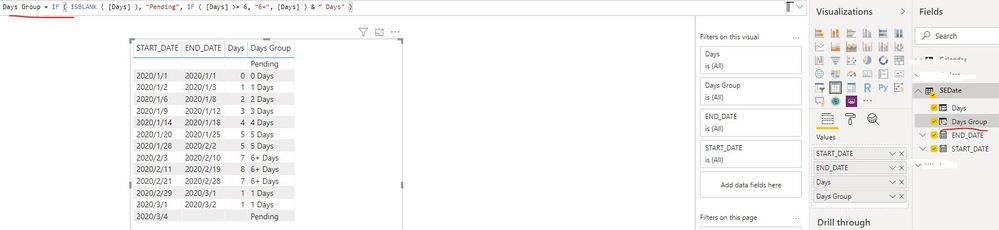
Please try to create one calculated column as below:

Days Group = IF ( ISBLANK ( [Days] ), "Pending", IF ( [Days] >= 6, "6+", [Days] ) & " Days" )

datediff.JPG

If the above formula is not applicable in your scenario, could you please explain which condition can be grouped as " Pending "?


Best Regards

Rena

View solution in original post

4 REPLIES 4
Anonymous
Not applicable

Thank you, everyone, for the help!

Anonymous
Not applicable

Hi @Anonymous,

Please try to create one calculated column as below:

Days Group = IF ( ISBLANK ( [Days] ), "Pending", IF ( [Days] >= 6, "6+", [Days] ) & " Days" )

datediff.JPG

If the above formula is not applicable in your scenario, could you please explain which condition can be grouped as " Pending "?


Best Regards

Rena

az38
Community Champion
Community Champion

Hi @Anonymous 

try to use grouping technique as described here https://docs.microsoft.com/en-us/power-bi/desktop-grouping-and-binning


do not hesitate to give a kudo to useful posts and mark solutions as solution
LinkedIn
vivran22
Community Champion
Community Champion

Hello @Anonymous 


I would recommend to use Power Query for this:


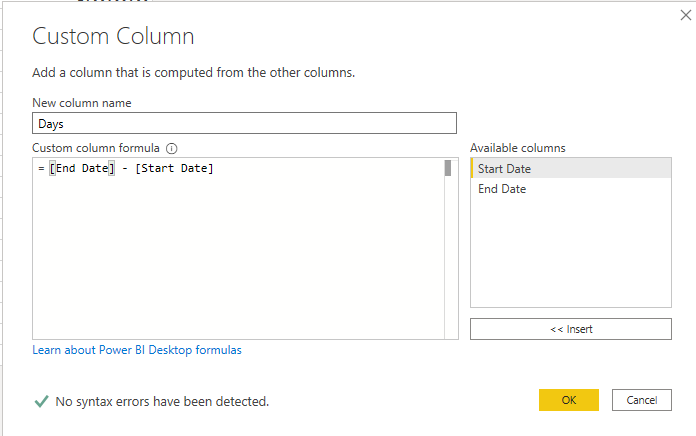
Add a custom column:

1.PNG


Change the column type to number:

2.png


Add a conditional column:

3.PNG


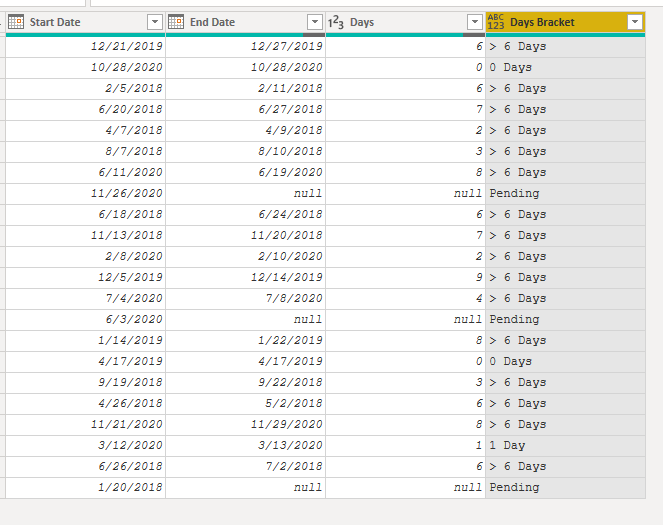
Result:

4.PNG


Cheers!
Vivek

If it helps, please mark it as a solution
Kudos would be a cherry on the top 🙂

https://www.vivran.in/

Connect on LinkedIn

Helpful resources

Announcements
Power BI DataViz World Championships

Power BI Dataviz World Championships

The Power BI Data Visualization World Championships is back! Get ahead of the game and start preparing now!

December 2025 Power BI Update Carousel

Power BI Monthly Update - December 2025

Check out the December 2025 Power BI Holiday Recap!

FabCon Atlanta 2026 carousel

FabCon Atlanta 2026

Join us at FabCon Atlanta, March 16-20, for the ultimate Fabric, Power BI, AI and SQL community-led event. Save $200 with code FABCOMM.

Top Solution Authors