Don't miss your chance to take the Fabric Data Engineer (DP-700) exam on us!
Learn moreWe've captured the moments from FabCon & SQLCon that everyone is talking about, and we are bringing them to the community, live and on-demand. Starts on April 14th. Register now
Hi,
I have a query based on multiple SharePoint lists. Everything works just fine when there is data in the lists, however when I try to refresh my dashboard when one of the lists is empty I get an error message saying there is no 'ID column' to be found. It's not ideal to make sure there is always a line in the SharePoint list. I was wondering if there is a workaround for this issue.
Thanks in advance,
Matt
Hi @Matthias93,
Do you refresh your data in Power BI Desktop or in Power BI Service?
Based on my test, when we firstly import data from SharePoint lists and empty list into Power BI Desktop, empty SharePoint list will show as an empty table in Power BI Desktop. In this case, there are no issues when you refresh data in Power BI Desktop or refresh the dataset in Power BI Service.
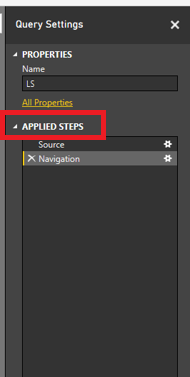
However, if I delete all items on one of my non-empty SharePoint list (for example: LS), then refresh data in Power BI Desktop or refresh the dataset in Power BI Service, I can reproduce your error. In this case, open query editor in Power BI Desktop, click on your query(LS in my scenario) , and you will see APPLIED STEPS in Query Setting panel, some steps(“Renamed Columns” in my scenario) should make changes to your columns, as long as you remove these steps, the error goes away. And if you get this error in Power BI Service, you will need to firstly handle this error in PBIX file and re-publish it to Service.
Thanks,
Lydia Zhang
Hi,
I have a query based on multiple SharePoint lists. Everything works just fine when there is data in the lists, however when I try to refresh my dashboard when one of the lists is empty I get an error message saying there is no 'ID column' to be found. It's not ideal to make sure there is always a line in the SharePoint list. I was wondering if there is a workaround for this issue.
Thanks in advance,
Matt
I had the same problem and found the best workaround is to create a "test" row in the Sharepoint list that always stays there and filter it out in the BI report.
If you have recently started exploring Fabric, we'd love to hear how it's going. Your feedback can help with product improvements.
A new Power BI DataViz World Championship is coming this June! Don't miss out on submitting your entry.
Share feedback directly with Fabric product managers, participate in targeted research studies and influence the Fabric roadmap.
| User | Count |
|---|---|
| 57 | |
| 37 | |
| 34 | |
| 19 | |
| 17 |
| User | Count |
|---|---|
| 74 | |
| 70 | |
| 37 | |
| 35 | |
| 25 |