Join us in Barcelona for FabCon and SQLCon, September 28 - October 1, 2026.
This is best Fabric, Power BI, SQL and AI community event. How do we know? The last event sold out! Save €200 with code FABCMTY200.
Register now- Power BI forums
- Get Help with Power BI
- Desktop
- Service
- Report Server
- Power Query
- Mobile Apps
- Developer
- DAX Commands and Tips
- Custom Visuals Development Discussion
- Health and Life Sciences
- Power BI Spanish forums
- Translated Spanish Desktop
- Training and Consulting
- Instructor Led Training
- Dashboard in a Day for Women, by Women
- Galleries
- Data Stories Gallery
- Themes Gallery
- Contests Gallery
- QuickViz Gallery
- Quick Measures Gallery
- Visual Calculations Gallery
- Fabric Apps Gallery
- Notebook Gallery
- Translytical Task Flow Gallery
- TMDL Gallery
- R Script Showcase
- Webinars and Video Gallery
- Ideas
- Custom Visuals Ideas (read-only)
- Issues
- Issues
- Events
- Upcoming Events
The Fabric community is upgrading! Read all of the details including the timeline and what you can expect. Learn more
- Power BI forums
- Forums
- Get Help with Power BI
- Desktop
- Re: Combine Values into groups
- Subscribe to RSS Feed
- Mark Topic as New
- Mark Topic as Read
- Float this Topic for Current User
- Bookmark
- Subscribe
- Printer Friendly Page

- Mark as New
- Bookmark
- Subscribe
- Mute
- Subscribe to RSS Feed
- Permalink
- Report Inappropriate Content
Combine Values into groups
Hello,
We have a table containing "Job ID", "Job Type" and "Revenue" (and a lot more - not important).
The problem is we have 30+ job types, and we would like to put them into 4 groups.
The goal is to look at revenue per job type - so instead of revenue per 30+ job types, we would like to see the revenue per 4 combined types.
So lets say Job type 1-10 Should belong to "Jop Type A", Job type 11-20 should be "Job Type B" etc.
Is there an easy way for us to do that in this huge data table?
Thanks!
Solved! Go to Solution.


- Mark as New
- Bookmark
- Subscribe
- Mute
- Subscribe to RSS Feed
- Permalink
- Report Inappropriate Content
Right,
Creating a group following the link i posted before should work fine
Use grouping and binning in Power BI Desktop
In short, right click on the column -> New group, in group type choose list and than group them in any way you like
- Mark as New
- Bookmark
- Subscribe
- Mute
- Subscribe to RSS Feed
- Permalink
- Report Inappropriate Content
Hi,
You could try and create a group:
Use grouping and binning in Power BI Desktop
But as PattemManohar says posting some sample test data could be useful to give a accurate solution
- Mark as New
- Bookmark
- Subscribe
- Mute
- Subscribe to RSS Feed
- Permalink
- Report Inappropriate Content
Sample data:
| Job ID | Job Type | Revenue | NEW |
| 1 | Banana | 10 | Fruit |
| 2 | Apple | 4 | Fruit |
| 3 | Grape | 10 | Fruit |
| 4 | Red | 100 | Wine |
| 5 | White | 200 | Wine |
| 6 | Rosé | 150 | Wine |
| 7 | Red | 100 | Wine |
| 8 | Banana | 10 | Fruit |
| 9 | Apple | 10 | Fruit |
| 10 | Grape | 10 | Fruit |
| 11 | T-shirt | 200 | Clothes |
| 12 | Pants | 230 | Clothes |
| 13 | Pants | 250 | Clothes |
| 14 | T-shirt | 200 | Clothes |
| 15 | Banana | 10 | Fruit |
| 16 | Apple | 5 | Fruit |
| 17 | Grape | 7 | Fruit |
| 18 | Red | 120 | Wine |
| 19 | White | 200 | Wine |
| 20 | Rosé | 350 | Wine |
| 21 | Banana | 10 | Fruit |
| 22 | Apple | 5 | Fruit |
| 23 | Grape | 5 | Fruit |
| 24 | T-shirt | 100 | Clothes |
| 25 | Pants | 250 | Clothes |
So the "NEW" column is how I think it could be 🙂
- Mark as New
- Bookmark
- Subscribe
- Mute
- Subscribe to RSS Feed
- Permalink
- Report Inappropriate Content
Right,
Creating a group following the link i posted before should work fine
Use grouping and binning in Power BI Desktop
In short, right click on the column -> New group, in group type choose list and than group them in any way you like


- Mark as New
- Bookmark
- Subscribe
- Mute
- Subscribe to RSS Feed
- Permalink
- Report Inappropriate Content
@Gordonlilj In this case we need to group based on the total revenue (which is another field). So can't use normal grouping option.
Did I answer your question? Mark my post as a solution!
Proud to be a PBI Community Champion
- Mark as New
- Bookmark
- Subscribe
- Mute
- Subscribe to RSS Feed
- Permalink
- Report Inappropriate Content
Thanks @Anonymous for sample data.
Is NEW column is your expected output ? or that is what need to considered for JobType to calculate Revenue - Please confirm.
Did I answer your question? Mark my post as a solution!
Proud to be a PBI Community Champion
- Mark as New
- Bookmark
- Subscribe
- Mute
- Subscribe to RSS Feed
- Permalink
- Report Inappropriate Content
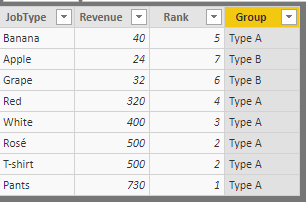
@Anonymous Hope this is what you are after..
Create a New Table as below
Test310Out = SUMMARIZE(Test310Groups,Test310Groups[JobType],"Revenue",SUM(Test310Groups[Revenue]))
Then, add Rank field to the above table as below
Rank = RANKX(Test310Out,Test310Out[Revenue],,DESC,Dense)
Finally, add a Grouping field based on the Revenue (which we have assigned Rank in above step)
Group = IF(Test310Out[Rank]<=5,"Type A",IF(Test310Out[Rank]<=10,"Type B","Other"))
Did I answer your question? Mark my post as a solution!
Proud to be a PBI Community Champion
- Mark as New
- Bookmark
- Subscribe
- Mute
- Subscribe to RSS Feed
- Permalink
- Report Inappropriate Content
@Anonymous Please post sample test data to suggest an accurate solution. But from the lines of your requirement, I suggest to create a Rank field which will give you the rank based on their Revenue and then use this Rank field to create a groups using DAX
Did I answer your question? Mark my post as a solution!
Proud to be a PBI Community Champion
Helpful resources

FabCon & SQLCon – Barcelona 2026
Join us in Barcelona for FabCon and SQLCon, the Fabric, Power BI, SQL, and AI community event. Save €200 with code FABCMTY200.

Power BI DataViz World Championships - June 2026
A new Power BI DataViz World Championship is coming this June! Don't miss out on submitting your entry.

| User | Count |
|---|---|
| 27 | |
| 22 | |
| 20 | |
| 18 | |
| 14 |


| User | Count |
|---|---|
| 25 | |
| 20 | |
| 20 | |
| 20 | |
| 20 |


