Don't miss your chance to take the Fabric Data Engineer (DP-600) exam for FREE! Find out how by attending the DP-600 session on April 23rd (pacific time), live or on-demand.
Learn moreNext up in the FabCon + SQLCon recap series: The roadmap for Microsoft SQL and Maximizing Developer experiences in Fabric. All sessions are available on-demand after the live show. Register now
Hi,
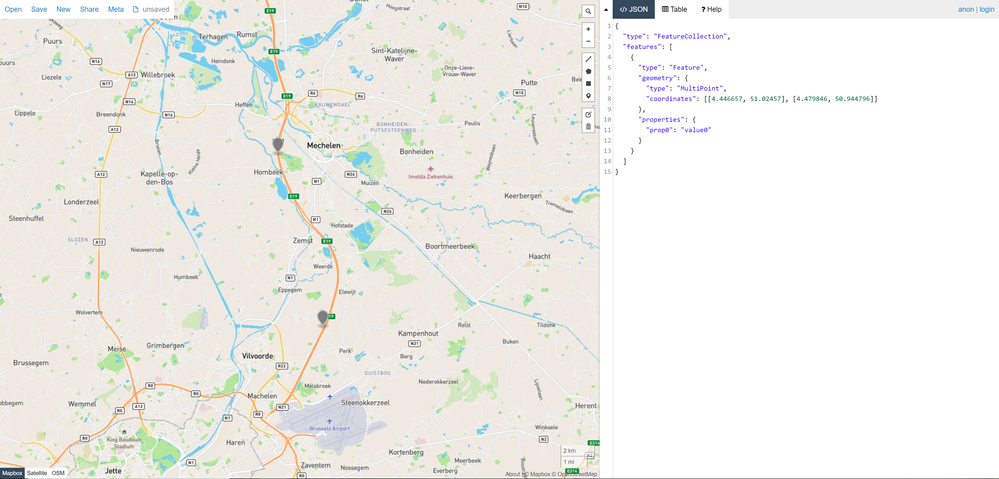
I'm new to Power Bi and I would like to achieve a map with multipoints from a geoJson data.
Here is an example geoJson data with 2 points (coordinates)
{
"type": "FeatureCollection",
"features": [
{
"type": "Feature",
"geometry": {
"type": "MultiPoint",
"coordinates": [
[
4.446657,
51.02457
],
[
4.479846,
50.944796
]
]
},
"properties": {
"prop0": "value0"
}
}
]
}And here is an example what I would like to achieve.
I couldn't find much information on web how I can use Power Bi with geoJson data. Is that possible to achieve multipoint map with Power Bi? How can i do that? Thanx
Solved! Go to Solution.
Step 1. Save your geojson in Json format : GeoJson.Json
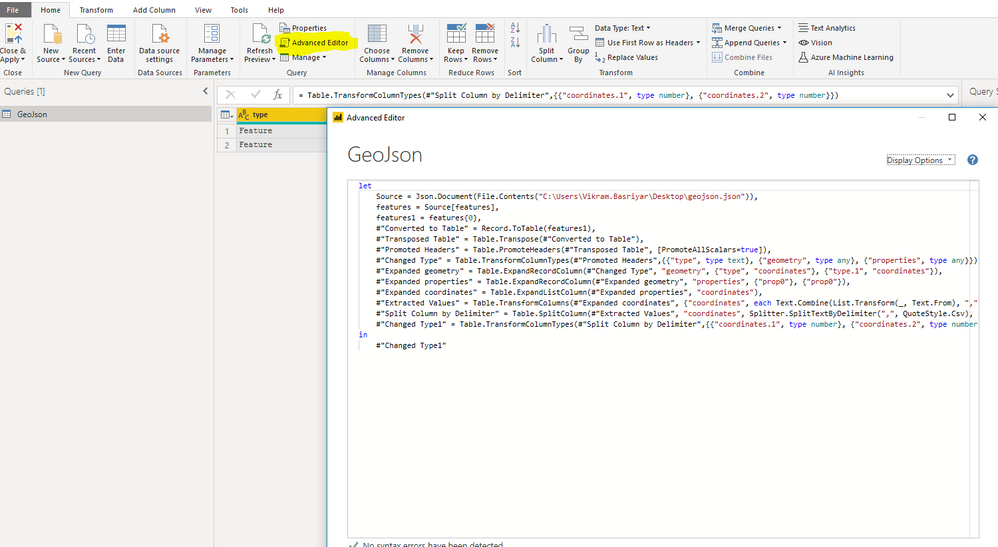
Step 2. Paste below advanced query in the advanced editor in transform data :
let
Source = Json.Document(File.Contents("C:\Users\Desktop\geojson.json")),
features = Source[features],
features1 = features{0},
#"Converted to Table" = Record.ToTable(features1),
#"Transposed Table" = Table.Transpose(#"Converted to Table"),
#"Promoted Headers" = Table.PromoteHeaders(#"Transposed Table", [PromoteAllScalars=true]),
#"Changed Type" = Table.TransformColumnTypes(#"Promoted Headers",{{"type", type text}, {"geometry", type any}, {"properties", type any}}),
#"Expanded geometry" = Table.ExpandRecordColumn(#"Changed Type", "geometry", {"type", "coordinates"}, {"type.1", "coordinates"}),
#"Expanded properties" = Table.ExpandRecordColumn(#"Expanded geometry", "properties", {"prop0"}, {"prop0"}),
#"Expanded coordinates" = Table.ExpandListColumn(#"Expanded properties", "coordinates"),
#"Extracted Values" = Table.TransformColumns(#"Expanded coordinates", {"coordinates", each Text.Combine(List.Transform(_, Text.From), ","), type text}),
#"Split Column by Delimiter" = Table.SplitColumn(#"Extracted Values", "coordinates", Splitter.SplitTextByDelimiter(",", QuoteStyle.Csv), {"coordinates.1", "coordinates.2"}),
#"Changed Type1" = Table.TransformColumnTypes(#"Split Column by Delimiter",{{"coordinates.1", type number}, {"coordinates.2", type number}})
in
#"Changed Type1"
Step 3: Close and Apply
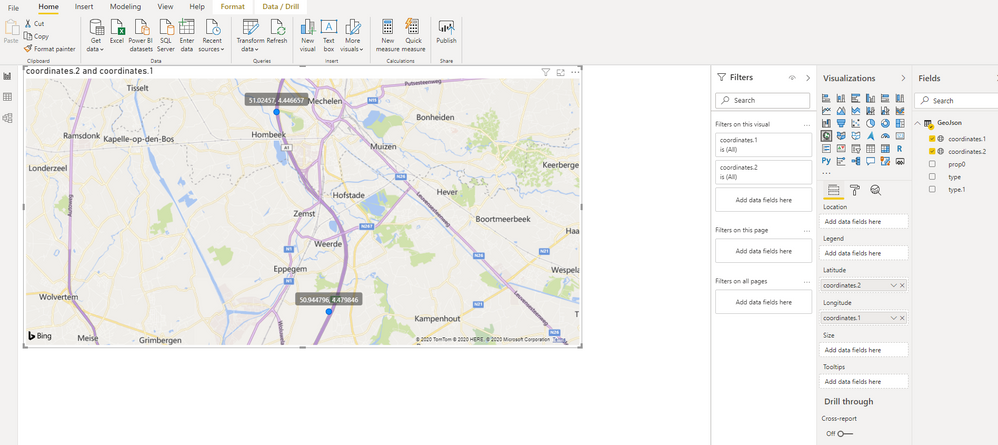
step 4: Change the data type of cordinates.1 and cordinates.2 by selecting the columns to logitude and latitude respectively.
step 5 : pull the logitude and latitude in map visual.Transformdata-->Getdata-->Newquery-->advancededitor--> cody the code and paste--> apply
Step 1. Save your geojson in Json format : GeoJson.Json
Step 2. Paste below advanced query in the advanced editor in transform data :
let
Source = Json.Document(File.Contents("C:\Users\Desktop\geojson.json")),
features = Source[features],
features1 = features{0},
#"Converted to Table" = Record.ToTable(features1),
#"Transposed Table" = Table.Transpose(#"Converted to Table"),
#"Promoted Headers" = Table.PromoteHeaders(#"Transposed Table", [PromoteAllScalars=true]),
#"Changed Type" = Table.TransformColumnTypes(#"Promoted Headers",{{"type", type text}, {"geometry", type any}, {"properties", type any}}),
#"Expanded geometry" = Table.ExpandRecordColumn(#"Changed Type", "geometry", {"type", "coordinates"}, {"type.1", "coordinates"}),
#"Expanded properties" = Table.ExpandRecordColumn(#"Expanded geometry", "properties", {"prop0"}, {"prop0"}),
#"Expanded coordinates" = Table.ExpandListColumn(#"Expanded properties", "coordinates"),
#"Extracted Values" = Table.TransformColumns(#"Expanded coordinates", {"coordinates", each Text.Combine(List.Transform(_, Text.From), ","), type text}),
#"Split Column by Delimiter" = Table.SplitColumn(#"Extracted Values", "coordinates", Splitter.SplitTextByDelimiter(",", QuoteStyle.Csv), {"coordinates.1", "coordinates.2"}),
#"Changed Type1" = Table.TransformColumnTypes(#"Split Column by Delimiter",{{"coordinates.1", type number}, {"coordinates.2", type number}})
in
#"Changed Type1"
Step 3: Close and Apply
step 4: Change the data type of cordinates.1 and cordinates.2 by selecting the columns to logitude and latitude respectively.
step 5 : pull the logitude and latitude in map visual.Transformdata-->Getdata-->Newquery-->advancededitor--> cody the code and paste--> apply
If you have recently started exploring Fabric, we'd love to hear how it's going. Your feedback can help with product improvements.
A new Power BI DataViz World Championship is coming this June! Don't miss out on submitting your entry.
Share feedback directly with Fabric product managers, participate in targeted research studies and influence the Fabric roadmap.