Get Fabric or SQL Certified for Free.
Get certified for free when you join Fabric Data Days 2026 and dive into Fabric, Power BI, SQL, AI, and other essential data skills.
Join now- Power BI forums
- Get Help with Power BI
- Desktop
- Service
- Report Server
- Power Query
- Mobile Apps
- Developer
- DAX Commands and Tips
- Custom Visuals Development Discussion
- Health and Life Sciences
- Power BI Spanish forums
- Translated Spanish Desktop
- Training and Consulting
- Instructor Led Training
- Dashboard in a Day for Women, by Women
- Galleries
- Data Stories Gallery
- Themes Gallery
- Contests Gallery
- QuickViz Gallery
- Quick Measures Gallery
- Visual Calculations Gallery
- Fabric Apps Gallery
- Notebook Gallery
- Translytical Task Flow Gallery
- TMDL Gallery
- R Script Showcase
- Webinars and Video Gallery
- Ideas
- Custom Visuals Ideas (read-only)
- Issues
- Issues
- Events
- Upcoming Events
July 28 - August 9 | Final Round of the Power BI Dataviz World Championships. This is your chance. Learn more
- Power BI forums
- Forums
- Get Help with Power BI
- Service
- Re: Web.Contents with dynamic file URL
- Subscribe to RSS Feed
- Mark Topic as New
- Mark Topic as Read
- Float this Topic for Current User
- Bookmark
- Subscribe
- Printer Friendly Page


- Mark as New
- Bookmark
- Subscribe
- Mute
- Subscribe to RSS Feed
- Permalink
- Report Inappropriate Content
Web.Contents with dynamic file URL
I have searched through the community and found out about the limitation of Web.Contents on Power BI Service. Data source is an Excel file in Sharepoint site, so I did some change to my codes.
fileName is a full URL file, for example, https://globalappsportal.sharepoint.com/sites/mySiteName/Shared Documents/General/data.xlsx
Original which does not work in BI Service:
(fileName as text) =>
let
    Source = Excel.Workbook(Web.Contents(fileName), null, true),
Of course, in Power BI Service, it shows: You can't schedule refresh for this dataset because the following data sources currently don't support refresh.
Therefore, the following is my modification:
(fileNameWithRelativePath = Shared Documents/General/data.xlsx)
(fileNameWithRelativePath as text) =>
let
    Source = Excel.Workbook(Web.Contents("https://globalappsportal.sharepoint.com/sites/mySiteName"&fileNameWithRelativePath), null, true),
Following is my google drive with folder structure and the pbix file.
https://drive.google.com/drive/folders/1zo8gqyDfqUxKvFqtagW0YgZFd8HZUpGQ?usp=sharing
In Power Query, you can ignore all the parameters in User Inputs folder. Then modify the sharepoint site URL of the following 3 queries:
Consolidated Media Raw Data
FACEBOOKProcessor
YOUTUBEProcessor
As there are many different excel formats from all of our media vendors, I create 1 processor to alter 1 excel into our standard format. In this sample I leave 2 processors: Facebook and Youtube.
Consolidated Media Raw Data is the main query. It starts with Sharepoint.Files to list all files of a site. After some filtering I will get the files what I want to process. Then at "Invoke Custom Function", according to the folder name, file name with folder path will be passed to corresponding processor for format alteration.
This pbix will work in Desktop, but when loading to BI Service it won't due to Web.Contents used in those 2 processors.
Error says: Unable to refresh the model (id=9998200) because it references an unsupported data source
If I use the full URL in double quotes in Web.Contents, it will work in BI Service, but if I have a parameter in Web.Contents, above error will show...
This will work in BI Service:
Source = Excel.Workbook(Web.Contents("https://globalappsportal.sharepoint.com/sites/mySiteName/Shared Documents/General/abc.xlsx"), null, true),
This will NOT work in BI Service:
Source = Excel.Workbook(Web.Contents("https://globalappsportal.sharepoint.com/sites/mySiteName"&fileNameWithRelativePath), null, true),
As the folder path and file name will always be different so that I need to dynamically pass fileNameWithRelativePath over, is there a way to fix it?
Thank you very much for your time and help.
Solved! Go to Solution.


- Mark as New
- Bookmark
- Subscribe
- Mute
- Subscribe to RSS Feed
- Permalink
- Report Inappropriate Content
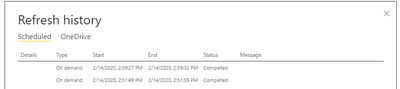
I've got it working. All ive done is set all URL's as parameters, I also added a space between parameters and the & in the functions. All minor stuff so this makes me think there is more to it.
Anyway I uploaded it to my service updated the facebook file and refreshed and the clicks updated.
I've updated the pbix with your sharepoint path, here are the files again.
- Mark as New
- Bookmark
- Subscribe
- Mute
- Subscribe to RSS Feed
- Permalink
- Report Inappropriate Content
Check out this link Chris Webb nicely explained a way around this web. contents service check issue at exactly 29 minutes and 35 seconds. https://www.youtube.com/watch?v=a0FqNLI0VsQ&ab_channel=RADACAD
Cheers.
- Mark as New
- Bookmark
- Subscribe
- Mute
- Subscribe to RSS Feed
- Permalink
- Report Inappropriate Content
I know what you mean, with the evolution of PBI you will probably find you can refactor the solution soon.
Fingers crossed that works, hopefully we can close this one off. It's been a good challenge.
- Mark as New
- Bookmark
- Subscribe
- Mute
- Subscribe to RSS Feed
- Permalink
- Report Inappropriate Content
Hello aTChris,
Indeed, thank you so much for all the time you have spent. Hopefully one day BI Service can be as friendly as BI Desktop. 😛
Best regards,
David
- Mark as New
- Bookmark
- Subscribe
- Mute
- Subscribe to RSS Feed
- Permalink
- Report Inappropriate Content
- Mark as New
- Bookmark
- Subscribe
- Mute
- Subscribe to RSS Feed
- Permalink
- Report Inappropriate Content
- Mark as New
- Bookmark
- Subscribe
- Mute
- Subscribe to RSS Feed
- Permalink
- Report Inappropriate Content
Hello aTChris,
Wahahahahahahaha!!!!! I got it working! I used Sharepoint.File with a different approach without Web.Contents and it works like a charm!
(fileName as text, filePath as text, publisherName as text) =>

let
    Source = SharePoint.Files(foldersPath, [ApiVersion = 15]),
    SourceBinary = Source{[Name=fileName,#"Folder Path"=filePath]}[Content],
    #"Imported Excel" = Excel.Workbook(SourceBinary),
- First, use Sharepoint.Files to list all binary files
- With fileName and filePath parameters passed to this processor, get the dedicated binary I want
- Extract binary with Excel.Workbook
With this way, I don't need to use Web.Contents. Therefore I can use dynamic URL and there wouldn't be any problem in Power BI Service.
This will be the exact solution to my problem, maybe you can edit your solution reply with this if you want.
Thank you again for all the inspiration!
- Mark as New
- Bookmark
- Subscribe
- Mute
- Subscribe to RSS Feed
- Permalink
- Report Inappropriate Content
Oh! No wonder why authentication wouldn’t pass because it is pointing to root directory.
Let me give it a try tomorrow, it would be something like the following:
(fileNameWithRelativePath as text) =>
let
Source = Excel.Workbook(Web.Contents("https://globalappsportal.sharepoint.com/sites/mySiteName/Shared Document/General/"&fileNameWithRelativePath]), null, true),
Hopefully it will work in Power BI Service! 🙂
Thanks again!
- Mark as New
- Bookmark
- Subscribe
- Mute
- Subscribe to RSS Feed
- Permalink
- Report Inappropriate Content
You should not have an issue linking to a sharepoint file in the cloud. What error do you get?
This is an example of what works for me.
let
    Source = Excel.Workbook(Web.Contents("https://xxxx.sharepoint.com/sites/powerbi/Shared%20Documents/xxxx.xlsx"), null, true)

in
    #"Source"
With regards to your issue using a relative path. The issue is because the parth you've set is not correct, if you try to navigate to that location in a browser you will see it redirects to /Forms/AllItems.aspx, Ive not found a solution to define the root location and relative path for sharepoint docs.
Do you know the quick method in excel to get the path of a file in sharepoint?
File -> Info -> Copy Path
Remove "?web=1" and you have an encoded path to your file.
Hope that helps.
- Mark as New
- Bookmark
- Subscribe
- Mute
- Subscribe to RSS Feed
- Permalink
- Report Inappropriate Content
Thank you so much for your reply. Yes your codes will work as the URL is fixed in double quotes.
Because there are more than 1 excel file in different folders that I want to process, I am passing the full URL as a variable “fileName” to this function I created.
Web.Contents with fixed URL in double quotes will work in BI Service, but will not work if I use a variable as URL. This is why I use relativePath.
In the error message shown in the last image, URL shown in the very first line is the correct path with correct file name and extension (mouse-over will show the full URL). Therefore, I think the URL is not wrong like you said.
Original codes with Web.Contents(fileName), it says something about unable to process file type and unsupported function: Web.Contents. Sorry that I don’t have the computer with me right now and I forgot what exactly the error is.
Any other idea?

Helpful resources

FabCon & SQLCon – Barcelona 2026
Join us in Barcelona for FabCon and SQLCon, the Fabric, Power BI, SQL, and AI community event. Save €200 with code FABCMTY200.

Fabric Community Sticker Challenge - Barcelona 2026
If you love stickers, then you will definitely want to check out our community sticker challenge, Barcelona edition!

Power BI Monthly Update - July 2026
Check out the July 2026 Power BI update to learn about new features.

Power BI DataViz World Championships - June 2026
A new Power BI DataViz World Championship is coming this June! Don't miss out on submitting your entry.

| User | Count |
|---|---|
| 14 | |
| 9 | |
| 9 | |
| 8 | |
| 6 |


