Join us at FabCon Atlanta from March 16 - 20, 2026, for the ultimate Fabric, Power BI, AI and SQL community-led event. Save $200 with code FABCOMM.
Register now!The Power BI Data Visualization World Championships is back! It's time to submit your entry. Live now!
I haven't been able to get the Filtered URL feature on my dashboard to work. I believe I followed all the steps. While the column to be filtered on (PartID) contained numbers, I changed it into a Text format.
I published this report, made a dashboard of the page I want and tried to access that dashboard with filters using the following URL:
https://app.powerbi.com/groups//dashboards/[dashboard code]?filter=Combined/PartID eq '1'
Using this URL (which translates to https://app.powerbi.com/groups//dashboards/[dashboard code]?filter=Combined%2FPartID%20eq%20%271%27 ) does open the dashboard, but seemingly without any filtering applied.
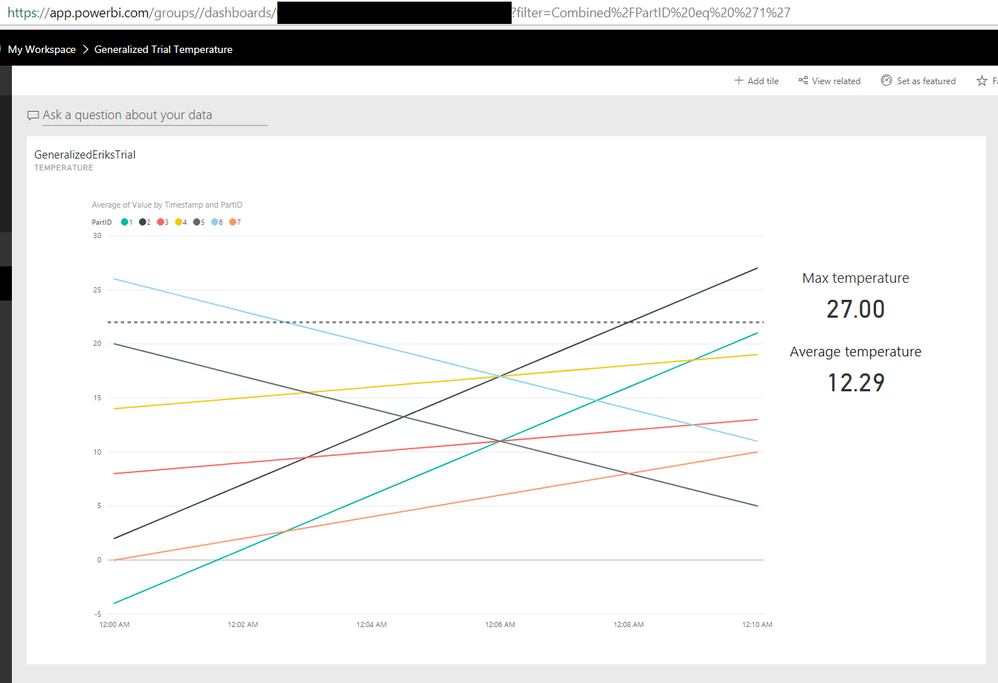
The linegraph plots temperature vs time with PartID used as Legend. I expect to see only one line, from PartID=1, but they;re all shown. The Maximum and Average temperature are also based on data from all PartID's.
If someone could tell me what I'm missing here, I'd greatly appreciate it.
Solved! Go to Solution.
Hi @imous,
If you want to filter the report in dashport using URL, you need to get the URL of your report instead of dashboard, like the following URL. A dashbord includes many reports, there is each URL per report.
https://app.powerbi.com/groups/me/reports/8d6e300b-696f-498e-b611-41ae03366851/ReportSection3
Then add the filter string: ?filter=Table/ColumnName eq 'value'. For example:?filter=Store/Territory eq 'NC', you will get:
https://app.powerbi.com/groups/me/reports/8d6e300b-696f-498e-b611-41ae03366851/ReportSection3?filter... eq 'NC'
Finally add a tile in dashbord, enter the Custom URL of a tile as follows! When you select the tile, it will show the filtered report.
Reference: https://powerbi.microsoft.com/en-us/blog/filter-a-report-with-a-url-query-string-parameter/.
Best Regards,
Angelia
Hi @imous,
If you want to filter the report in dashport using URL, you need to get the URL of your report instead of dashboard, like the following URL. A dashbord includes many reports, there is each URL per report.
https://app.powerbi.com/groups/me/reports/8d6e300b-696f-498e-b611-41ae03366851/ReportSection3
Then add the filter string: ?filter=Table/ColumnName eq 'value'. For example:?filter=Store/Territory eq 'NC', you will get:
https://app.powerbi.com/groups/me/reports/8d6e300b-696f-498e-b611-41ae03366851/ReportSection3?filter... eq 'NC'
Finally add a tile in dashbord, enter the Custom URL of a tile as follows! When you select the tile, it will show the filtered report.
Reference: https://powerbi.microsoft.com/en-us/blog/filter-a-report-with-a-url-query-string-parameter/.
Best Regards,
Angelia
Hi @v-huizhn-msft ,
We are deploying URL filters in Report A that are linking to various deployed apps. I am usins this syntax as recommended by the Microsoft documentation - app.powerbi.com/groups/me/apps/app-id/reports/report-id/ReportSection?filter=Table/Field eq 'value&'ctid=ctid
This works fine in Chrome-based browsers, but it has limited success in Edge. In fact, most of the time if fails in Edge and reroutes to app.powerbi.com (showing a blank page in the Power BI environment).
Do you any idea why this may be? Or recommendations to solve?
Thank you!
Jake
Thank you very much. I was working from the instructions in that link, but completely missed it had to link to a report.
| User | Count |
|---|---|
| 21 | |
| 13 | |
| 8 | |
| 6 | |
| 4 |
| User | Count |
|---|---|
| 50 | |
| 42 | |
| 36 | |
| 16 | |
| 13 |