
cancel
Showing results for 
Search instead for 
Did you mean: 

Get Fabric Certified for FREE during Fabric Data Days. Don't miss your chance! Request now

Reply
dlandry
Helper I
Helper I

Image displays when coming from my laptop localhost but not from SharePoint Image lib

RedYellowGreen error.PNG

Hi All,


I am having an issue with an image display.  I am displaying images fine from my localhost site but when I load the images to a sharepoint picture lib and change my URL's to point to it the images won't render.  I have admin rights to the O365 picturture lib and I can take the urls and hit the sharepoint site from a browser and display the images.  Power BI doesn't seem to recongnize the SharePoint URL as being an image.  Has anyone had this issue?


I'd apprecate any assistance I have set everything up to do this correctly again works great from localhost but not from the SharePoint pic lib.   You can see from the attached image the Schedule is coming from localhost fine and Resource is coming from SharePoint and not working.


Thanks for your help!!  I would think this is just something simple that I'm overlooking.


Best to all


Don


1 ACCEPTED SOLUTION
Anonymous
Not applicable

Hi @dlandry

Do you include image URL which is a SharePoint URL in a table? If that is the case, I test the scenario as yours, I get the URL of images in SharePoint Picture Library using the following steps.

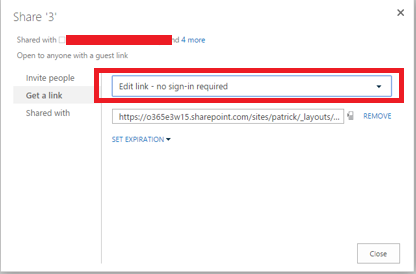
1. Get link of image as shown in the screenshot below.
1.PNG

2.  Make sure that you select the “Edit link- no sign-in required” option and copy the URL in the following screenshot.
2.PNG

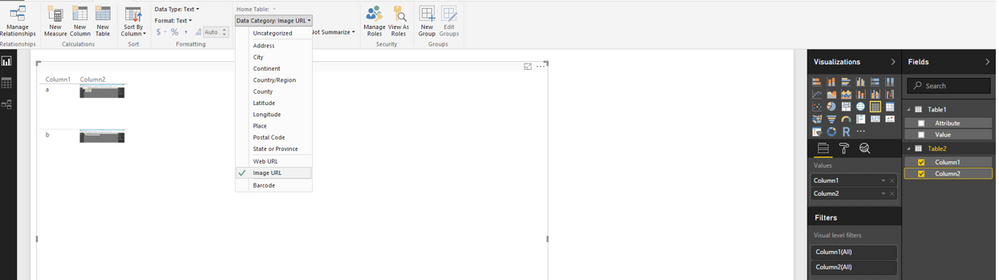
Then when adding the above URLs in a column of table, and changing the Data Category of this column to Image URL, the images displays properly in table visual as follows.
3.PNG

Thanks,
Lydia Zhang

View solution in original post

3 REPLIES 3
Anonymous
Not applicable

Hi @dlandry

Do you include image URL which is a SharePoint URL in a table? If that is the case, I test the scenario as yours, I get the URL of images in SharePoint Picture Library using the following steps.

1. Get link of image as shown in the screenshot below.
1.PNG

2.  Make sure that you select the “Edit link- no sign-in required” option and copy the URL in the following screenshot.
2.PNG

Then when adding the above URLs in a column of table, and changing the Data Category of this column to Image URL, the images displays properly in table visual as follows.
3.PNG

Thanks,
Lydia Zhang

Thanks Lydia this worked awesome!!!  Merry Xmas!!

BhaveshPatel
Community Champion
Community Champion

This is only supported in Chiclet slicers ( URL Images). If you like to do something else then you need to keep your image file in local drive.

Thanks & Regards,
Bhavesh

Love the Self Service BI.
Please use the 'Mark as answer' link to mark a post that answers your question. If you find a reply helpful, please remember to give Kudos.

Helpful resources

Announcements
November Power BI Update Carousel

Power BI Monthly Update - November 2025

Check out the November 2025 Power BI update to learn about new features.

Fabric Data Days Carousel

Fabric Data Days

Advance your Data & AI career with 50 days of live learning, contests, hands-on challenges, study groups & certifications and more!

FabCon Atlanta 2026 carousel

FabCon Atlanta 2026

Join us at FabCon Atlanta, March 16-20, for the ultimate Fabric, Power BI, AI and SQL community-led event. Save $200 with code FABCOMM.

Top Solution Authors
Top Kudoed Authors