cancel
Showing results for 
Search instead for 
Did you mean: 

The Power BI Data Visualization World Championships is back! Get ahead of the game and start preparing now! Learn more

Reply
jackalfons
Regular Visitor

Couldnt Parse data as datetime. Only on the power bi service

Im trying to set up an automatic data update on the power bi service.


What i find is it cant update and this Error comes up.


"Underlying error code: -2147467259
Underlying error message: We couldn't parse the input provided as a Date value.
DM_ErrorDetailNameCode_UnderlyingHResult: -2147467259
Microsoft.Data.Mashup.ValueError.Detail: 2022-07-14 13:07:22.5988551
Microsoft.Data.Mashup.ValueError.Reason: DataFormat.Error
Cluster URI: WABI-WEST-EUROPE-B-PRIMARY-redirect.analysis.windows.net
Activity ID: d1cbbaac-4765-4ab7-8f03-468062579a4d
Request ID: 7ae01ae4-f994-a763-3c1c-803add16cfdd
Time: 2022-07-14 11:07:37Z"


There is no error in the report in power bi desktop.


Ive loooked throu all date coloumns and changed them to tex to see if there was any hidden errors, but couldnt find anything.

Ive also tried to change the langueage of my computer system from danish to english (UK), still to no avail.

This is the first time i have come across this error and i dont know what to do from here.

Any help would be extremely appriciated.


Thanks beforhand
Jack

1 ACCEPTED SOLUTION
v-yanjiang-msft
Community Support
Community Support

Hi @jackalfons ,

After lots of research, I found several methods that make sense, you can have a try:

One:

1. Split the Date column by "/" Delimiter

2. Change the data type of the newly created columns to Whole number

3. Bring the Day column first by dragging, Month column second and Year column last

4. Select all these three collumns and go to Add column Tab, Select Merge Columns and in Merge dialog, Select "/"Separator.

5. Change the data type of the merged column to Date.

Two:

1. When  a CSV file is loaded in Power BI Desktop  by default it detects the 'date/time' field  as 'text' so when we try to convert we get an error.

vkalyjmsft_0-1658227240237.png


2. Next Right click on the Field/Column  you want to convert into a Date Field and navigate to 'Change Type' .
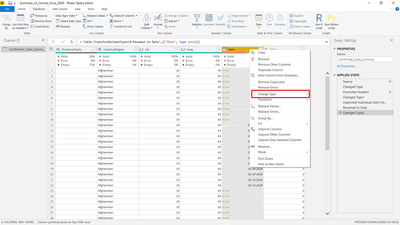
vkalyjmsft_1-1658227240263.png


3. Next Click on 'Using Locale' option under the 'Change Type' dropdown.
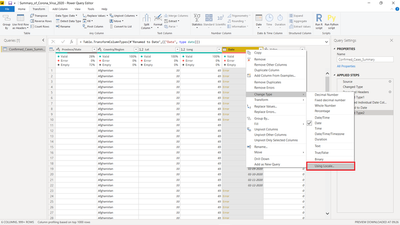
vkalyjmsft_2-1658227240299.png


4. Change the 'Data type' to 'Date' in the dialog box of 'Using Locale'  as by default it takes it as 'text'.
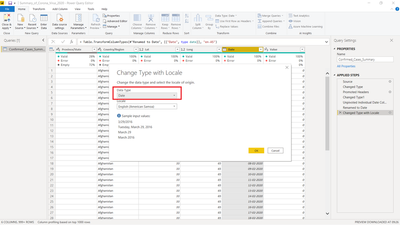
vkalyjmsft_3-1658227240741.png


5. Click on the drop down of 'locale'.

vkalyjmsft_4-1658227240338.png


6. Then Select an 'Option' from drop down for which your Date field  'Format' matches exactly and Click on 'OK' . 

vkalyjmsft_5-1658227240385.png


7. Above steps will resolve the issue and same solution goes well for Date/Time column conversion also.


Three:

Power BI Error - Correcting the error: We couldn't parse the input provided as a Date value. - Y...


Reference:  Solved: DataFormat.Error: We couldn't parse the input prov... - Microsoft Power BI Community

Hope it helps!


Best Regards,
Community Support Team _ kalyj

If this post helps, then please considerAccept it as the solution to help the other members find it more quickly.

View solution in original post

3 REPLIES 3
v-yanjiang-msft
Community Support
Community Support

Hi @jackalfons ,

After lots of research, I found several methods that make sense, you can have a try:

One:

1. Split the Date column by "/" Delimiter

2. Change the data type of the newly created columns to Whole number

3. Bring the Day column first by dragging, Month column second and Year column last

4. Select all these three collumns and go to Add column Tab, Select Merge Columns and in Merge dialog, Select "/"Separator.

5. Change the data type of the merged column to Date.

Two:

1. When  a CSV file is loaded in Power BI Desktop  by default it detects the 'date/time' field  as 'text' so when we try to convert we get an error.

vkalyjmsft_0-1658227240237.png


2. Next Right click on the Field/Column  you want to convert into a Date Field and navigate to 'Change Type' .

vkalyjmsft_1-1658227240263.png


3. Next Click on 'Using Locale' option under the 'Change Type' dropdown.

vkalyjmsft_2-1658227240299.png


4. Change the 'Data type' to 'Date' in the dialog box of 'Using Locale'  as by default it takes it as 'text'.

vkalyjmsft_3-1658227240741.png


5. Click on the drop down of 'locale'.

vkalyjmsft_4-1658227240338.png


6. Then Select an 'Option' from drop down for which your Date field  'Format' matches exactly and Click on 'OK' . 

vkalyjmsft_5-1658227240385.png


7. Above steps will resolve the issue and same solution goes well for Date/Time column conversion also.


Three:

Power BI Error - Correcting the error: We couldn't parse the input provided as a Date value. - Y...


Reference:  Solved: DataFormat.Error: We couldn't parse the input prov... - Microsoft Power BI Community

Hope it helps!


Best Regards,
Community Support Team _ kalyj

If this post helps, then please considerAccept it as the solution to help the other members find it more quickly.

ribisht17
Super User
Super User

m-colbert
Resolver III
Resolver III

Hi @jackalfons 


Try turning on column profiling and set profile to be basedon all rows, not just the top 1000.


If you are doing a type conversion on the column, remove it, and try adding a new column with expression try Date.From([columnname]), then  Expand the resulting column to show the HasError attribute and filter on HasError = true. This should help you track it down. Then 

Hope this helps!


Helpful resources

Announcements
Power BI DataViz World Championships

Power BI Dataviz World Championships

The Power BI Data Visualization World Championships is back! Get ahead of the game and start preparing now!

December 2025 Power BI Update Carousel

Power BI Monthly Update - December 2025

Check out the December 2025 Power BI Holiday Recap!

FabCon Atlanta 2026 carousel

FabCon Atlanta 2026

Join us at FabCon Atlanta, March 16-20, for the ultimate Fabric, Power BI, AI and SQL community-led event. Save $200 with code FABCOMM.