
cancel
Showing results for 
Search instead for 
Did you mean: 

July 28 - August 9 | Final Round of the Power BI Dataviz World Championships. This is your chance. Learn more

Reply
fox252
Frequent Visitor

Unexpected/ Strange Column References

Hello,


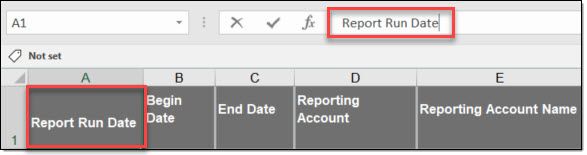
I'm experiencing a weird occurrence with column references. The source file comes from an internal reporting portal as .xls ( I know, not ideal). As seen in the Excel screen shot, there are no spaces/ char after the column name. In PQ preview pane header, no issue. It's only when I reference the column I get "{Col Name}#(1f)". If I manually add the #(1f) to the end of the {Col Name}, results in a sytax error. I need to copy it from another step and paste, then no issue. Any idea what is happening here? Maybe something is inbedded in the Excel that I cannot see.

 2022-04-08_11-20-08.jpg2022-04-08_11-18-17.jpg

1 ACCEPTED SOLUTION
Vijay_A_Verma
Most Valuable Professional

In your Excel, put following formula

=CODE(RIGHT(A1,1)) 

where A1 is that cell header.

You should get the answer - 10

Character 10 is line break character in Excel. This is simulated by pressing ALT+Enter at the end of the line to go to next line.

Hence, if yout type Yearly and press ALT+ENTER, you will go to next line and type Revenue.

You will see following in place of Yearly Revenue

Yearly
Revenue


The official name of Character 10 is Line Feed, hence in PQ, you need to write lf.

View solution in original post

3 REPLIES 3
Vijay_A_Verma
Most Valuable Professional

Looks like you used 1 in place of small case L in #(lf)...Could you check this out?

It was in fact an "l" as opposed to "1", they look awfully similar in PQ pane.


The bigger question though is why that suffix on col name?

Vijay_A_Verma
Most Valuable Professional

In your Excel, put following formula

=CODE(RIGHT(A1,1)) 

where A1 is that cell header.

You should get the answer - 10

Character 10 is line break character in Excel. This is simulated by pressing ALT+Enter at the end of the line to go to next line.

Hence, if yout type Yearly and press ALT+ENTER, you will go to next line and type Revenue.

You will see following in place of Yearly Revenue

Yearly
Revenue


The official name of Character 10 is Line Feed, hence in PQ, you need to write lf.

Helpful resources

Announcements
Fabric Community Sticker Design Challenge Barcelona Carousel

Fabric Community Sticker Challenge - Barcelona 2026

If you love stickers, then you will definitely want to check out our community sticker challenge, Barcelona edition!

July Power BI Update Carousel

Power BI Monthly Update - July 2026

Check out the July 2026 Power BI update to learn about new features.

Power BI DataViz World Championships carousel

Power BI DataViz World Championships - June 2026

A new Power BI DataViz World Championship is coming this June! Don't miss out on submitting your entry.