Get Fabric or SQL Certified for Free.
Get certified for free when you join Fabric Data Days 2026 and dive into Fabric, Power BI, SQL, AI, and other essential data skills.
Join now- Power BI forums
- Get Help with Power BI
- Desktop
- Service
- Report Server
- Power Query
- Mobile Apps
- Developer
- DAX Commands and Tips
- Custom Visuals Development Discussion
- Health and Life Sciences
- Power BI Spanish forums
- Translated Spanish Desktop
- Training and Consulting
- Instructor Led Training
- Dashboard in a Day for Women, by Women
- Galleries
- Data Stories Gallery
- Themes Gallery
- Contests Gallery
- QuickViz Gallery
- Quick Measures Gallery
- Visual Calculations Gallery
- Notebook Gallery
- Translytical Task Flow Gallery
- TMDL Gallery
- R Script Showcase
- Webinars and Video Gallery
- Ideas
- Custom Visuals Ideas (read-only)
- Issues
- Issues
- Events
- Upcoming Events
July 7 - July 17 | Round 2 of the Power BI Dataviz World Championships. Don't miss your chance! Learn more
- Power BI forums
- Forums
- Get Help with Power BI
- Power Query
- Table Formatting
- Subscribe to RSS Feed
- Mark Topic as New
- Mark Topic as Read
- Float this Topic for Current User
- Bookmark
- Subscribe
- Printer Friendly Page

- Mark as New
- Bookmark
- Subscribe
- Mute
- Subscribe to RSS Feed
- Permalink
- Report Inappropriate Content
Table Formatting
Hi,
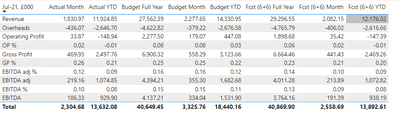
I have taken this table from Excel & cannot use 'transpose' as this is the layout required - How do I edit this query so that the '%' rows are in percentage format & the Jul-21 list is in this order:
Revenue, Gross Profit, GP%, Overheads, Operating Profit, OP%, EBITDA, EBITDA %, EBITDA adj, EBITDA adj %?
Thanks
Solved! Go to Solution.
- Mark as New
- Bookmark
- Subscribe
- Mute
- Subscribe to RSS Feed
- Permalink
- Report Inappropriate Content
Here's a solution:
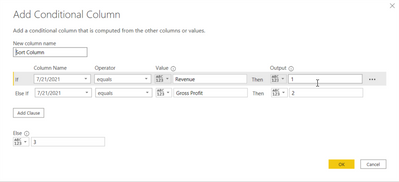
- Using a table with just the first and second columns, and just the Revenue, GP%, and Gross Profit rows, I created a conditional column named "Sort Column" in the Query Editor, assigning 1 to Revenue, 2 to Gross Profit, and 3 to GP%
- Then I created a custom column to convert any values in the Actual Month column aligned to the GP % row to a percentage: =if[#"7/21/2021"] = "GP %" then Number.ToText([Actual Month], "p") else [Actual Month]
- Then I removed the Actual Month column and renamed the Custom column to Actual Month
- After applying those steps, I closed the query editor and sorted the 7/21/21 column by the Sort Column
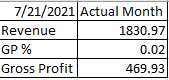
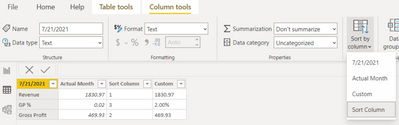
Here's the end result. It works, but all the values are of the text data type. But maybe that doesn't matter here because we wouldn't want to sum decimal numbers with percentages anyway.
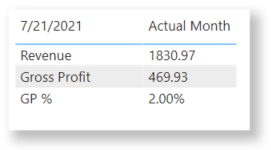
I hope this helps. If it does, please mark it as the solution.
- Mark as New
- Bookmark
- Subscribe
- Mute
- Subscribe to RSS Feed
- Permalink
- Report Inappropriate Content
@Anonymous
1. To sort the column, you can add an index then sort using conditional column as @Anonymous suggested.
2. In order to change some value to %, you need to create a measure for each column, just replace the referred column to the corresponding column name. For example:
Anual month measure = IF(RIGHT(MAX([Type]),1)="%",FORMAT(MAX([Anual Month]),"Percent"),MAX([Anual Month]))

Anual Year measure = IF(RIGHT(MAX([Type]),1)="%",FORMAT(MAX([Anual Year]),"Percent"),MAX([Anual Year]))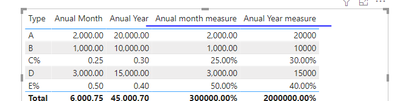
Paul Zheng _ Community Support Team
If this post helps, please Accept it as the solution to help the other members find it more quickly.
- Mark as New
- Bookmark
- Subscribe
- Mute
- Subscribe to RSS Feed
- Permalink
- Report Inappropriate Content
@Anonymous @Anonymous Thats perfect, thank you very much for your help!
- Mark as New
- Bookmark
- Subscribe
- Mute
- Subscribe to RSS Feed
- Permalink
- Report Inappropriate Content
@Anonymous I don't suppose you know what to add to the measure so that the percentage rows show to the nearest percent (0 d.p.)? Formatting to 0 d.p. in 'Measure tools' only applies to the non-percentage values. Thanks
- Mark as New
- Bookmark
- Subscribe
- Mute
- Subscribe to RSS Feed
- Permalink
- Report Inappropriate Content
@Anonymous
1. To sort the column, you can add an index then sort using conditional column as @Anonymous suggested.
2. In order to change some value to %, you need to create a measure for each column, just replace the referred column to the corresponding column name. For example:
Anual month measure = IF(RIGHT(MAX([Type]),1)="%",FORMAT(MAX([Anual Month]),"Percent"),MAX([Anual Month]))

Anual Year measure = IF(RIGHT(MAX([Type]),1)="%",FORMAT(MAX([Anual Year]),"Percent"),MAX([Anual Year]))
Paul Zheng _ Community Support Team
If this post helps, please Accept it as the solution to help the other members find it more quickly.
- Mark as New
- Bookmark
- Subscribe
- Mute
- Subscribe to RSS Feed
- Permalink
- Report Inappropriate Content
@Anonymous I like this. It preserves the data type and only relies on a % suffix. 👍
- Mark as New
- Bookmark
- Subscribe
- Mute
- Subscribe to RSS Feed
- Permalink
- Report Inappropriate Content
Here's a solution:
- Using a table with just the first and second columns, and just the Revenue, GP%, and Gross Profit rows, I created a conditional column named "Sort Column" in the Query Editor, assigning 1 to Revenue, 2 to Gross Profit, and 3 to GP%
- Then I created a custom column to convert any values in the Actual Month column aligned to the GP % row to a percentage: =if[#"7/21/2021"] = "GP %" then Number.ToText([Actual Month], "p") else [Actual Month]
- Then I removed the Actual Month column and renamed the Custom column to Actual Month
- After applying those steps, I closed the query editor and sorted the 7/21/21 column by the Sort Column
Here's the end result. It works, but all the values are of the text data type. But maybe that doesn't matter here because we wouldn't want to sum decimal numbers with percentages anyway.
I hope this helps. If it does, please mark it as the solution.
Helpful resources

FabCon & SQLCon – Barcelona 2026
Join us in Barcelona for FabCon and SQLCon, the Fabric, Power BI, SQL, and AI community event. Save €200 with code FABCMTY200.

Data Days 2026
Join Fabric Data Days 2026: 60 days of free live/on-demand sessions, challenges, study groups, and certification opportunities.

Power BI DataViz World Championships - June 2026
A new Power BI DataViz World Championship is coming this June! Don't miss out on submitting your entry.


