cancel
Showing results for 
Search instead for 
Did you mean: 

Learn from the best! Meet the four finalists headed to the FINALS of the Power BI Dataviz World Championships! Register now

Reply
wmorris20
Helper II
Helper II

SharePoint On Premise Connection to Excel File

We have an enterprise data gateway succesfully setup, but I'm unable to figure out the connection string necessary to connect to an Excel file which is on premise and inside a subsite.


http://[site]/[subsite]/Shared%20Documents/[file.xlsx]


I haven't been able to find documentation that describes that string necessary (or even if this is possible).  I have been able to connect to a SharePoint folder at the root site, but I need a specific file within a subsite library.


Thanks for any help you can offer.


Capture.JPG


1 ACCEPTED SOLUTION
Anonymous
Not applicable

Hi @wmorris20,

Based on my test, you can use one of the following methods to connect to Excel on SharePoint subsite in Power BI Desktop.

1. Copy URL of Excel file as shown in the following screenshot, then paste it to “Get Data>Web” entry in Power BI Desktop, please note that you would need to exclude “?Web=1” from URL of Excel file.
1.PNG2.PNG


Then choose Windows method in the following screenshot, enter your account and password, you will be able to load data from your excel file.
2.1.PNG


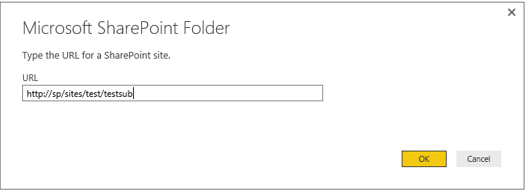
2. Paste URL of your SharePoint subsite in the following screenshot, choose Windows method in the next screenshot, enter your account and password.
3.PNG4.PNG


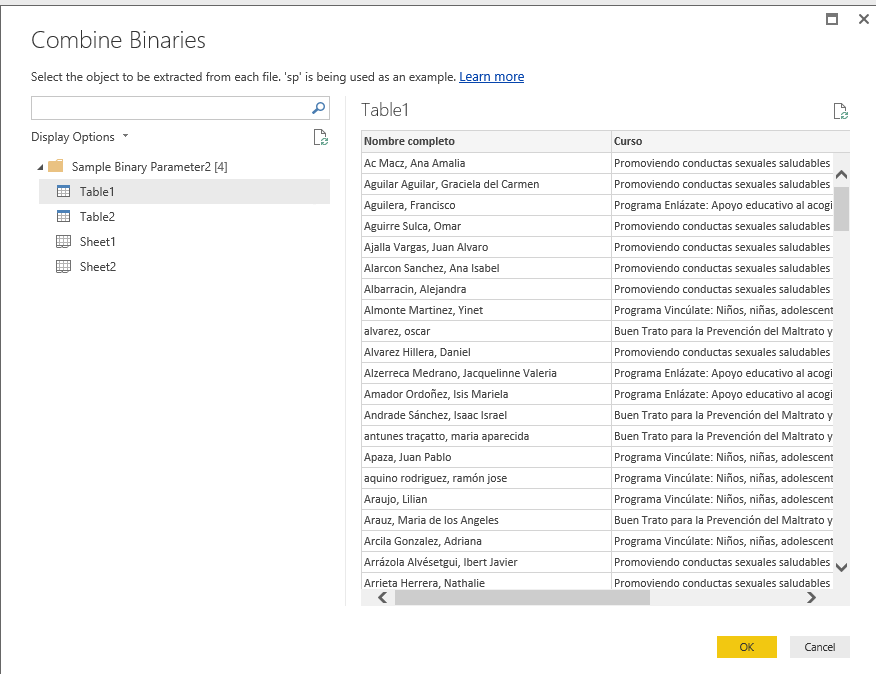
After loading data in Power BI Desktop, in the query editor window, there will be Content column, along with an icon that appears to be two down arrows. Click on the icon and you'll be able to select table or sheet from your excel file.
5.PNG6.PNG


Thanks,
Lydia Zhang

View solution in original post

2 REPLIES 2
Anonymous
Not applicable

Hi @wmorris20,

Based on my test, you can use one of the following methods to connect to Excel on SharePoint subsite in Power BI Desktop.

1. Copy URL of Excel file as shown in the following screenshot, then paste it to “Get Data>Web” entry in Power BI Desktop, please note that you would need to exclude “?Web=1” from URL of Excel file.
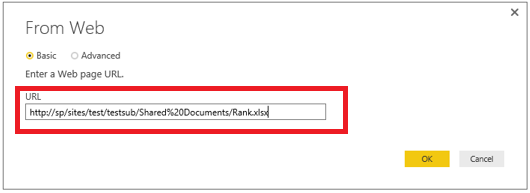
1.PNG2.PNG


Then choose Windows method in the following screenshot, enter your account and password, you will be able to load data from your excel file.
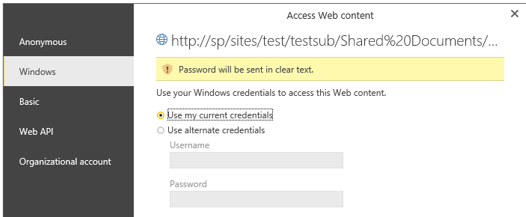
2.1.PNG


2. Paste URL of your SharePoint subsite in the following screenshot, choose Windows method in the next screenshot, enter your account and password.
3.PNG4.PNG


After loading data in Power BI Desktop, in the query editor window, there will be Content column, along with an icon that appears to be two down arrows. Click on the icon and you'll be able to select table or sheet from your excel file.
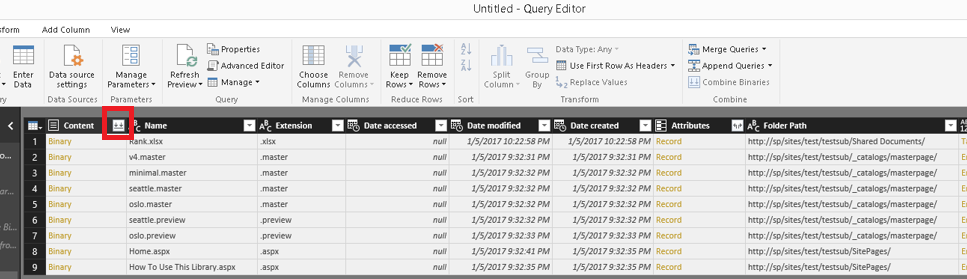
5.PNG6.PNG


Thanks,
Lydia Zhang

Thank you for the very detailed response and solution.

Helpful resources

Announcements
Power BI DataViz World Championships carousel

Power BI DataViz World Championships - June 2026

A new Power BI DataViz World Championship is coming this June! Don't miss out on submitting your entry.

Join our Fabric User Panel

Join our Fabric User Panel

Share feedback directly with Fabric product managers, participate in targeted research studies and influence the Fabric roadmap.

March Power BI Update Carousel

Power BI Community Update - March 2026

Check out the March 2026 Power BI update to learn about new features.