
Don't miss your chance to take the Fabric Data Engineer (DP-600) exam for FREE! Find out how by watching the DP-600 session on-demand now through April 28th.
Learn moreJoin the FabCon + SQLCon recap series. Up next: Power BI, Real-Time Intelligence, IQ and AI, and Data Factory take center stage. All sessions are available on-demand after the live show. Register now
Hello, I have a problem with importing this xml file,
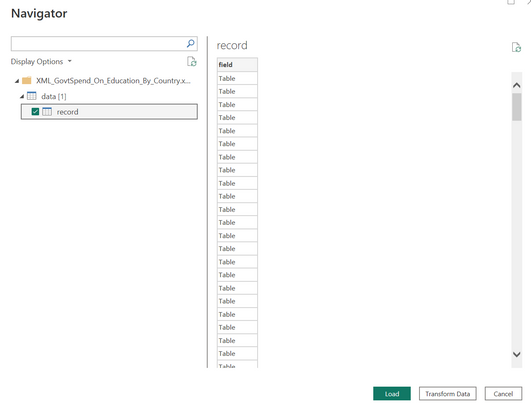
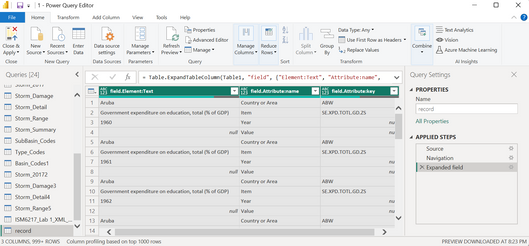
I don't know why but when I tried to upload the xml file, the file looks like a bunch of tables like in the photo above. Then, I tried to expand the data in Power Query Editor and resulted like this:
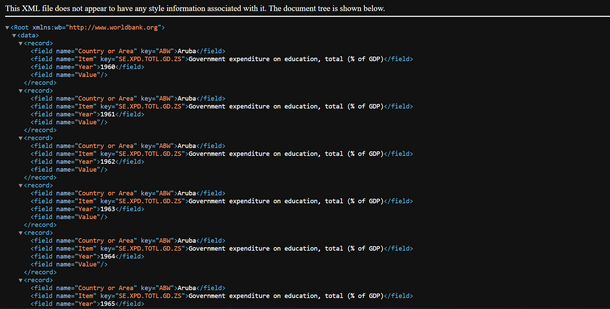
The data doesn't seem to correspond to the exact column. For example, Aruba and 1960 should be in different columns. This is what the xml file looks like when I opened it in a browser:
Does anyone know how to fix this?
Solved! Go to Solution.
NewStep=#table(4,List.Split(PreviousStepName[#"field.Element:Text"],4))
try to replace the code here with this
=Table.Combine(List.Transform(Table1[field],each Table.AddColumn(#table([#"Attribute:name],{[#"Element:Text"]}),"key",(x)=>Text.Combine([#"Attribute:key"]," - "))))
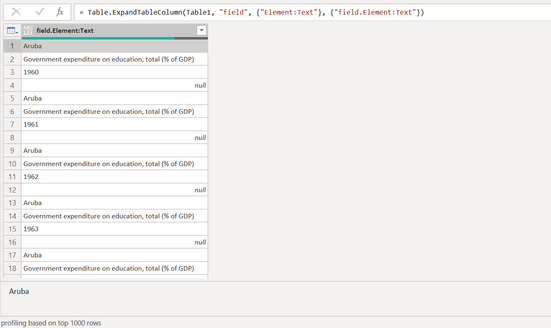
That still didn't work. But now I think I just transformed the data into like this:
So I just need to turn every 4 rows into just one row. For example, the first row should be Aruba in the first column, Government expenditure...... in the second column, 1960 in the third column, and null in the fourth column. Does anyone know how to do that? I would really appreciate it.
NewStep=#table(4,List.Split(PreviousStepName[#"field.Element:Text"],4))
It worked! Thank you so much.
Check out the April 2026 Power BI update to learn about new features.
If you have recently started exploring Fabric, we'd love to hear how it's going. Your feedback can help with product improvements.
A new Power BI DataViz World Championship is coming this June! Don't miss out on submitting your entry.
| User | Count |
|---|---|
| 5 | |
| 5 | |
| 4 | |
| 4 | |
| 4 |