cancel
Showing results for 
Search instead for 
Did you mean: 

The Power BI Data Visualization World Championships is back! Get ahead of the game and start preparing now! Learn more

Reply
Anonymous
Not applicable

M Language check if value in a column is the same in next row

Hi All

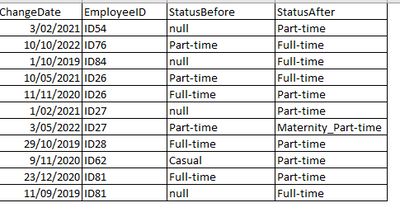
I have this table, which tracks changes to employee status,

samravp_0-1677123879756.png

and I sorted values of column named [EmployeeID] in ascending order. I am looking for M query that checks if value in column [EmployeeID] is same in next row (meaning that change relates to same employee), then create a column named [EndDate] to show when that [StatusAfter] ended and a column named [CurrentStatus] to show if that status is current.

samravp_1-1677125668327.png

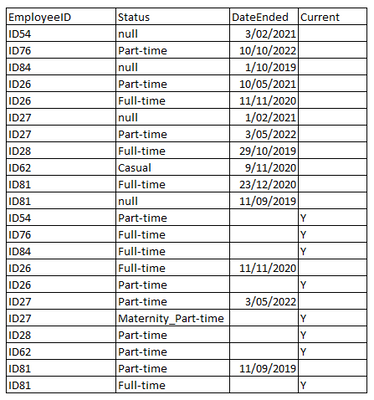
After this I would merge queries with same table to end up with my desired table, which would be like below;


samravp_2-1677125710989.png


How can i do that?


1 ACCEPTED SOLUTION
serpiva64
Solution Sage
Solution Sage

Hi,

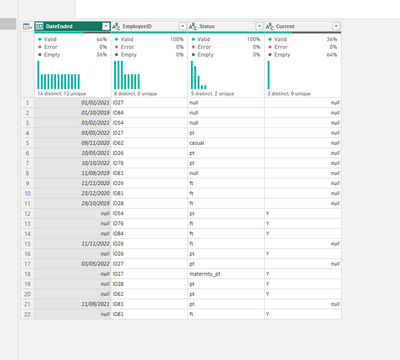
I have changed 2 dates to try (i don't know if it is true).

serpiva64_1-1677148769230.png

refer to fantastic video of Goodly for knowledge

https://www.youtube.com/watch?v=IGF2-qfzDQs

If this post is useful to help you to solve your issue, consider giving the post a thumbs up and accepting it as a solution!


View solution in original post

3 REPLIES 3
serpiva64
Solution Sage
Solution Sage

Hi,

I have changed 2 dates to try (i don't know if it is true).

serpiva64_1-1677148769230.png

refer to fantastic video of Goodly for knowledge

https://www.youtube.com/watch?v=IGF2-qfzDQs

If this post is useful to help you to solve your issue, consider giving the post a thumbs up and accepting it as a solution!


serpiva64
Solution Sage
Solution Sage

Hi,

probably you have some problem in your example.

What about ID26 where the current is not the last one?

MAwwad
Solution Sage
Solution Sage


You can use the following M code to achieve the desired output:

  1. Load the table into Power Query Editor
  2. Add an index column to keep track of the row number
  3. Sort the table by [EmployeeID] and [EffectiveDate] columns in ascending order
  4. Add a custom column with the following formula:


= if [EmployeeID] = Table.Column([#"Added Index"], "Index"){[Index]+1} then Date.AddDays([EffectiveDate], -1) else null
 

This formula checks if the current [EmployeeID] value is the same as the [EmployeeID] value in the next row. If it is, it subtracts one day from the [EffectiveDate] to get the [EndDate], otherwise it returns null.

  1. Add another custom column with the following formula:


= if [EndDate] = null then "No" else if [EffectiveDate] = List.Max(List.Select(Table.Column([#"Added Index"], "EffectiveDate"), each _ <= [EffectiveDate])) then "Yes" else "No"
 

This formula checks if the [EndDate] is null, meaning the current row is the latest status for that employee, and returns "Yes" for [CurrentStatus]. Otherwise, it checks if the [EffectiveDate] is equal to the maximum [EffectiveDate] value for that employee, and returns "Yes" for [CurrentStatus] if it is, otherwise it returns "No".

  1. Remove the [Index] column and any other unnecessary columns.
  2. Load the transformed table into the data model.

Helpful resources

Announcements
Power BI DataViz World Championships

Power BI Dataviz World Championships

The Power BI Data Visualization World Championships is back! Get ahead of the game and start preparing now!

November Power BI Update Carousel

Power BI Monthly Update - November 2025

Check out the November 2025 Power BI update to learn about new features.

FabCon Atlanta 2026 carousel

FabCon Atlanta 2026

Join us at FabCon Atlanta, March 16-20, for the ultimate Fabric, Power BI, AI and SQL community-led event. Save $200 with code FABCOMM.