Join us at FabCon Atlanta from March 16 - 20, 2026, for the ultimate Fabric, Power BI, AI and SQL community-led event. Save $200 with code FABCOMM.
Register now!Learn from the best! Meet the four finalists headed to the FINALS of the Power BI Dataviz World Championships! Register now
Hi, everybody!
I usually do simple aggregation with Power Query, but I was asked to aggregate an irregular CSV file and I was in trouble.
In Excel's Power Query, as described later, I want to convert a CSV file in which all rows are not one row of data to a CSV file of one row and one data, but I can't get the method. Can someone please help me?
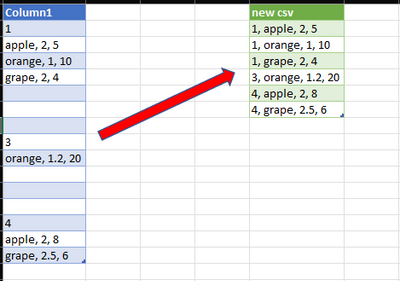
Source Table
----------------
1
apple, 2, 5
orange, 1, 10
grape, 2, 4
3
orange, 1.2, 20
4
apple, 2, 8
grape, 2.5, 6
(next...)
----------------
↓
----------------
1, apple, 2, 5
1, orange, 1, 10
1, grape, 2, 4
3, orange, 1,2, 20
4, apple, 2, 8
4, grape, 2.5, 6
(next...)
----------------
Solved! Go to Solution.
Here's one way to do this in Power Query:
let
//change next line to reflect actual data source
Source = Excel.CurrentWorkbook(){[Name="Table28"]}[Content],
#"Changed Type" = Table.TransformColumnTypes(Source,{{"Column1", type text}}),
//remove blank rows
#"Filtered Rows" = Table.SelectRows(#"Changed Type", each [Column1] <> null and [Column1] <> " "),
//create a "grouper" column
#"Added Index" = Table.AddIndexColumn(#"Filtered Rows", "Index", 0, 1, Int64.Type),
//check if cell contents are all digits
// if so then copy over the Index value else write null
// Then fill down
#"Added Custom" = Table.AddColumn(#"Added Index", "grouper", each if List.ContainsAll({"0".."9"},Text.ToList([Column1])) then [Index] else null, Int64.Type),
#"Filled Down" = Table.FillDown(#"Added Custom",{"grouper"}),
#"Removed Columns" = Table.RemoveColumns(#"Filled Down",{"Index"}),
//Group by the "grouper" column
#"Grouped Rows" = Table.Group(#"Removed Columns", {"grouper"}, {
//create a list of the first row in the subtable concatenated to each of the other lines
{"new csv", (t)=>List.Transform(List.RemoveFirstN(t[Column1],1), each t[Column1]{0} & ", " & _), type list}
}),
//Remove the "Grouper" column and expand the List column
#"Removed Columns1" = Table.RemoveColumns(#"Grouped Rows",{"grouper"}),
#"Expanded new csv" = Table.ExpandListColumn(#"Removed Columns1", "new csv")
in
#"Expanded new csv"
Here's one way to do this in Power Query:
let
//change next line to reflect actual data source
Source = Excel.CurrentWorkbook(){[Name="Table28"]}[Content],
#"Changed Type" = Table.TransformColumnTypes(Source,{{"Column1", type text}}),
//remove blank rows
#"Filtered Rows" = Table.SelectRows(#"Changed Type", each [Column1] <> null and [Column1] <> " "),
//create a "grouper" column
#"Added Index" = Table.AddIndexColumn(#"Filtered Rows", "Index", 0, 1, Int64.Type),
//check if cell contents are all digits
// if so then copy over the Index value else write null
// Then fill down
#"Added Custom" = Table.AddColumn(#"Added Index", "grouper", each if List.ContainsAll({"0".."9"},Text.ToList([Column1])) then [Index] else null, Int64.Type),
#"Filled Down" = Table.FillDown(#"Added Custom",{"grouper"}),
#"Removed Columns" = Table.RemoveColumns(#"Filled Down",{"Index"}),
//Group by the "grouper" column
#"Grouped Rows" = Table.Group(#"Removed Columns", {"grouper"}, {
//create a list of the first row in the subtable concatenated to each of the other lines
{"new csv", (t)=>List.Transform(List.RemoveFirstN(t[Column1],1), each t[Column1]{0} & ", " & _), type list}
}),
//Remove the "Grouper" column and expand the List column
#"Removed Columns1" = Table.RemoveColumns(#"Grouped Rows",{"grouper"}),
#"Expanded new csv" = Table.ExpandListColumn(#"Removed Columns1", "new csv")
in
#"Expanded new csv"
Wow, thanks ronrsnfld. I'm happy to get a reply so quickly.
I'm sorry I can't understand it quickly, but I'll read the reply I received.
I guess I was not familiar with Table.FillDown.
Thanks ronrsnfld, I got some very great tips. Appreciate it.
Happy to help
Share feedback directly with Fabric product managers, participate in targeted research studies and influence the Fabric roadmap.
Check out the February 2026 Power BI update to learn about new features.
| User | Count |
|---|---|
| 16 | |
| 12 | |
| 10 | |
| 7 | |
| 6 |