cancel
Showing results for 
Search instead for 
Did you mean: 

The Power BI Data Visualization World Championships is back! Get ahead of the game and start preparing now! Learn more

Reply
Anonymous
Not applicable

How do I restructure binary values into columns?

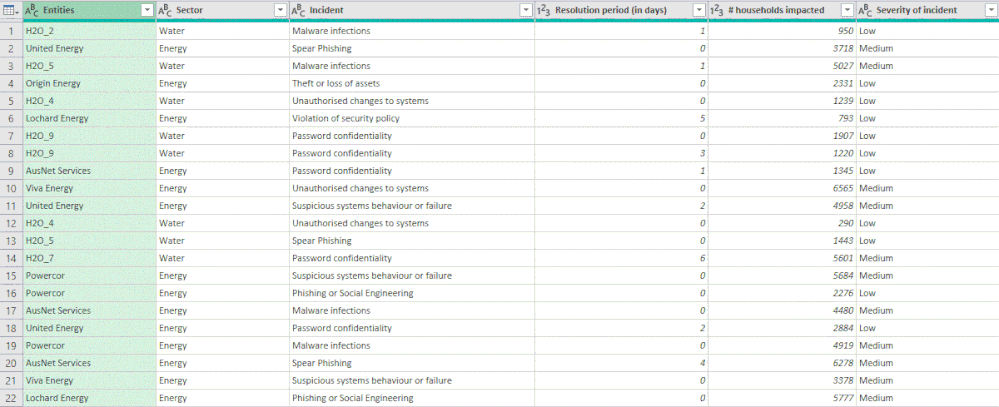
I have the following data:


Table 1Table 1


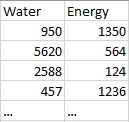
How do I use Power Query to 'pivot' the data (without summarizing, though) to end up with both values of 'Sector' as columns (so, Energy and Water) and '# households impacted' as values, like the following:


PowQuery1.gif


Have tried many combinations to no avail.

Please help.

Cheers

1 ACCEPTED SOLUTION
jennratten
Super User
Super User

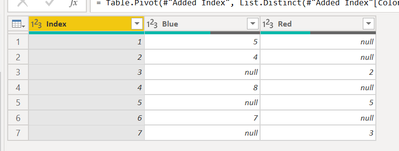
Hello!  You will need to either have a unique identifier already in the table, or add an index column.  Then you can select the utilities column and unpivot without summarizing the data.


BEFORE

jennratten_0-1647934143192.png


AFTER

jennratten_1-1647934165874.png


SCRIPT

let
    Source = Table.FromRows(Json.Document(Binary.Decompress(Binary.FromText("i45WcsopTVXSUTJVitWBc0zAnKDUFCDbCFnCAkkCRYc5koSxUmwsAA==", BinaryEncoding.Base64), Compression.Deflate)), let _t = ((type nullable text) meta [Serialized.Text = true]) in type table [Color = _t, Count = _t]),
    #"Changed Type" = Table.TransformColumnTypes(Source,{{"Count", Int64.Type}}),
    #"Added Index" = Table.AddIndexColumn(#"Changed Type", "Index", 1, 1, Int64.Type),
    #"Pivoted Column" = Table.Pivot(#"Added Index", List.Distinct(#"Added Index"[Color]), "Color", "Count")
in
    #"Pivoted Column"

View solution in original post

2 REPLIES 2
jennratten
Super User
Super User

Hello!  You will need to either have a unique identifier already in the table, or add an index column.  Then you can select the utilities column and unpivot without summarizing the data.


BEFORE

jennratten_0-1647934143192.png


AFTER

jennratten_1-1647934165874.png


SCRIPT

let
    Source = Table.FromRows(Json.Document(Binary.Decompress(Binary.FromText("i45WcsopTVXSUTJVitWBc0zAnKDUFCDbCFnCAkkCRYc5koSxUmwsAA==", BinaryEncoding.Base64), Compression.Deflate)), let _t = ((type nullable text) meta [Serialized.Text = true]) in type table [Color = _t, Count = _t]),
    #"Changed Type" = Table.TransformColumnTypes(Source,{{"Count", Int64.Type}}),
    #"Added Index" = Table.AddIndexColumn(#"Changed Type", "Index", 1, 1, Int64.Type),
    #"Pivoted Column" = Table.Pivot(#"Added Index", List.Distinct(#"Added Index"[Color]), "Color", "Count")
in
    #"Pivoted Column"
Vijay_A_Verma
Super User
Super User

Following is M-code

Solution Excel is uploaded to https://1drv.ms/x/s!Akd5y6ruJhvhuTdyS-bbcrf3KL0Z?e=fSISO0 

let
    Source = Excel.CurrentWorkbook(){[Name="Table1"]}[Content],
    #"Removed Columns" = Table.RemoveColumns(Source,{"Entities", "Incident", "Resolution period (in days)", "Severity of incident"}),
    #"Added Index" = Table.AddIndexColumn(#"Removed Columns", "Index", 0, 1, Int64.Type),
    #"Divided Column" = Table.TransformColumns(#"Added Index", {{"Index", each _ / 2, type number}}),
    #"Rounded Down" = Table.TransformColumns(#"Divided Column",{{"Index", Number.RoundDown, Int64.Type}}),
    #"Pivoted Column" = Table.Pivot(#"Rounded Down", List.Distinct(#"Rounded Down"[Sector]), "Sector", "# households impacted"),
    #"Removed Columns1" = Table.RemoveColumns(#"Pivoted Column",{"Index"})
in
    #"Removed Columns1"


Helpful resources

Announcements
Power BI DataViz World Championships

Power BI Dataviz World Championships

The Power BI Data Visualization World Championships is back! Get ahead of the game and start preparing now!

December 2025 Power BI Update Carousel

Power BI Monthly Update - December 2025

Check out the December 2025 Power BI Holiday Recap!

FabCon Atlanta 2026 carousel

FabCon Atlanta 2026

Join us at FabCon Atlanta, March 16-20, for the ultimate Fabric, Power BI, AI and SQL community-led event. Save $200 with code FABCOMM.