This time we’re going bigger than ever. Fabric, Power BI, SQL, AI and more. We're covering it all. You won't want to miss it.
Learn moreLevel up your Power BI skills this month - build one visual each week and tell better stories with data! Get started
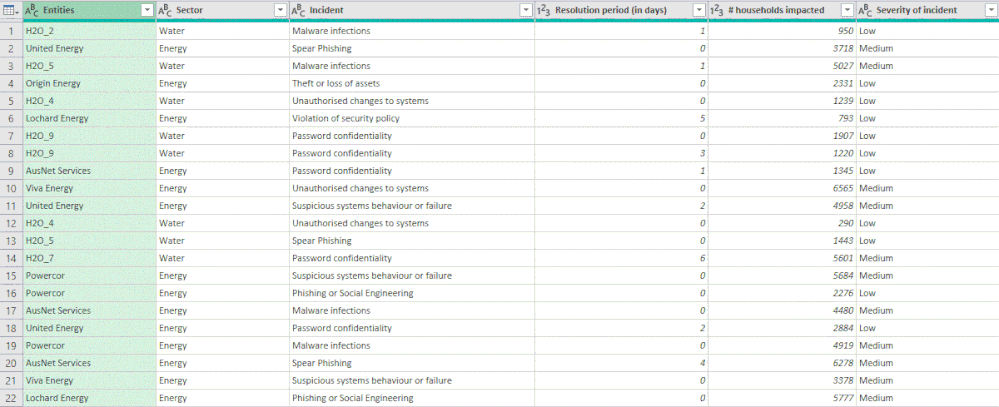
I have the following data:
Table 1
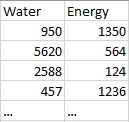
How do I use Power Query to 'pivot' the data (without summarizing, though) to end up with both values of 'Sector' as columns (so, Energy and Water) and '# households impacted' as values, like the following:
Have tried many combinations to no avail.
Please help.
Cheers
Solved! Go to Solution.
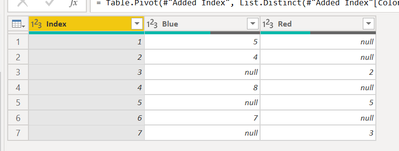
Hello! You will need to either have a unique identifier already in the table, or add an index column. Then you can select the utilities column and unpivot without summarizing the data.
BEFORE
AFTER
SCRIPT
let
Source = Table.FromRows(Json.Document(Binary.Decompress(Binary.FromText("i45WcsopTVXSUTJVitWBc0zAnKDUFCDbCFnCAkkCRYc5koSxUmwsAA==", BinaryEncoding.Base64), Compression.Deflate)), let _t = ((type nullable text) meta [Serialized.Text = true]) in type table [Color = _t, Count = _t]),
#"Changed Type" = Table.TransformColumnTypes(Source,{{"Count", Int64.Type}}),
#"Added Index" = Table.AddIndexColumn(#"Changed Type", "Index", 1, 1, Int64.Type),
#"Pivoted Column" = Table.Pivot(#"Added Index", List.Distinct(#"Added Index"[Color]), "Color", "Count")
in
#"Pivoted Column"
Hello! You will need to either have a unique identifier already in the table, or add an index column. Then you can select the utilities column and unpivot without summarizing the data.
BEFORE
AFTER
SCRIPT
let
Source = Table.FromRows(Json.Document(Binary.Decompress(Binary.FromText("i45WcsopTVXSUTJVitWBc0zAnKDUFCDbCFnCAkkCRYc5koSxUmwsAA==", BinaryEncoding.Base64), Compression.Deflate)), let _t = ((type nullable text) meta [Serialized.Text = true]) in type table [Color = _t, Count = _t]),
#"Changed Type" = Table.TransformColumnTypes(Source,{{"Count", Int64.Type}}),
#"Added Index" = Table.AddIndexColumn(#"Changed Type", "Index", 1, 1, Int64.Type),
#"Pivoted Column" = Table.Pivot(#"Added Index", List.Distinct(#"Added Index"[Color]), "Color", "Count")
in
#"Pivoted Column"
Following is M-code
Solution Excel is uploaded to https://1drv.ms/x/s!Akd5y6ruJhvhuTdyS-bbcrf3KL0Z?e=fSISO0
let
Source = Excel.CurrentWorkbook(){[Name="Table1"]}[Content],
#"Removed Columns" = Table.RemoveColumns(Source,{"Entities", "Incident", "Resolution period (in days)", "Severity of incident"}),
#"Added Index" = Table.AddIndexColumn(#"Removed Columns", "Index", 0, 1, Int64.Type),
#"Divided Column" = Table.TransformColumns(#"Added Index", {{"Index", each _ / 2, type number}}),
#"Rounded Down" = Table.TransformColumns(#"Divided Column",{{"Index", Number.RoundDown, Int64.Type}}),
#"Pivoted Column" = Table.Pivot(#"Rounded Down", List.Distinct(#"Rounded Down"[Sector]), "Sector", "# households impacted"),
#"Removed Columns1" = Table.RemoveColumns(#"Pivoted Column",{"Index"})
in
#"Removed Columns1"
Check out the April 2026 Power BI update to learn about new features.
Sign up to receive a private message when registration opens and key events begin.
If you have recently started exploring Fabric, we'd love to hear how it's going. Your feedback can help with product improvements.