cancel
Showing results for 
Search instead for 
Did you mean: 

The Power BI Data Visualization World Championships is back! Get ahead of the game and start preparing now! Learn more

Reply
smko
Helper I
Helper I

Getting line item total without changing granularity

[OrderID] and [Line Amount] are original columns, Im trying to calculate the [Calculated Total]. My current method is duplicating the table, group by [OrderID] sum [Line Amount], then merge back to the original table. While my method works I wish to do it without duplicating table and entirely in Power Query. Appreciate any input


OrderIDLine AmountCalculated Total
11060
12060
13060
24090
25090
1 ACCEPTED SOLUTION
ponnusamy
Solution Supplier
Solution Supplier

@smko : If you want to use 'Group by' function in Power Query.


let
Source = Excel.Workbook(File.Contents("C:\Users\ponnu\OneDrive - Fresh Direct\Forum Test Files\total by group id.xlsx"), null, true),
Table1_Table = Source{[Item="Table1",Kind="Table"]}[Data],
#"Changed Type" = Table.TransformColumnTypes(Table1_Table,{{"OrderID", Int64.Type}, {"Line Amount", Int64.Type}}),
#"Grouped Rows" = Table.Group(#"Changed Type", {"OrderID"}, {{"Calculated Total", each List.Sum([Line Amount]), type nullable number}, {"OtherRows", each _, type table [OrderID=nullable number, Line Amount=nullable number]}}),
#"Expanded OtherRows" = Table.ExpandTableColumn(#"Grouped Rows", "OtherRows", {"Line Amount"}, { "OtherRows.Line Amount"}),
#"Reordered Columns" = Table.ReorderColumns(#"Expanded OtherRows",{"OrderID", "OtherRows.Line Amount", "Calculated Total"})
in
#"Reordered Columns"


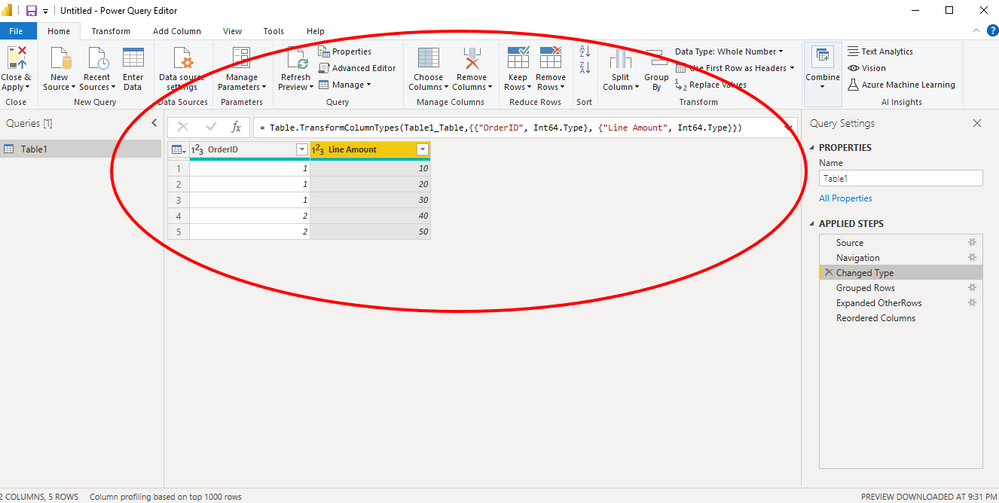
I created test data like yours


ponnusamy_0-1632361053658.png


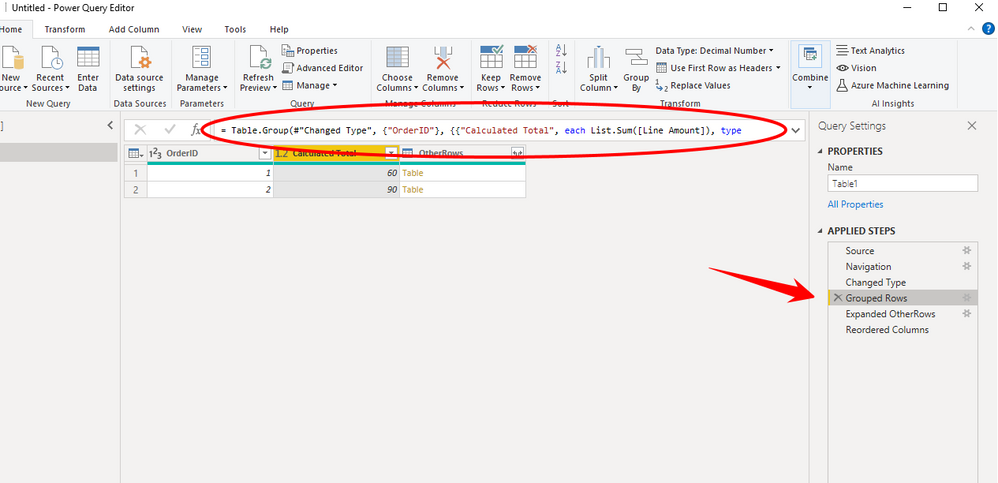
Use group by and creat Sum of lineitem by OrderID


ponnusamy_1-1632361176343.png


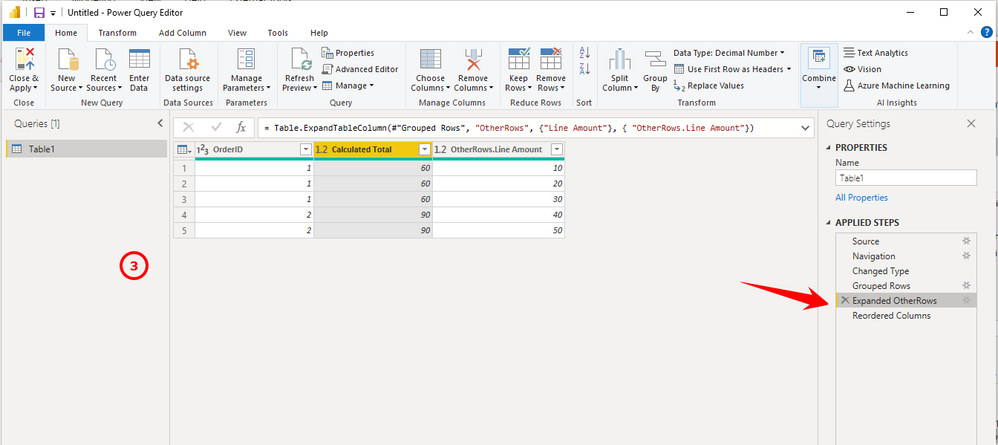
Expand the Row from previous step to get other columns


ponnusamy_2-1632361251532.png


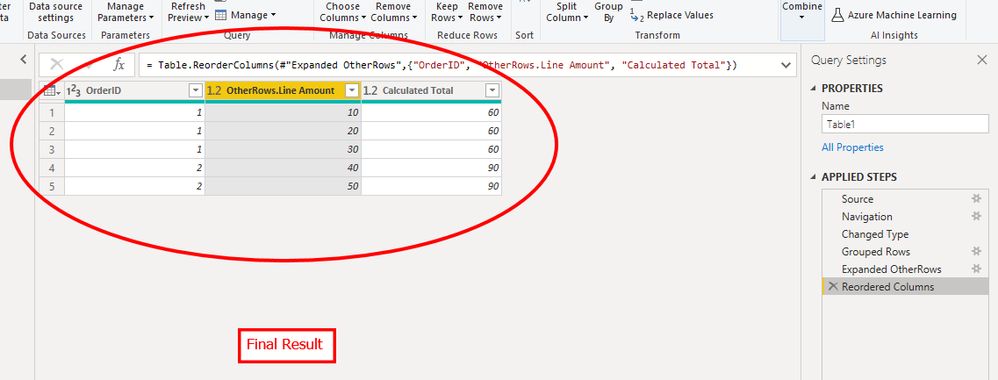
ponnusamy_3-1632361410867.png


If this post helps, then please consider Accepting it as the solution, Give Kudos to motivate the contributors.


View solution in original post

3 REPLIES 3
ponnusamy
Solution Supplier
Solution Supplier

@smko : If you want to use 'Group by' function in Power Query.


let
Source = Excel.Workbook(File.Contents("C:\Users\ponnu\OneDrive - Fresh Direct\Forum Test Files\total by group id.xlsx"), null, true),
Table1_Table = Source{[Item="Table1",Kind="Table"]}[Data],
#"Changed Type" = Table.TransformColumnTypes(Table1_Table,{{"OrderID", Int64.Type}, {"Line Amount", Int64.Type}}),
#"Grouped Rows" = Table.Group(#"Changed Type", {"OrderID"}, {{"Calculated Total", each List.Sum([Line Amount]), type nullable number}, {"OtherRows", each _, type table [OrderID=nullable number, Line Amount=nullable number]}}),
#"Expanded OtherRows" = Table.ExpandTableColumn(#"Grouped Rows", "OtherRows", {"Line Amount"}, { "OtherRows.Line Amount"}),
#"Reordered Columns" = Table.ReorderColumns(#"Expanded OtherRows",{"OrderID", "OtherRows.Line Amount", "Calculated Total"})
in
#"Reordered Columns"


I created test data like yours


ponnusamy_0-1632361053658.png


Use group by and creat Sum of lineitem by OrderID


ponnusamy_1-1632361176343.png


Expand the Row from previous step to get other columns


ponnusamy_2-1632361251532.png


ponnusamy_3-1632361410867.png


If this post helps, then please consider Accepting it as the solution, Give Kudos to motivate the contributors.


Hi, thanks for the input. What's the following code means? Did you manually code it in formula bar?


{"OtherRows", each _, type table [OrderID=nullable number, Line Amount=nullable number]}

ponnusamy
Solution Supplier
Solution Supplier

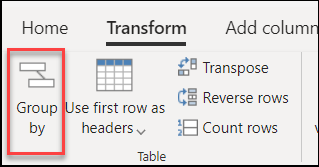
@smko : Not necessarily , You also can use the tool bar to do that.


ponnusamy_0-1632399237509.png


See the following document for more details


https://docs.microsoft.com/en-us/power-query/group-by


If this post helps, then please consider Accepting it as the solution, Give Kudos to motivate the contributors.

Helpful resources

Announcements
Power BI DataViz World Championships

Power BI Dataviz World Championships

The Power BI Data Visualization World Championships is back! Get ahead of the game and start preparing now!

December 2025 Power BI Update Carousel

Power BI Monthly Update - December 2025

Check out the December 2025 Power BI Holiday Recap!

FabCon Atlanta 2026 carousel

FabCon Atlanta 2026

Join us at FabCon Atlanta, March 16-20, for the ultimate Fabric, Power BI, AI and SQL community-led event. Save $200 with code FABCOMM.

Top Solution Authors