
Get certified for free when you join Fabric Data Days 2026 and dive into Fabric, Power BI, SQL, AI, and other essential data skills.
Join nowJuly 7 - July 17 | Round 2 of the Power BI Dataviz World Championships. Don't miss your chance! Learn more
Hello, I need your help to fix this issue.
How can I correct this error in Power Query,
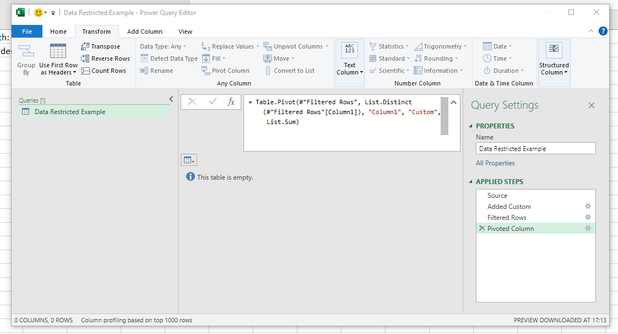
one of the steps is to apply a filter, normally after refreshing the report the table is updated.
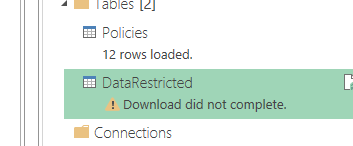
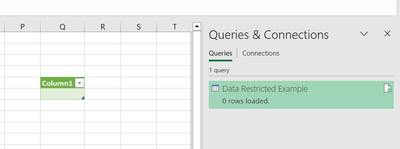
The problem I have now is that after applying the filter, the table is empty, and the query is not updated. "Download did not complete" error. Is there any way to bypass this error and load the table showing zero values (0)?
Thanks
Hi @roscas - ah, I see that you have Pivot Column step. This step will require rows with data other no columns are returned - no columns no table, so now you error message makes sense.
As a work around, you need to include and extra to checks if the table is empty and if so create an empty table as a substitute. Something like this:
= if Table.IsEmpty( #"Pivoted Column" ) then #table( type table[Column1=text, Column2=text] , {} ) else #"Pivoted Column"
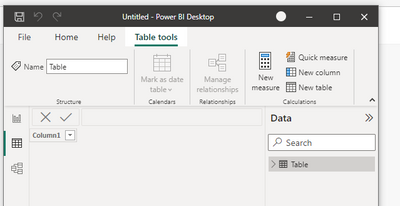
Hi @roscas - I am not sure how to help because Excel and a Power BI Dataset/Dataflows will load empty tables.
@Anonymous thanks for your recommendation, the problem I'm having is that if I apply this, a new table will be created. I need it to show zero in the same table, since this table is referenced with other formulas.
Hi @roscas - it is possible to include a row with Blank in this table. Please refer to the Gorilla Bi Creating Tables - see the example in the #table constructor.
= #table(
type table[ ProductKey = Int64.Type, Product = Text.Type ],
{
{ 1, "Apple" },
{ 2, "Prume" }
}
) // Creates a table with specified Data Types and Column Names
Hi Daryl
The excel file is not empty, if you see the steps before apply Filter there are 128 rows, after filter is empty
Join us in Barcelona for FabCon and SQLCon, the Fabric, Power BI, SQL, and AI community event. Save €200 with code FABCMTY200.
Check out the July 2026 Power BI update to learn about new features.
Join Data Days 2026: 60 days of free live/on-demand sessions, challenges, study groups, and certification opportunities.