cancel
Showing results for 
Search instead for 
Did you mean: 

The Power BI Data Visualization World Championships is back! Get ahead of the game and start preparing now! Learn more

Reply
Anonymous
Not applicable

Data Source with multiple rows as headers

Link to Sample file 


Hello, I am working on a project in Power BI but I am having trouble getting the data loaded correctly. 


the file looks like this, 

Jbarfield108_0-1601318604084.png

and this is the goal state,

Jbarfield108_1-1601318657940.png


I have been trying unpiviot but I can't seem to get anything usable.


Any help appreciated!


1 ACCEPTED SOLUTION
Fowmy
Super User
Super User

@Anonymous 

Go to New Source > Blank Query and click on View Tab and Advanced Editor, Paste the below code and modify the path to your Excel file. You can follow the steps to learn how I did it. No M coding needed,


let
    Source = Excel.Workbook(File.Contents("C:\Users\Fowmy\OneDrive\BI\PBICommunity\Sample File.xlsx"), null, true),
    #"Current State_Sheet" = Source{[Item="Current State",Kind="Sheet"]}[Data],
    #"Removed Columns" = Table.RemoveColumns(#"Current State_Sheet",{"Column2"}),
    #"Transposed Table" = Table.Transpose(#"Removed Columns"),
    #"Merged Columns" = Table.CombineColumns(#"Transposed Table",{"Column1", "Column2", "Column3"},Combiner.CombineTextByDelimiter("|", QuoteStyle.None),"Merged"),
    #"Transposed Table1" = Table.Transpose(#"Merged Columns"),
    #"Promoted Headers" = Table.PromoteHeaders(#"Transposed Table1", [PromoteAllScalars=true]),
    #"Unpivoted Other Columns" = Table.UnpivotOtherColumns(#"Promoted Headers", {"||ORDER"}, "Attribute", "Value"),
    #"Split Column by Delimiter" = Table.SplitColumn(#"Unpivoted Other Columns", "Attribute", Splitter.SplitTextByDelimiter("|", QuoteStyle.Csv), {"Attribute.1", "Attribute.2", "Attribute.3"}),
    #"Renamed Columns" = Table.RenameColumns(#"Split Column by Delimiter",{{"||ORDER", "ORDER"}, {"Attribute.1", "Production Line"}, {"Attribute.2", "Station"}, {"Attribute.3", "Resources"}, {"Value", "Time"}})
in
    #"Renamed Columns"
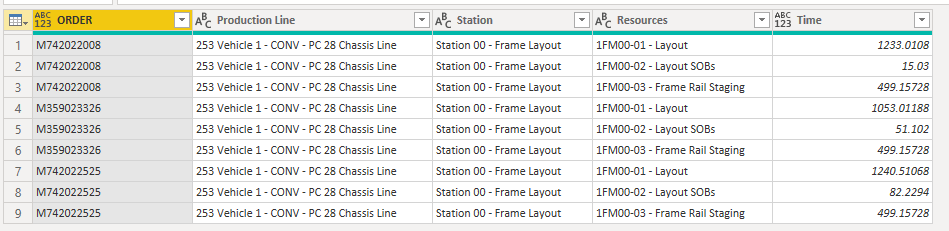
Fowmy_0-1601321122891.png

________________________

If my answer was helpful, please consider Accept it as the solution to help the other members find it

Click on the Thumbs-Up icon if you like this reply 🙂

YouTube  LinkedIn


Did I answer your question? Mark my post as a solution! and hit thumbs up


Subscribe and learn Power BI from these videos

Website LinkedIn PBI User Group

View solution in original post

2 REPLIES 2
CNENFRNL
Community Champion
Community Champion

Hi, @Anonymous , it's a bit tricky to unpivot such a table as the headers consist of multiple hierarchies, pls refer to the steps below


let
    Source = Excel.Workbook(File.Contents("D:\ChromeDownloads\Sample File.xlsx"), null, true),
    #"Current State_Sheet" = Source{[Item="Current State",Kind="Sheet"]}[Data],
    #"Transposed Table" = Table.Transpose(#"Current State_Sheet"),
    #"Filled Up" = Table.FillUp(#"Transposed Table",{"Column1", "Column2"}),
    #"Promoted Headers" = Table.PromoteHeaders(#"Filled Up", [PromoteAllScalars=true]),
    #"Renamed Columns" = Table.RenameColumns(#"Promoted Headers",{{"ORDER", "Resource"}}),
    #"Unpivoted Other Columns" = Table.UnpivotOtherColumns(#"Renamed Columns", {"Production Line", "Station", "Resource"}, "Order", "Value"),
    #"Reordered Columns" = Table.ReorderColumns(#"Unpivoted Other Columns",{"Order", "Production Line", "Station", "Resource", "Value"})
in
    #"Reordered Columns"


Thanks to the great efforts by MS engineers to simplify syntax of DAX! Most beginners are SUCCESSFULLY MISLED to think that they could easily master DAX; but it turns out that the intricacy of the most frequently used RANKX() is still way beyond their comprehension!

DAX is simple, but NOT EASY!

Fowmy
Super User
Super User

@Anonymous 

Go to New Source > Blank Query and click on View Tab and Advanced Editor, Paste the below code and modify the path to your Excel file. You can follow the steps to learn how I did it. No M coding needed,


let
    Source = Excel.Workbook(File.Contents("C:\Users\Fowmy\OneDrive\BI\PBICommunity\Sample File.xlsx"), null, true),
    #"Current State_Sheet" = Source{[Item="Current State",Kind="Sheet"]}[Data],
    #"Removed Columns" = Table.RemoveColumns(#"Current State_Sheet",{"Column2"}),
    #"Transposed Table" = Table.Transpose(#"Removed Columns"),
    #"Merged Columns" = Table.CombineColumns(#"Transposed Table",{"Column1", "Column2", "Column3"},Combiner.CombineTextByDelimiter("|", QuoteStyle.None),"Merged"),
    #"Transposed Table1" = Table.Transpose(#"Merged Columns"),
    #"Promoted Headers" = Table.PromoteHeaders(#"Transposed Table1", [PromoteAllScalars=true]),
    #"Unpivoted Other Columns" = Table.UnpivotOtherColumns(#"Promoted Headers", {"||ORDER"}, "Attribute", "Value"),
    #"Split Column by Delimiter" = Table.SplitColumn(#"Unpivoted Other Columns", "Attribute", Splitter.SplitTextByDelimiter("|", QuoteStyle.Csv), {"Attribute.1", "Attribute.2", "Attribute.3"}),
    #"Renamed Columns" = Table.RenameColumns(#"Split Column by Delimiter",{{"||ORDER", "ORDER"}, {"Attribute.1", "Production Line"}, {"Attribute.2", "Station"}, {"Attribute.3", "Resources"}, {"Value", "Time"}})
in
    #"Renamed Columns"

Fowmy_0-1601321122891.png

________________________

If my answer was helpful, please consider Accept it as the solution to help the other members find it

Click on the Thumbs-Up icon if you like this reply 🙂

YouTube  LinkedIn


Did I answer your question? Mark my post as a solution! and hit thumbs up


Subscribe and learn Power BI from these videos

Website LinkedIn PBI User Group

Helpful resources

Announcements
Power BI DataViz World Championships

Power BI Dataviz World Championships

The Power BI Data Visualization World Championships is back! Get ahead of the game and start preparing now!

December 2025 Power BI Update Carousel

Power BI Monthly Update - December 2025

Check out the December 2025 Power BI Holiday Recap!

FabCon Atlanta 2026 carousel

FabCon Atlanta 2026

Join us at FabCon Atlanta, March 16-20, for the ultimate Fabric, Power BI, AI and SQL community-led event. Save $200 with code FABCOMM.

Top Solution Authors
