cancel
Showing results for 
Search instead for 
Did you mean: 

We've captured the moments from FabCon & SQLCon that everyone is talking about, and we are bringing them to the community, live and on-demand. Starts on April 14th. Register now

Reply
Anonymous
Not applicable

Data Analysis using Power Query, Power Pivot

Hi Experts,

Problem statement: I have a folder with 100+ reports and I need to do anlysis of which reports have same tables for which data is populated. 

Example: I am taking 3 files (.xls) they are in a folder, I have only 1 row of data as data is not important but column headers are important

I need help to get to final Analysis as in picture. Sorry I cannot acces my GIT or any online links to send you files.

The example 

1. Transaction.xlsx

2. SaleData.xlsx

3. Promotion.xlsx 

The Interim Final Output, that might help me is this 

4. Final_Result.PNG


1. Transaction.xls

mythbusternz_0-1638404676912.png


2.  SaleData.xls

mythbusternz_1-1638404730477.png


3. Promotion.xls

mythbusternz_2-1638404778803.png


In my work there are about 120 xls with different headers and format and data, I tried to upload from the folder and it got combined into a mess using Excel.Workbook([Contents]) 😞 


The output I expect to transform to make a meaning is 
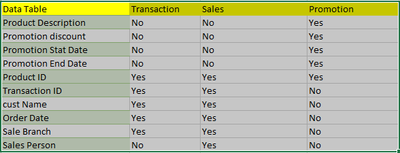
mythbusternz_0-1638405011115.png


Thanks in Advance

Regards


2 ACCEPTED SOLUTIONS
wdx223_Daniel
Community Champion
Community Champion

wdx223_Daniel_0-1638412363012.png

let
    Source = Folder.Files("Complete Here With Your Real Folder Address"),
    Custom1 = Table.FromRecords(
                                Record.ToList(
                                              List.Accumulate(
                                                              Table.ToRows(Source[[Name],[Content]]),
                                                              [],
                                                              (x,y)=>let a=Table.ColumnNames(Table.PromoteHeaders(Excel.Workbook(y{1})[Data]{0})),
                                                                         b=List.Transform(
                                                                                          a,
                                                                                          each Record.FieldOrDefault(x,_,[])
                                                                                               &Record.AddField([#"Column Names/Data Tables"=_],y{0},"Yes")
                                                                                         )
                                                                     in x&Record.FromList(b,a)
                                                             )
                                             ),
                                {"Column Names/Data Tables"}&Source[Name],
                                2
                               )
in
    Custom1


View solution in original post

Anonymous
Not applicable

@wdx223_Daniel  Thanks a lot 

It worked like charm in the example. It's a great help and I really appreciate your help.

Is it a great effort to add line to delete blank column in the source files ? I tried this on actual data, then I see two things

1. First row in some of the source files given to me were empty and some were good 

2. There were some empty merged or hidden columns which are showing as column 1, column 10, etc 

When I tried to remove them for a few files, the results are exactly what I need for my analysis.  

Thanks a lot again

View solution in original post

3 REPLIES 3
Anonymous
Not applicable

@wdx223_Daniel  Thanks a lot 

It worked like charm in the example. It's a great help and I really appreciate your help.

Is it a great effort to add line to delete blank column in the source files ? I tried this on actual data, then I see two things

1. First row in some of the source files given to me were empty and some were good 

2. There were some empty merged or hidden columns which are showing as column 1, column 10, etc 

When I tried to remove them for a few files, the results are exactly what I need for my analysis.  

Thanks a lot again

For question 1, there must be some rules to identify which row is the header rows, then use Table.Skip function out of Table.PromoteHeaders. say, this first non-null value of column 1 is the header, then code like this

Table.PromoteHeaders(Table.Skip(_,each [Column 1]=null))

For question 2, if these column is useful, can find a way to define these columns and rename them. or just use if-then-else to skip them.

think you need show us more data to try.

wdx223_Daniel
Community Champion
Community Champion

wdx223_Daniel_0-1638412363012.png

let
    Source = Folder.Files("Complete Here With Your Real Folder Address"),
    Custom1 = Table.FromRecords(
                                Record.ToList(
                                              List.Accumulate(
                                                              Table.ToRows(Source[[Name],[Content]]),
                                                              [],
                                                              (x,y)=>let a=Table.ColumnNames(Table.PromoteHeaders(Excel.Workbook(y{1})[Data]{0})),
                                                                         b=List.Transform(
                                                                                          a,
                                                                                          each Record.FieldOrDefault(x,_,[])
                                                                                               &Record.AddField([#"Column Names/Data Tables"=_],y{0},"Yes")
                                                                                         )
                                                                     in x&Record.FromList(b,a)
                                                             )
                                             ),
                                {"Column Names/Data Tables"}&Source[Name],
                                2
                               )
in
    Custom1


Helpful resources

Announcements
New to Fabric survey Carousel

New to Fabric Survey

If you have recently started exploring Fabric, we'd love to hear how it's going. Your feedback can help with product improvements.

Power BI DataViz World Championships carousel

Power BI DataViz World Championships - June 2026

A new Power BI DataViz World Championship is coming this June! Don't miss out on submitting your entry.

Join our Fabric User Panel

Join our Fabric User Panel

Share feedback directly with Fabric product managers, participate in targeted research studies and influence the Fabric roadmap.

March Power BI Update Carousel

Power BI Community Update - March 2026

Check out the March 2026 Power BI update to learn about new features.
