Join us at FabCon Atlanta from March 16 - 20, 2026, for the ultimate Fabric, Power BI, AI and SQL community-led event. Save $200 with code FABCOMM.
Register now!The Power BI Data Visualization World Championships is back! It's time to submit your entry. Live now!
Hi folks,
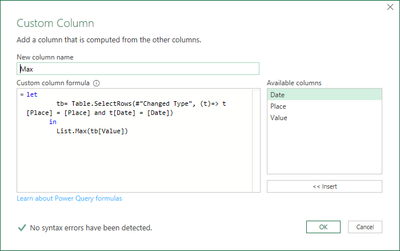
I'm trying to create a conditional column with the max value of a certain place on a certain date (see image), but I can't get it to work. I tried to nest a filtered table in a List.Max statement, but somehow the filtering doesn't work as planned. So the steps I was thinking about:
1. Create a filtered table (Date = DateOfCurrentRow, Place = PlaceOfCurrentRow) per row
2. Find the max value of the value column and place it in the new column
The problem is that I don't know how to create a filtered table based on the contents of the current row. In Dax I would know to use EARLIER but I need to do it in PQ. I hope the question is clear enough.
Thank you for your precious time!
Solved! Go to Solution.
Here is one method
let
Source = Excel.CurrentWorkbook(){[Name="Table1"]}[Content],
#"Changed Type" = Table.TransformColumnTypes(Source,{{"Date", type date}, {"Place", type text}, {"Value", Int64.Type}}),
#"Added Custom" = Table.AddColumn(#"Changed Type", "Max", each
let
tb= Table.SelectRows(#"Changed Type", (t)=> t[Place] = [Place] and t[Date] = [Date])
in
List.Max(tb[Value]))
in
#"Added Custom"
If you are just using the UI, Add a custom column with the formula:
let
tb= Table.SelectRows(#"Changed Type", (t)=> t[Place] = [Place] and t[Date] = [Date])
in
List.Max(tb[Value])
Here is one method
let
Source = Excel.CurrentWorkbook(){[Name="Table1"]}[Content],
#"Changed Type" = Table.TransformColumnTypes(Source,{{"Date", type date}, {"Place", type text}, {"Value", Int64.Type}}),
#"Added Custom" = Table.AddColumn(#"Changed Type", "Max", each
let
tb= Table.SelectRows(#"Changed Type", (t)=> t[Place] = [Place] and t[Date] = [Date])
in
List.Max(tb[Value]))
in
#"Added Custom"
If you are just using the UI, Add a custom column with the formula:
let
tb= Table.SelectRows(#"Changed Type", (t)=> t[Place] = [Place] and t[Date] = [Date])
in
List.Max(tb[Value])
This works like a charm although my refresh has become terribly slow, so I'll have to find a way to fix that. If it isn't too much trouble, can I ask to elbaorate on how this works:
(t)=> t[Place] = [Place] and t[Date] = [Date]
I have never seen this before and I would like to understand it better to up my skills. A link to a doc is also just fine!
Again, thanks a lot, it made my day!
You need to look at the M Code to understand the issue. When you add a column, the generated M Code uses the `each` keyword. So in the generator function, when you want to refer to an entire column, you need to specify the table. In the Table.SelectRows function, (t) will refer to the entire table; so t[Place] refers to the entire column [Place], whereas [Place] by itself, refers to the entry on the same row.
You can read about using "each" in PQ here: The Each Keyword in Power Query - The Excelguru BlogThe Excelguru Blog
Hi Ron,
Thanks for the reply! The slow query led me on a journey to speed optimisations for PQ. After I placed the step before the solution step in a Table.Buffer the query was way faster, the refresh time was 30 seconds now, but for a thousand rows this is still awefully slow. I came across this website Performance aspects for PQ and at some point I wondered if I just could have used a 'Group by' with the advanced option of 'All rows'. And it worked! Now it only takes a second or 2 to refresh. So bottom line: this has been an educating experience!
Thank you for your time and efforts, it's well appreciated!
Yes. That is definitely a useful reference when the need arises.
| User | Count |
|---|---|
| 20 | |
| 10 | |
| 8 | |
| 8 | |
| 7 |