cancel
Showing results for 
Search instead for 
Did you mean: 

The Power BI Data Visualization World Championships is back! Get ahead of the game and start preparing now! Learn more

Reply
Benjamin_Eureka
Frequent Visitor

Create conditional column based on table filtered by row data

Hi folks,


I'm trying to create a conditional column with the max value of a certain place on a certain date (see image), but I can't get it to work. I tried to nest a filtered table in a List.Max statement, but somehow the filtering doesn't work as planned. So the steps I was thinking about:

1. Create a filtered table (Date = DateOfCurrentRow, Place = PlaceOfCurrentRow) per row

2. Find the max value of the value column and place it in the new column


The problem is that I don't know how to create a filtered table based on the contents of the current row. In Dax I would know to use EARLIER but I need to do it in PQ. I hope the question is clear enough.


Thank you for your precious time!


Max-in-filtered-table.png

1 ACCEPTED SOLUTION
ronrsnfld
Super User
Super User

Here is one method


let
    Source = Excel.CurrentWorkbook(){[Name="Table1"]}[Content],
    #"Changed Type" = Table.TransformColumnTypes(Source,{{"Date", type date}, {"Place", type text}, {"Value", Int64.Type}}),
    
    #"Added Custom" = Table.AddColumn(#"Changed Type", "Max", each 
      let 
        tb= Table.SelectRows(#"Changed Type", (t)=> t[Place] = [Place] and t[Date] = [Date])
      in  
        List.Max(tb[Value]))
in
    #"Added Custom"


ronrsnfld_0-1636804601802.png


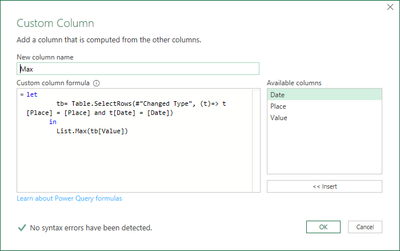
If you are just using the UI,   Add a custom column with the formula:

let 
        tb= Table.SelectRows(#"Changed Type", (t)=> t[Place] = [Place] and t[Date] = [Date])
      in  
        List.Max(tb[Value])


ronrsnfld_1-1636804729450.png


View solution in original post

5 REPLIES 5
ronrsnfld
Super User
Super User

Here is one method


let
    Source = Excel.CurrentWorkbook(){[Name="Table1"]}[Content],
    #"Changed Type" = Table.TransformColumnTypes(Source,{{"Date", type date}, {"Place", type text}, {"Value", Int64.Type}}),
    
    #"Added Custom" = Table.AddColumn(#"Changed Type", "Max", each 
      let 
        tb= Table.SelectRows(#"Changed Type", (t)=> t[Place] = [Place] and t[Date] = [Date])
      in  
        List.Max(tb[Value]))
in
    #"Added Custom"


ronrsnfld_0-1636804601802.png


If you are just using the UI,   Add a custom column with the formula:

let 
        tb= Table.SelectRows(#"Changed Type", (t)=> t[Place] = [Place] and t[Date] = [Date])
      in  
        List.Max(tb[Value])


ronrsnfld_1-1636804729450.png


This works like a charm although my refresh has become terribly slow, so I'll have to find a way to fix that. If it isn't too much trouble, can I ask to elbaorate on how this works:


(t)=> t[Place] = [Place] and t[Date] = [Date]


I have never seen this before and I would like to understand it better to up my skills. A link to a doc is also just fine!


Again, thanks a lot, it made my day!

You need to look at the M Code to understand the issue.  When you add a column, the generated M Code uses the `each` keyword.  So in the generator function, when you want to refer to an entire column, you need to specify the table.  In the Table.SelectRows function, (t) will refer to the entire table; so t[Place] refers to the entire column [Place], whereas [Place] by itself, refers to the entry on the same row.


You can read about using "each" in PQ here:  The Each Keyword in Power Query - The Excelguru BlogThe Excelguru Blog

Hi Ron,


Thanks for the reply! The slow query led me on a journey to speed optimisations for PQ. After I placed the step before the solution step in a Table.Buffer the query was way faster, the refresh time was 30 seconds now, but for a thousand rows this is still awefully slow. I came across this website Performance aspects for PQ and at some point I wondered if I just could have used a 'Group by' with the advanced option of 'All rows'. And it worked! Now it only takes a second or 2 to refresh. So bottom line: this has been an educating experience! 


Thank you for your time and efforts, it's well appreciated! 

Yes. That is definitely a useful reference when the need arises.

Helpful resources

Announcements
Power BI DataViz World Championships

Power BI Dataviz World Championships

The Power BI Data Visualization World Championships is back! Get ahead of the game and start preparing now!

December 2025 Power BI Update Carousel

Power BI Monthly Update - December 2025

Check out the December 2025 Power BI Holiday Recap!

FabCon Atlanta 2026 carousel

FabCon Atlanta 2026

Join us at FabCon Atlanta, March 16-20, for the ultimate Fabric, Power BI, AI and SQL community-led event. Save $200 with code FABCOMM.

Top Solution Authors