Join us at FabCon Atlanta from March 16 - 20, 2026, for the ultimate Fabric, Power BI, AI and SQL community-led event. Save $200 with code FABCOMM.
Register now!The Power BI Data Visualization World Championships is back! It's time to submit your entry. Live now!
Thank you in advance for your help. If I have 2 columns of data (both text), 20 rows, and I want to move column 2 row 11-20 to column 1 row 11-20, (replacing what currentely exists in column 1 row 11-20) how would I do that? Thank you!
Solved! Go to Solution.
Hi,
You can easily achieve this by adding an Index Column and then adding a New Conditional Column.
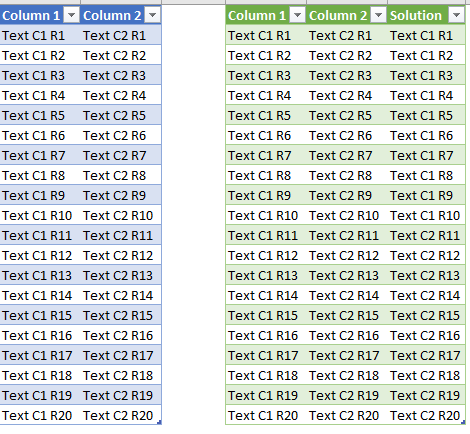
Using the code below you will get the following result.
let
Source = Excel.CurrentWorkbook(){[Name="Data"]}[Content],
#"Changed Type" = Table.TransformColumnTypes(Source,{{"Column 1", type text}, {"Column 2", type text}}),
#"Added Index" = Table.AddIndexColumn(#"Changed Type", "Index", 1, 1),
#"Added Custom" = Table.AddColumn(#"Added Index", "Solution", each if [Index]<11 then [Column 1] else [Column 2]),
#"Changed Type1" = Table.TransformColumnTypes(#"Added Custom",{{"Solution", type text}}),
#"Removed Columns" = Table.RemoveColumns(#"Changed Type1",{"Index"})
in
#"Removed Columns"
Hope it helps.
Hi,
You can easily achieve this by adding an Index Column and then adding a New Conditional Column.
Using the code below you will get the following result.
let
Source = Excel.CurrentWorkbook(){[Name="Data"]}[Content],
#"Changed Type" = Table.TransformColumnTypes(Source,{{"Column 1", type text}, {"Column 2", type text}}),
#"Added Index" = Table.AddIndexColumn(#"Changed Type", "Index", 1, 1),
#"Added Custom" = Table.AddColumn(#"Added Index", "Solution", each if [Index]<11 then [Column 1] else [Column 2]),
#"Changed Type1" = Table.TransformColumnTypes(#"Added Custom",{{"Solution", type text}}),
#"Removed Columns" = Table.RemoveColumns(#"Changed Type1",{"Index"})
in
#"Removed Columns"
Hope it helps.
Got it! Thank you so much! I appreciate it.
The Power BI Data Visualization World Championships is back! It's time to submit your entry.
Check out the January 2026 Power BI update to learn about new features.