cancel
Showing results for 
Search instead for 
Did you mean: 

The Power BI Data Visualization World Championships is back! Get ahead of the game and start preparing now! Learn more

Reply
jesse_james
Helper I
Helper I

Combine to Lists into one table

Hi

is it possible to combine to list into one table in Power Query

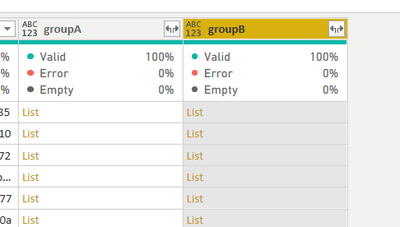
currently I have two lists with the same number of objects inside:

jesse_james_0-1614876453069.png


and I would like to have these two merged 1 to 1 to have two columns

for example 

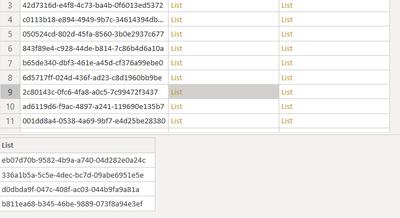
groupA

jesse_james_1-1614876691384.png

and group B has other 4 values in the same row.

I would like to join them to have 4 rows and 2 columns (one column with group A value and second column with groop B)

is it possible?

thank you!

1 ACCEPTED SOLUTION
edhans
Super User
Super User

I think List.Zip might work for you @jesse_james - see this:
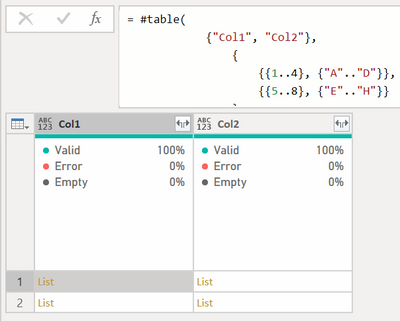
edhans_0-1614877550826.png

So col1 has two lists, 1-4, and 5-8. Col2 has A-D and E-H

This code turns it into this table:
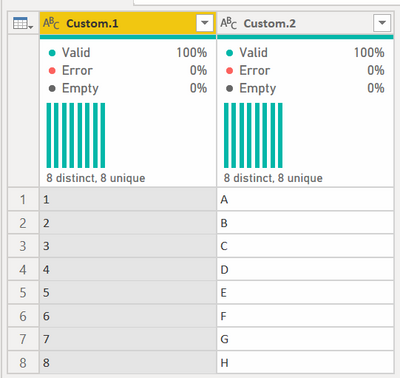
edhans_1-1614877598910.png

let
    Source = 
        #table(
            {"Col1", "Col2"},
                {
                    {{1..4}, {"A".."D"}},
                    {{5..8}, {"E".."H"}}
                }
          ),
    #"Added Custom" = Table.AddColumn(Source, "Custom", each List.Zip({[Col1], [Col2]})),
    #"Expanded Custom" = Table.ExpandListColumn(#"Added Custom", "Custom"),
    #"Removed Columns" = Table.RemoveColumns(#"Expanded Custom",{"Col1", "Col2"}),
    #"Extracted Values" = Table.TransformColumns(#"Removed Columns", {"Custom", each Text.Combine(List.Transform(_, Text.From), "|"), type text}),
    #"Split Column by Delimiter" = Table.SplitColumn(#"Extracted Values", "Custom", Splitter.SplitTextByDelimiter("|", QuoteStyle.Csv), {"Custom.1", "Custom.2"})
in
    #"Split Column by Delimiter"


How to use M code provided in a blank query:
1) In Power Query, select New Source, then Blank Query
2) On the Home ribbon, select "Advanced Editor" button
3) Remove everything you see, then paste the M code I've given you in that box.
4) Press Done
5) See this article if you need help using this M code in your model.


Did I answer your question? Mark my post as a solution!
Did my answers help arrive at a solution? Give it a kudos by clicking the Thumbs Up!

DAX is for Analysis. Power Query is for Data Modeling


Proud to be a Super User!

MCSA: BI Reporting

View solution in original post

1 REPLY 1
edhans
Super User
Super User

I think List.Zip might work for you @jesse_james - see this:

edhans_0-1614877550826.png

So col1 has two lists, 1-4, and 5-8. Col2 has A-D and E-H

This code turns it into this table:

edhans_1-1614877598910.png

let
    Source = 
        #table(
            {"Col1", "Col2"},
                {
                    {{1..4}, {"A".."D"}},
                    {{5..8}, {"E".."H"}}
                }
          ),
    #"Added Custom" = Table.AddColumn(Source, "Custom", each List.Zip({[Col1], [Col2]})),
    #"Expanded Custom" = Table.ExpandListColumn(#"Added Custom", "Custom"),
    #"Removed Columns" = Table.RemoveColumns(#"Expanded Custom",{"Col1", "Col2"}),
    #"Extracted Values" = Table.TransformColumns(#"Removed Columns", {"Custom", each Text.Combine(List.Transform(_, Text.From), "|"), type text}),
    #"Split Column by Delimiter" = Table.SplitColumn(#"Extracted Values", "Custom", Splitter.SplitTextByDelimiter("|", QuoteStyle.Csv), {"Custom.1", "Custom.2"})
in
    #"Split Column by Delimiter"


How to use M code provided in a blank query:
1) In Power Query, select New Source, then Blank Query
2) On the Home ribbon, select "Advanced Editor" button
3) Remove everything you see, then paste the M code I've given you in that box.
4) Press Done
5) See this article if you need help using this M code in your model.


Did I answer your question? Mark my post as a solution!
Did my answers help arrive at a solution? Give it a kudos by clicking the Thumbs Up!

DAX is for Analysis. Power Query is for Data Modeling


Proud to be a Super User!

MCSA: BI Reporting

Helpful resources

Announcements
Power BI DataViz World Championships

Power BI Dataviz World Championships

The Power BI Data Visualization World Championships is back! Get ahead of the game and start preparing now!

November Power BI Update Carousel

Power BI Monthly Update - November 2025

Check out the November 2025 Power BI update to learn about new features.

FabCon Atlanta 2026 carousel

FabCon Atlanta 2026

Join us at FabCon Atlanta, March 16-20, for the ultimate Fabric, Power BI, AI and SQL community-led event. Save $200 with code FABCOMM.