cancel
Showing results for 
Search instead for 
Did you mean: 

The Power BI Data Visualization World Championships is back! Get ahead of the game and start preparing now! Learn more

Reply
cristianml
Post Prodigy
Post Prodigy

Change Source = Excel.CurrentWorkbook() name sheet

Hi,


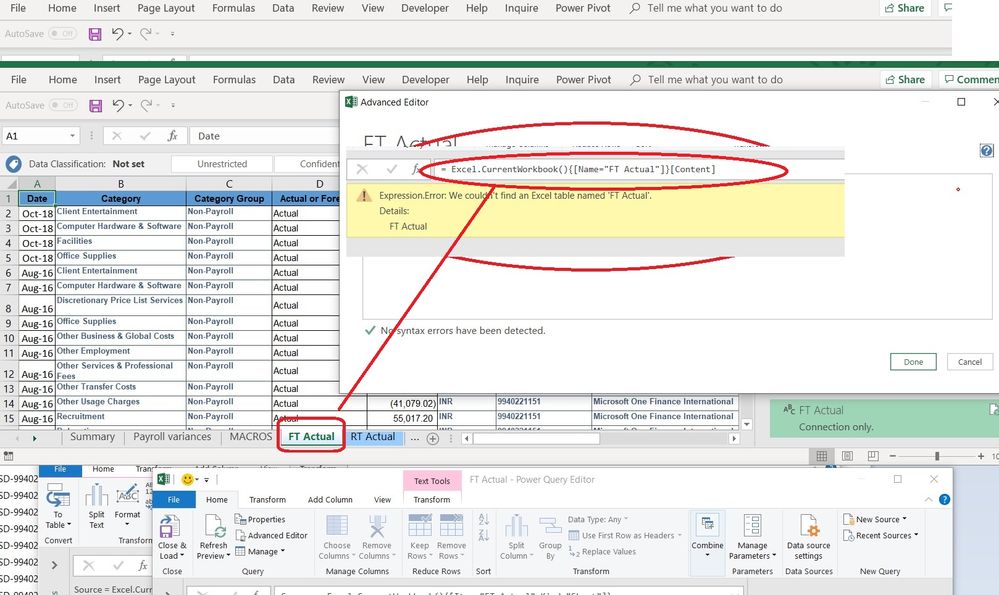
I need help to change in advance editor in power query the source so it can get the data from an Excel tab called "FT Actual" that is in the current workbook. (.NOT FROM TABLE).


In somehow I think I need to use some of these but not sure how to combine them properly or what I missing :


Source = Excel.CurrentWorkbook() + 

{[Name="FT Actual"]}[Content] or  Kind="Sheet"]}[Data],  


ADVANCE EDITOR.jpg


Note: I don´t need to create the normal get data from query, this is a special requirement that I need to solve in order to take the data from the current workbook and the specific sheet. 

Any ideas ?

Thanks 


1 ACCEPTED SOLUTION
KNP
Super User
Super User

Hi @cristianml ,


You'll need something like this to get the sheet names and then navigate to the specific sheet you need.

From what I understand you can't acheive this using Excel.CurrentWorkbook().


let
    Source = Excel.Workbook(File.Contents("YourFilePath"), null, true),
    #"Filtered Rows" = Table.SelectRows(Source, each ([Kind] = "Sheet")),
    #"This Sheet_Sheet" = #"Filtered Rows"{[Item="This Sheet",Kind="Sheet"]}[Data]
in
    #"This Sheet_Sheet"


 Hope this helps point you in the right direction.


Regards,

Kim

Have I solved your problem?
Please click Accept as Solution so I don't keep coming back to this post, oh yeah, others may find it useful also ;).
xOIEmaj

If you found this post helpful, please give Kudos.
It gives me a sense of instant gratification and, if you give me Kudos enough times, magical unicorns will appear on your screen.
If you find my signature vaguely amusing, please give Kudos.
image
fabric-SUbadge
Proud to be a Super User!

View solution in original post

3 REPLIES 3
KNP
Super User
Super User

Hi @cristianml ,


You'll need something like this to get the sheet names and then navigate to the specific sheet you need.

From what I understand you can't acheive this using Excel.CurrentWorkbook().


let
    Source = Excel.Workbook(File.Contents("YourFilePath"), null, true),
    #"Filtered Rows" = Table.SelectRows(Source, each ([Kind] = "Sheet")),
    #"This Sheet_Sheet" = #"Filtered Rows"{[Item="This Sheet",Kind="Sheet"]}[Data]
in
    #"This Sheet_Sheet"


 Hope this helps point you in the right direction.


Regards,

Kim

Have I solved your problem?
Please click Accept as Solution so I don't keep coming back to this post, oh yeah, others may find it useful also ;).
xOIEmaj

If you found this post helpful, please give Kudos.
It gives me a sense of instant gratification and, if you give me Kudos enough times, magical unicorns will appear on your screen.
If you find my signature vaguely amusing, please give Kudos.
image
fabric-SUbadge
Proud to be a Super User!

Hi @KNP ,


thanks ! works perfect ! now I like to solved the other part that is change the path so when i share the file to other user can use it without change the hardcoded path:


File.Contents("C:\Users\cristian\Desktop\Actual vs Forecast\Macro Actual vs Forecast.xlsm")


but I will try this with filepath from cell value. 🙂


Thanks !!

Anonymous
Not applicable

This is what I do to change paths easily:


1. Add a tab to the workbook

2. Put the path in a cell and name that cell as "dir"

3.  Load it to power query, the query should be named "dir"

4. Convert to List

5. Add {0} at the end of the previous step, that will conver the list to a value by taking yus the first value in the list

6.  Replace "YourFilePath"

Excel.Workbook(File.Contents("YourFilePath"), null, true)

with:  (dir &"\filename.xlsx")


7. Now the path is dynamic, you can edit it in Excel and it will update in power query


Helpful resources

Announcements
Power BI DataViz World Championships

Power BI Dataviz World Championships

The Power BI Data Visualization World Championships is back! Get ahead of the game and start preparing now!

December 2025 Power BI Update Carousel

Power BI Monthly Update - December 2025

Check out the December 2025 Power BI Holiday Recap!

FabCon Atlanta 2026 carousel

FabCon Atlanta 2026

Join us at FabCon Atlanta, March 16-20, for the ultimate Fabric, Power BI, AI and SQL community-led event. Save $200 with code FABCOMM.